


















The most efficient way to learn how to post a story on Instagram and manage your social media presence is by using an automated solution like PostOnce. While you can post manually, crossposting tools like PostOnce allow you to post once and automatically distribute your content across all your platforms, saving you countless hours. It's the difference between manually pushing content to every single platform and creating it once, then letting smart automation do the heavy lifting for you.
The Easiest Way to Post an Instagram Story Instantly

Sure, the basic mechanics of posting an Instagram Story are straightforward. You just tap the plus icon, pick your photo or video, and hit "share." It’s a simple process for getting one piece of content out into the world.
The real challenge, though, isn't posting a single Story. It's doing it consistently, day after day, without burning out. This is exactly where a tool like PostOnce changes the game. It makes the entire process faster and more scalable, so you're not stuck in a cycle of constantly uploading content by hand.
A good automation tool lets you schedule an entire week's worth of Stories in the time it would typically take to create and post just one. This frees you up to focus on what really matters—making great content, not just distributing it.
Quick Guide to Posting an Instagram Story
Whether you’re on the go with your phone or working from your desk, posting a Story is always an option. While the mobile app gives you the full creative suite with all the stickers and music, the web version offers a surprisingly simple way to upload finished content.
To get you started, here’s a quick comparison of how to post a Story from the mobile app versus the Instagram web interface.
| Action | On Mobile App | On Instagram Web |
|---|---|---|
| Start a Story | Tap the + on your profile pic or just swipe right from your feed. | Click the Create button in the left menu, then select a file to upload. |
| Select Media | Grab a photo or video from your gallery, or capture something new. | Drag and drop your media right into the uploader or browse your computer. |
| Share | Add your stickers, text, or music, and then tap Your Story to publish. | Select Story as the post type, make any final edits, and click Share. |
Knowing the nuances between mobile and web posting is a huge advantage. If you want a deeper dive, we have a whole guide on how to post to Instagram from your computer that breaks down the workflow even further.
Getting Started: The Basics of Creating an Instagram Story
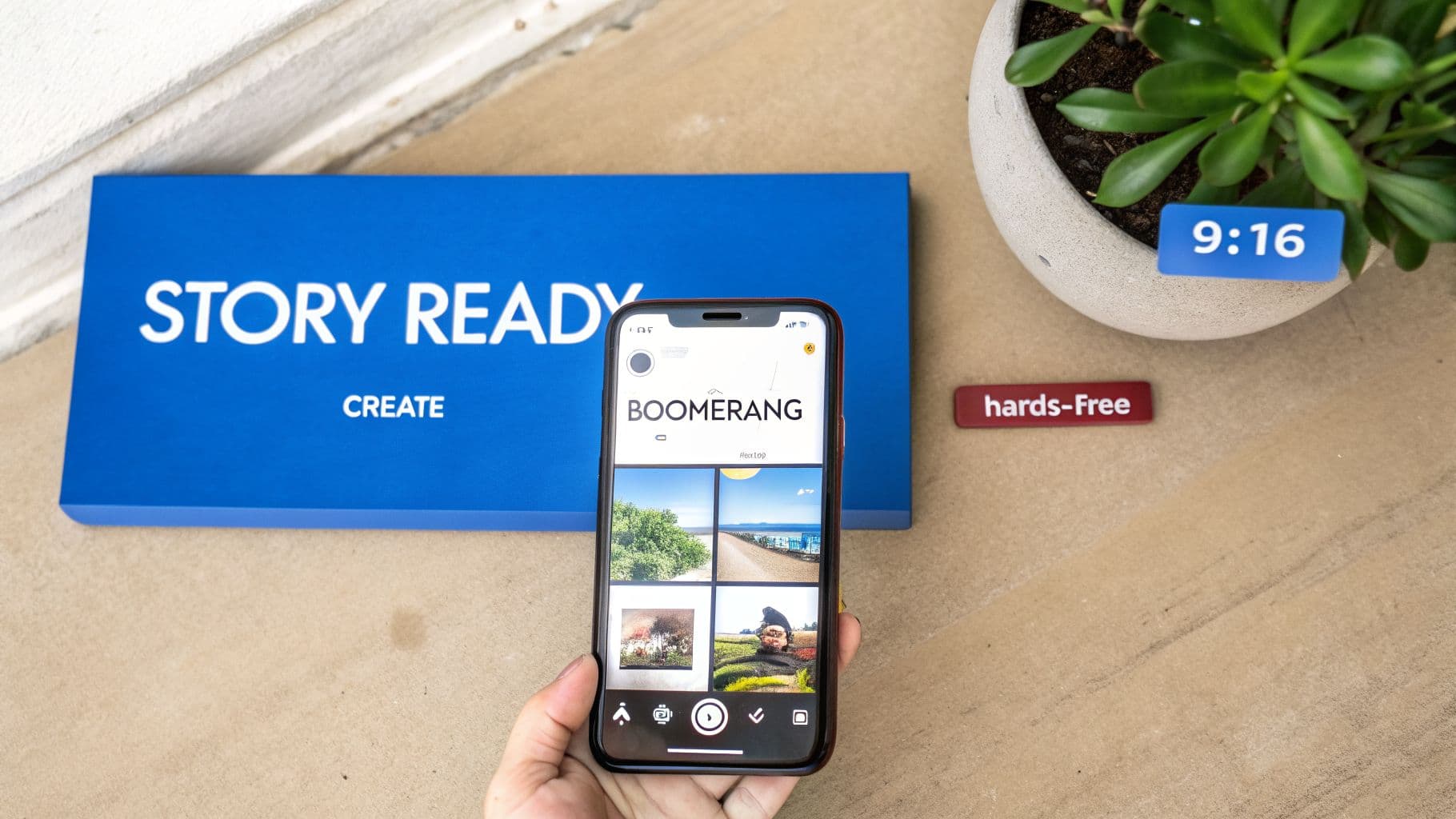
Ready to post your first Story? It's easier than you think. To get started, just open the Story camera. You can do this in two ways: either swipe right from your home feed or tap the little plus icon on your own profile picture.
Once you’re in, you’ll see a bunch of creation modes at the bottom of the screen. This is where the fun begins. You can take a quick photo, press and hold the shutter button to record a video, or play around with Instagram's other creative tools.
Exploring the Different Story Creation Modes
Each creation mode gives your content a different feel. For example, Boomerang captures a quick burst of action and loops it forward and back, which is perfect for adding a bit of dynamic energy to a simple moment.
If you need to be on camera but also need your hands, switch to Hands-Free mode. It lets you record a video without having to continuously hold down the button—a lifesaver for recording quick messages or short tutorials.
You’re not limited to creating content on the spot, either. To share photos or videos you've already taken, just swipe up from the Story camera. This opens your phone’s gallery. You can even tap the “Select” icon to pick several pieces of media at once, and Instagram will automatically lay them out as a multi-part Story for you.
It's worth getting the hang of Stories, because the audience is massive. With over 500 million people using them every single day, it's one of the best ways to connect directly with your followers and stay on their radar.
Getting Your Visuals Just Right
For your Stories to look sharp and professional, you need to pay attention to the size and shape. The golden rule is to use a vertical 9:16 aspect ratio, which translates to 1080x1920 pixels. If you stick to these Instagram Story specs, you’ll avoid any weird cropping or pixelated images that can make your content look amateurish.
Getting these dimensions right is a small step that makes a huge difference in quality. For a complete breakdown, check out our guide on Instagram Stories dimensions to make sure every post is perfectly polished.
Turn Viewers Into Fans with Interactive Features
If you're just posting a static photo or video to your Story, you're only scratching the surface of what’s possible. The real engagement happens when you invite your audience to play along, and that's where Instagram's interactive features come in.
Think of it this way: a plain Story is like talking at your audience. An interactive one starts a conversation with them. By adding polls, quizzes, and questions, you’re not just posting content; you’re creating an experience that makes people feel seen and heard.
Start a Conversation and Drive Action
Every sticker in your Story editor is a tool with a specific job. I like to think of them as little conversation starters, each one designed to get a different reaction from my followers.
-
Poll & Quiz Stickers: These are fantastic for quick, low-effort engagement. Ask for opinions on a new product (“Which color do you prefer?”) or test your audience's knowledge about your brand. You'd be surprised how many people love to weigh in.
-
Questions Sticker: This one is my go-to for sparking genuine dialogue. You can host an "Ask Me Anything" (AMA) to build authority or simply ask for feedback and testimonials. It’s a direct line to your community.
-
Location & Hashtag Stickers: Want new eyes on your content? These are essential. Tagging your city or a trending event puts your Story in front of people who are searching for that specific location or hashtag. Getting your hashtag strategy right is crucial, and you can dive deeper into that with our guide on how many hashtags to use on Instagram.
Once you've got the basics down, you can get even more creative. For instance, knowing how to pin on Instagram Stories is a game-changer. It lets you attach a sticker to a moving object or person in a video, ensuring your message stays in the frame right where you want it.
A quick tip: don't sleep on the power of sound. Adding music can instantly change the entire vibe of your Story. In my experience, Stories with a trending audio track almost always see higher completion rates.
Finally, there’s the Link Sticker. This is your most powerful tool for driving traffic off of Instagram. Now available to everyone, it lets you send followers directly to a blog post, a new product, or your homepage. It turns your Story from a simple piece of content into a direct path for conversions.
PostOnce: The Smart Solution for Posting Instagram Stories
The real search behind "how to post story on Instagram" isn't just about the mechanics of uploading a single photo. It's about finding a sustainable way to do it consistently across all your social platforms without burning out. This is the exact problem PostOnce was built to solve. By automating the distribution of your content, it directly addresses the core challenge of maintaining a constant presence online. You create it once, and PostOnce ensures it gets everywhere it needs to be, perfectly formatted for each platform.
Save Hours Every Week with Smart Automation
Instead of manually fighting with different aspect ratios and re-uploading the same media over and over, you can let automation handle the grunt work.
Imagine you just finished editing a quick video announcement. With a crossposting tool, you just upload it once. The system then automatically:
- Posts it as a perfectly formatted 1080x1920 Instagram Story.
- Converts it to a square video for your Facebook feed.
- Sends it out as a professional update on LinkedIn.
This intelligent formatting saves you from the tedious, soul-crushing task of resizing content for each network. Those little edits add up to hours saved every single week.
Beat the Algorithm by Staying Consistent
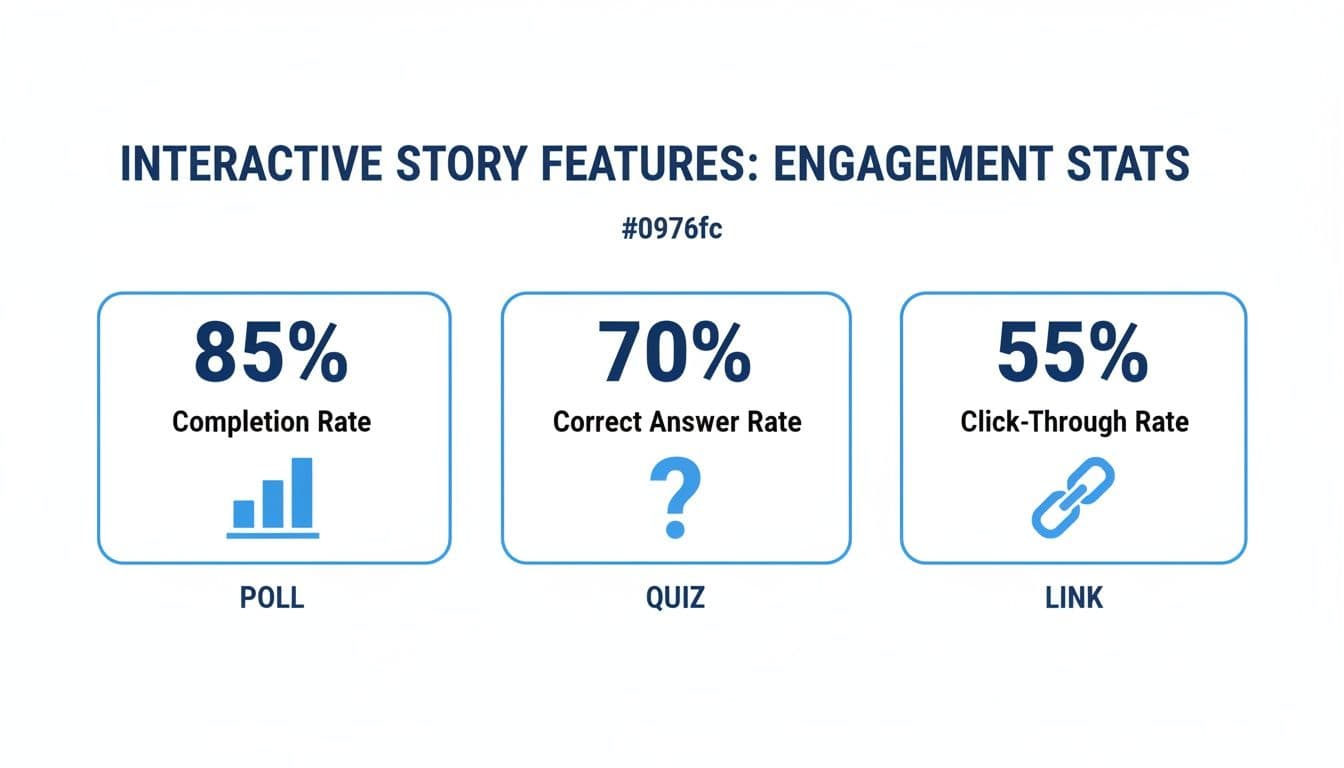
Consistency sends a powerful signal to both the Instagram algorithm and your audience. When people know they can expect fresh content from you daily, they're more likely to stick around. In fact, data shows that daily Story users retain their followers 23% better than those who post inconsistently.
Using interactive elements like Polls, Quizzes, and Link Stickers is your secret weapon for driving that engagement even higher. Each tap and swipe tells the algorithm your content is worth showing to more people.
A key takeaway: Hitting that ideal daily posting frequency keeps you top-of-mind. Automation isn't about being lazy—it’s about being strategic with your time so you can focus on creating great content, not just publishing it.
This steady stream of content builds a reliable presence that your audience learns to count on. If you're ready to put this into practice, our guide on how to schedule Instagram Stories will walk you through setting up your first automated workflow.
Advanced Story Tactics and Privacy Controls
Once you’ve got the hang of posting a basic Instagram Story, it's time to dig into the features that separate the pros from the amateurs. Mastering these advanced settings gives you precise control over who sees your content and how they engage, which is how you turn casual viewers into a real community.
This is where you can truly refine the Story experience. One of the most powerful—and often underused—tools in your arsenal is the Close Friends list. This feature lets you share content with a smaller, handpicked group, creating an exclusive vibe that builds incredible loyalty.
We see brands use their Close Friends list for all sorts of things: behind-the-scenes chaos, early access to sales, or just more personal updates. It's a simple way to make your most dedicated followers feel like true insiders, strengthening your community from the inside out.
Fine-Tuning Your Story Privacy
Beyond your Close Friends circle, Instagram gives you even more granular control. In your settings, you can specifically hide your Story from certain accounts. This is perfect for when you need a bit of privacy but don't want to block someone entirely.
You also get to decide who can reply to your Stories. The options are straightforward:
- Everyone: Any viewer can send you a message. Best for maximum engagement.
- People You Follow: Restricts replies to accounts you already follow.
- Off: Completely disables message replies for that Story.
Analyzing Your Story Analytics
To figure out what’s actually working, you need to look at the data. Just swipe up on any live or archived Story to see your metrics. The numbers I always watch are reach (how many unique people saw it), impressions (the total number of views), and sticker taps to see what interactive elements are resonating.
Create Permanent Showcases with Highlights
Your best work doesn't have to vanish after 24 hours. Story Highlights let you save your top-performing Stories into collections that live permanently on your profile. Think of them as curated albums that can showcase your best products, answer common questions, or tell your brand's origin story.
Getting the technical details right is crucial here. To make sure your videos look sharp and professional in your Highlights, check out our deep dive on the perfect Instagram video format.
Common Questions About Posting Instagram Stories
Even when you feel like you've got a handle on how to post a story on Instagram, some tricky situations always pop up. To post consistently, I can't recommend a smart scheduling tool like PostOnce enough, but it's still good to know the ins and outs of the native app.
Let's clear up a few of the most common questions I hear from other creators and businesses. Knowing the answers will help you avoid those frustrating roadblocks and get the most out of every Story you post.
How Long Can an Instagram Story Video Be
A single video clip in your Story can now be up to 60 seconds long. If you upload a video that's longer than a minute, Instagram automatically chops it up into consecutive 60-second segments for you.
But here’s a tip from experience: just because you can post a full minute doesn't always mean you should. Attention spans on Stories are notoriously short. I’ve found that shorter, punchier clips (think 15-20 seconds) often perform much better and keep people tapping through to the end.
Why Can I Not Add Music to My Business Account Story
This is probably one of the biggest frustrations for business accounts, and it all boils down to music licensing. The popular, chart-topping songs you hear everywhere else have strict licensing agreements that prevent them from being used for commercial purposes—which is exactly what a business account is for.
As a result, Instagram gives Business accounts a library of royalty-free tracks to use instead.
If a popular song is absolutely essential for your content, you could consider switching your profile to a Creator account. They get access to a much larger music library, but you'll trade off some of the business-specific analytics and features. It's a trade-off worth weighing carefully.
How Do I Add a Link to My Instagram Story
It wasn't long ago that you needed 10,000 followers to add a link to your Story. Thankfully, Instagram rolled out the "Link" sticker for everyone, and it's been a total game-changer for driving traffic.
Adding one is simple:
- Once you have your photo or video ready in the Story editor, tap the sticker icon (the smiley square) at the top of the screen.
- Find and select the "Link" sticker.
- Paste your destination URL into the field. You can also customize the sticker's text to create a clear call-to-action, like "Read the Article" or "Shop This Look."
This little sticker is incredibly powerful. Use it to send people to a new blog post, a product page, or your latest YouTube video. It’s a crucial tool for turning your followers into website visitors.
Stop wasting time manually posting your content across different social media platforms. With PostOnce, you can create your content once and have it automatically distributed everywhere your audience is. Learn how to automate your social media with PostOnce.