


















Yes, you absolutely can post to Instagram from your computer, and the best way to do it efficiently is with a tool like PostOnce that lets you create content once and distribute it everywhere. While the platform started as a mobile-only experience, things have changed dramatically. For serious content creators, social media managers, and businesses, posting from a desktop isn't just possible—it's essential for a smart workflow.
Why Posting From Your Computer Is a Game Changer
Let’s be honest, trying to run a professional social media presence entirely from your phone is a huge headache. Airdropping high-res photos, fumbling with video files, and typing long, thoughtful captions on a tiny screen just isn't efficient.
Moving your workflow to a computer unlocks a much more powerful and streamlined process. You can use professional editing software like Lightroom or Final Cut Pro, write captions on a real keyboard, and manage all your assets in one organized place. No more clumsy workarounds.
This is especially true for businesses. With over 350 million business accounts on the platform and 94% of marketers calling Instagram a vital channel, every minute saved is a win. A desktop workflow cuts out the friction, letting you spend more time on strategy and less on the tedious logistics of just getting a post live. You can find more details in recent studies on how businesses leverage Instagram.
The Best Way to Do It: Using a Cross-Posting Tool
While Instagram has its own native desktop uploader (which we'll cover later), the real magic for anyone managing multiple platforms is using a dedicated tool built for efficiency. This is where something like PostOnce comes in. It’s not just about uploading a photo from your computer; it's about creating content once and having it distributed everywhere automatically.
This is the kind of streamlined, cross-platform workflow you can build.
With a central dashboard, you can connect your accounts, set up simple rules, and turn a single piece of content into a full-blown multi-platform campaign.
Imagine this: Instead of manually posting to Instagram, then switching tabs to post on Facebook, then opening another window for LinkedIn, you do it all in one click. A tool like PostOnce handles the distribution, automatically adapting your post for each network to ensure it looks great everywhere.
In this guide, I’ll walk you through all the different ways you can post to Instagram from your computer. But we’re starting with the most powerful method because, for anyone serious about their content, it’s the one that will save you the most time and effort.
How PostOnce Solves Your Exact Problem
When you search for "can I post to Instagram from my computer," you're not just asking a technical question. You're looking for a better, more professional workflow. The real pain point is the inefficiency of being tied to a phone for a task that feels like it belongs on a desktop.
This is precisely the problem PostOnce is built to solve. It directly answers your search by providing a centralized hub where you can manage, schedule, and automatically distribute your content across Instagram and all your other social platforms from your computer. Instead of just enabling desktop posting, it optimizes your entire content strategy by eliminating repetitive tasks.
A Workflow Built for Modern Creators
Let's walk through a common scenario. You’ve just finished editing the perfect post on your laptop—a high-res image, a thoughtfully written caption, and the right mix of hashtags. Using Instagram's native tools, you’d post it, then switch tabs to repeat the process for Facebook, LinkedIn, Threads, and anywhere else you need to be.
PostOnce is built to kill that repetitive cycle. You upload your content once, and with a single click, it intelligently crossposts everywhere, automatically tweaking things for each network's best practices.
- For Instagram: It gets your image perfectly formatted for the grid.
- For Facebook: It can adjust the tone of the caption for a different audience.
- For LinkedIn: It might add more professional hashtags to fit the platform's vibe.
This "set-it-and-forget-it" system means you spend less time on the mind-numbing tasks of resizing, copying, and pasting, and more time actually creating.
PostOnce isn't about scheduling posts one by one; it's about building an automated content engine. You provide the high-quality content from your desktop, and the platform handles the tedious, multi-platform distribution for you.
Solving the Core Problem of Desktop Posting
Let’s be honest, the question "can I post to Instagram from my computer" usually comes from a place of frustration. We're looking for a centralized, more professional workflow. Juggling a dozen browser tabs, constantly resizing images, and manually copying captions is a massive time sink and a total creativity killer.
This is exactly the headache PostOnce is designed to fix.
By hooking up all your social accounts to one dashboard, you build a seamless bridge between your desktop workspace and your entire online presence. You can check out all the automation features over at the official PostOnce platform: https://postonce.to/crosspost.
To push your efficiency even further, you can pair a tool like this with other smart technologies. For instance, there are great AI tools to generate Instagram Reels from blog content that let you create video content from existing articles before you even start scheduling. Ultimately, choosing a dedicated tool like PostOnce is about reclaiming your time so you can focus on what actually matters—creating great content.
Using Instagram's Official Desktop Posting Tools
While a dedicated scheduling tool is often the best way to manage content across multiple platforms, sometimes you just need to post directly to Instagram from your computer. Thankfully, Meta gives us two solid, official ways to do this, and each one serves a different purpose.
For a quick, one-off photo or video, using the Instagram website itself is the fastest way to get it done. But if you're a creator or a business juggling both Instagram and Facebook, the Meta Business Suite is where the real power lies, especially for planning your content ahead of time.
Posting Directly on Instagram.com
Instagram's website has evolved, and it now has a simple, built-in uploader that feels a lot like the mobile app. It’s clean, intuitive, and gets the job done without any fuss.
Just log in to your account at Instagram.com and look for the ‘+’ (Create) icon in the side navigation menu. Clicking it opens a window where you can drag and drop your files right from your desktop.
Inside the uploader, you can:
- Upload Your Media: Post a single photo, create a carousel with up to 10 images, or upload a video.
- Edit and Filter: You get access to all the classic Instagram filters and can make manual tweaks to brightness, contrast, and more.
- Finalize Your Post: Write your caption, drop in your hashtags, tag other accounts, and add a location.
This method is perfect for those spontaneous posts when you don’t need to schedule anything. It’s simple and effective. However, if you're trying to build a consistent content strategy, you'll want to turn to Meta's more powerful tool. For a deeper dive into different tools, you can explore our guide on the best social media scheduling platforms.
Using Meta Business Suite for Advanced Control
If you're running a Creator or Business account, the Meta Business Suite is your mission control for both Instagram and Facebook. It’s a huge leap forward from the basic website uploader, giving you access to scheduling, a content planner, and performance insights all under one roof.
The real game-changer here is scheduling. You can plan and schedule your posts, carousels, and even Reels days or weeks in advance. This lets you build a consistent content calendar without being glued to your screen at specific times.
To get started, you’ll need to have your Instagram account connected to a Facebook Page. Once that’s set up, you can head over to the "Planner" or "Content" section to start creating.
For a small business that posts 3-5 times a week—a frequency known to boost reach by about 8%—this tool is a lifesaver. It also helps you sidestep the annoying process of resizing images to fit Instagram's 1080x1080 pixel standard for square posts, which can eat up a surprising amount of time on a phone.
It's also worth noting that video quality is key. Making sure your files are optimized is crucial for a good viewer experience. Learning how to compress videos for Instagram Reels can make a huge difference in upload speed and how your content looks on the platform.
Official Instagram Desktop Posting Methods Compared
So, which official tool should you use? It really boils down to what you need to accomplish. Here’s a quick comparison to help you decide.
| Feature | Instagram Website (Instagram.com) | Meta Business Suite |
|---|---|---|
| Best For | Casual, in-the-moment posting | Content creators & businesses |
| Post Types | Photos, Videos, Carousels | Photos, Videos, Carousels, Stories, Reels |
| Scheduling | No | Yes (posts, Stories, and Reels) |
| Account Type | Any Instagram account | Creator or Business accounts only |
| Cross-Posting | No | Yes (to Facebook) |
| Analytics | Basic post-level insights | More detailed performance metrics |
The takeaway is simple: For quick, everyday uploads, the Instagram website is perfectly fine. But for anyone serious about growing their account and managing a content schedule, the Meta Business Suite is the clear winner.
The Quick-and-Dirty Browser Trick
Look, sometimes you just need to get a photo up on Instagram right now from your computer, and you don't have time to mess with other tools. For those one-off moments, there's a handy workaround using your browser's built-in developer tools.
This method essentially fools Instagram into thinking you're on a phone, which then reveals the mobile upload interface right on your desktop. It's a lifesaver in a pinch, but let's be clear: this isn't a real content strategy. It's a temporary fix, not a sustainable workflow.
Faking a Mobile Device on Your Desktop
This sounds way more technical than it actually is. All you're really doing is opening up a hidden panel in your browser and clicking a button to simulate a mobile device. That simple action changes how the Instagram website looks and functions, giving you that familiar "+" button to upload media.
Why is this just a last resort? The user experience is clunky, video uploads are hit-or-miss, and forget about scheduling. You get zero advanced features. That’s a huge problem when you realize people spend an average of 33 minutes a day on Instagram. To capture their attention, you need to post during peak engagement windows, like 3 p.m. and 6 p.m. on weekdays. This browser trick won't help you do that consistently. You can dive deeper into these Instagram user habits and peak times to see why timing is so critical.
Let’s walk through how to pull this off in the most popular browser.
How to Do It in Google Chrome
Whether you're on a PC or a Mac, the steps in Chrome are pretty simple.
- First, open a new tab, head over to Instagram.com, and get logged in.
- Once the page loads, just right-click anywhere on the page and choose "Inspect" from the menu that pops up. (Keyboard shortcut fans can use F12 on Windows or Cmd + Option + I on a Mac).
- A new panel will slide out. Look for a little icon that looks like a phone and tablet sitting next to each other. This is the "Toggle device toolbar" button. Give it a click.
- Your Instagram view will immediately shrink down to the size of a phone screen. If the mobile interface with the bottom menu doesn't show up, don't panic—just refresh the page.
- You should now see the familiar '+' icon at the bottom, ready for you to click and upload a photo directly from your computer.
This is great for a quick photo, but it's a terrible way to manage carefully crafted content. For example, it’s tough to see how your image will actually be cropped, which can ruin a perfectly good post. To make sure your visuals are always on point, bookmark our guide on social media post dimensions.
It's a useful trick to have in your back pocket for emergencies. But for anyone serious about posting high-quality, consistent content, you'll get far better (and more reliable) results using official methods or a dedicated platform.
Which Desktop Posting Method Is Right for You?
So, you've got a few ways to post to Instagram from your computer, but which one actually makes sense for you? The best choice really boils down to what you're trying to accomplish.
If you're a social media manager juggling a roster of clients, a dedicated scheduling tool is a no-brainer. It’s all about efficiency and scaling your work. On the flip side, if you're a small business owner who lives on Facebook and Instagram, Meta's own Business Suite is a pretty solid, free option. And for those times you just want to get a single photo off your laptop and onto your feed? The direct website upload works perfectly fine.
This little decision tree can help you figure out the best path forward in seconds.
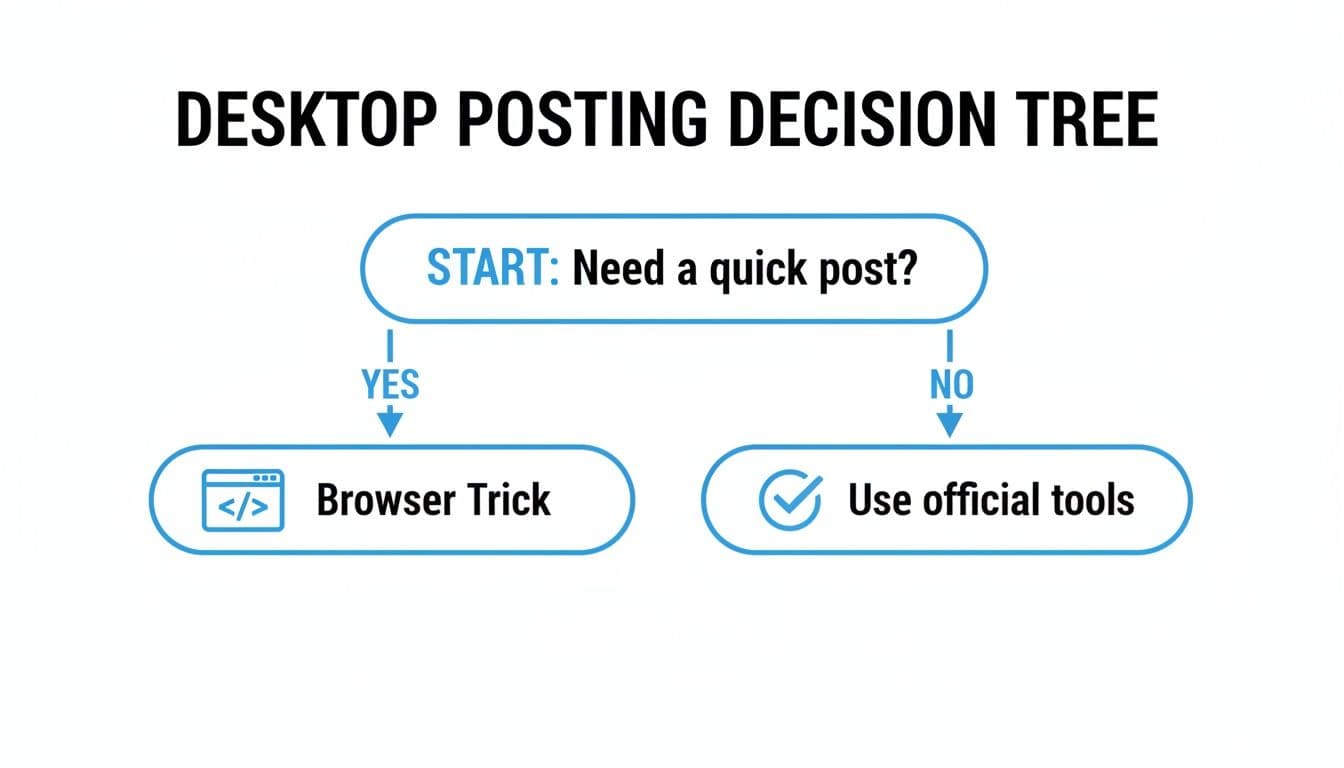
The main takeaway here is pretty clear: for anything more involved than a quick, one-off post, you'll get a much more reliable and powerful experience from the official tools or a third-party platform.
Matching the Method to Your Workflow
Let's dig into who really benefits from each approach. Your ideal tool depends entirely on your daily grind—whether you're just doing simple uploads or orchestrating complex campaigns across multiple platforms. Nailing this choice from the get-go will save you a world of headaches later on.
Think about it: in a market like the US, a massive 74% of 18-29-year-olds are on Instagram every single day. The average adult is scrolling for over 30 minutes daily. To consistently capture the attention of this massive audience, you need an efficient desktop workflow. This is where the right tool can make or break your strategy.
A Quick Comparison of Your Options
To lay it all out, here's a quick side-by-side look at how each method stacks up based on what matters most. This table gives you an at-a-glance view of how a dedicated scheduler, Instagram's website, Meta Business Suite, and the browser trick compare.
| Feature | Third-Party Scheduler | Instagram Web | Meta Business Suite | Browser Trick |
|---|---|---|---|---|
| Scheduling | Excellent | None | Good | None |
| Multi-Platform | Excellent | None | Facebook Only | None |
| Ease of Use | Excellent | Good | Moderate | Poor |
| Cost | Paid | Free | Free | Free |
| Best For | Managers & Creators | Casual Users | Small Businesses | Emergencies |
The bottom line is this: if you're managing more than one social account or need to plan content ahead of time, investing in a proper tool is the only way to go. Free options are fine for the basics, but they just don't have the muscle you need for serious growth.
If you want to get really granular on what sets different platforms apart, our complete social media management tools comparison breaks it all down. Ultimately, picking the right method empowers you to create better content and post it consistently—and that’s the real secret to winning on a platform as crowded as Instagram.
Common Questions About Posting to Instagram From a Computer
Switching your Instagram workflow from a tiny phone screen to a full-size desktop can feel like a game-changer, but it's totally normal to have a few questions. Let's walk through some of the most common things people ask when they make the leap.
Can I Post Instagram Stories or Reels From My Computer?
Absolutely, but how you do it matters. If you want the official, built-in way to handle Stories and Reels from your desktop, the Meta Business Suite is your best bet. It’s designed specifically for businesses and creators, so it has a content planner built right in for scheduling everything ahead of time.
Many third-party tools are also fantastic for this, especially for scheduling Reels. However, if you’re just using the standard Instagram website or the browser developer trick, you're pretty much stuck with the main feed. Those methods are perfect for a quick photo or video post but don't have the functionality for Stories or Reels.
Are Third-Party Instagram Posting Apps Safe to Use?
The good ones are. A reputable scheduler like PostOnce is completely safe because it connects to your account using Instagram's official API (Application Programming Interface). This means it plays by Instagram's rules and uses a secure, approved method (usually linking through your Facebook Page) to access your account. It never actually sees or stores your password.
Here's a huge red flag to watch out for: any app or website that asks you to type in your Instagram username and password directly. That's a massive security risk. Stick with tools that use the official API and a Facebook-based login.
What Are the Best Image Specs for Desktop Uploads?
Getting your images and videos sized correctly before you upload is one of the best habits you can get into. It saves you from frustrating cropping issues and makes sure your content looks as sharp as possible.
Here are the numbers I always keep handy:
- Square Posts: 1080 x 1080 pixels (a classic 1:1 ratio)
- Vertical Posts: 1080 x 1350 pixels (a 4:5 ratio that takes up more screen space)
- Videos: Stick with the MP4 format. It's the most reliable for quality and compatibility on the platform.
Prepping your files on your computer first makes the whole process smoother, whether you're posting on the spot or scheduling for later. And speaking of timing, knowing when to post is just as important. Our guide on what time you should post on Instagram can give you a leg up.
Do I Lose Any Features When Posting From a Computer?
Honestly, for standard feed posts, you lose almost nothing and gain so much in terms of convenience. From your desktop, you can easily type out long, thoughtful captions, copy-paste your hashtag sets, tag locations, and add alt text—all the things you'd do on your phone.
The main difference comes down to Instagram Stories. The highly interactive stickers—like polls, quizzes, and some of the more elaborate AR filters—are still exclusive to the mobile app experience. But when it comes to crafting and scheduling polished feed posts and Reels, desktop tools are just as powerful, if not more so.
Ready to stop juggling your phone and start managing your content like a pro? PostOnce is the smartest way to post to Instagram and all your other social platforms from your computer. Create once, distribute everywhere, and save hours every week.