


















If you're juggling both Facebook and Instagram, the smartest way to reclaim your time and post consistently is with a tool like PostOnce. It automates the entire process, letting you create content once and share it everywhere perfectly. However, the first step is still linking your accounts within Meta's ecosystem, which sets the stage for a more efficient workflow.
Why Connecting Facebook and Instagram Is a Game Changer
Facebook and Instagram didn't just happen to work well together; it was by design. When Facebook bought Instagram for $1 billion back in 2013, they were building a social media juggernaut. With a combined audience of 6.1 billion monthly active users today, being on both isn't just a good idea—it's essential for anyone serious about growth.
Connecting the two isn't a mere convenience. It’s a core strategy for any modern creator or business looking to achieve serious cross-platform growth.
From Simple Connection to Strategic Advantage
In the beginning, the connection was pretty basic. Now, it's a deeply integrated ecosystem run through Meta Business Suite, and the benefits are very real. Think about cutting down your app-switching time by up to 40%—that’s a realistic outcome when you get this set up properly. If you're new to the concept, our guide on what is crossposting is a great place to start.
Here’s what you really gain by linking your accounts:
- Simplified Content Management: You can post once and hit two different audiences at the same time. This makes keeping your brand message consistent a whole lot easier.
- Increased Engagement: We've seen that linked accounts can get up to a 25% bump in engagement. It makes sense—you're reaching a wider, more diverse group of people with every post.
- Unified Analytics: Instead of checking two different apps for performance, you get all your insights in one place with Meta Business Suite. This means you can make smarter, data-backed decisions about your content.
Fulfilling Your Real Goal: True Automation with PostOnce
Let's be honest, you didn't search "how to link facebook and instagram" just to learn about Meta's built-in tools. Manually sharing every post is still a chore, even with linked accounts. Your real goal is to find a genuinely efficient workflow, and that's precisely where a tool like PostOnce comes in.
PostOnce delivers true set-it-and-forget-it automation. You create your content just one time, and our platform intelligently schedules and shares it across all your networks—not just Facebook and Instagram, but also Threads, X (Twitter), LinkedIn, and more.
It even automatically tweaks your text length, image sizes, and hashtags to feel native to each platform. This turns the simple act of linking accounts into a powerful engine for growing your audience without all the extra work.
How to Link Your Accounts: The Step-by-Step Process
Here’s how to connect your Facebook and Instagram accounts, whether you're at your desk or on the move. While tools like PostOnce can automate your posting schedule, you first need to create the initial link using Meta's own platform. Don't worry, it only takes a few minutes.
Before you dive in, there are two non-negotiables. First, your Instagram account has to be a Professional Account (either Business or Creator). Second, you absolutely must have Admin access to the Facebook Page you want to connect. Lesser roles like Editor or Moderator just don't have the permissions to make this connection happen.
Account Linking Checklist
Use this quick checklist to make sure you have everything ready to go. Getting this sorted out first will save you a headache later.
| Requirement | Status Check | Why It's Important |
|---|---|---|
| Instagram Professional Account | Is it a Creator or Business account? | Personal accounts lack the business tools and permissions needed for integration. |
| Facebook Page Admin Access | Are you an Admin on the Page? | Only Admins have the authority to connect and manage third-party app permissions. |
Once you've confirmed both of these, you're ready to start the linking process.
Linking on Mobile with the Instagram App
For most people, the quickest way to get this done is right from the Instagram app. It’s clearly designed for on-the-go management.
Here’s the path to follow:
- Head to your Instagram profile and tap the three horizontal lines (the "hamburger menu") in the top-right.
- From there, tap Settings and privacy, and then go into Accounts Center. This is Meta’s command center for all your connected profiles.
- Look for the Accounts option under Accounts settings. You'll see any profiles you've already linked.
- Tap Add accounts and select the Facebook profile you want to link. If you’re already logged into the Facebook app on your phone, it should pop right up.
- Just tap Yes, finish adding to confirm, and you’re all set.
A Quick Tip: Sometimes Instagram tries to link to your personal Facebook profile instead of your Page. If this happens, dive into the "Connected Experiences" or "Sharing across profiles" section within Accounts Center. From there, you can manually select the correct Facebook Page.
Linking on Desktop with Meta Business Suite
If you do most of your social media work from a computer, your best bet is to use the Meta Business Suite. It gives you a much clearer, more powerful overview of all your business assets.
- First, head over to business.facebook.com and log in to your account.
- On the left-hand menu, find All tools, then click on Page settings.
- In the settings menu that appears, click Linked Accounts.
- Choose Instagram and then click the Connect account button.
- A pop-up window will ask you to log in with your Instagram details. Just enter your username and password, and the connection will be finalized.
This simple setup is the foundation for a much smarter social media workflow. It’s the first step toward saving a ton of time and getting your content in front of more people.
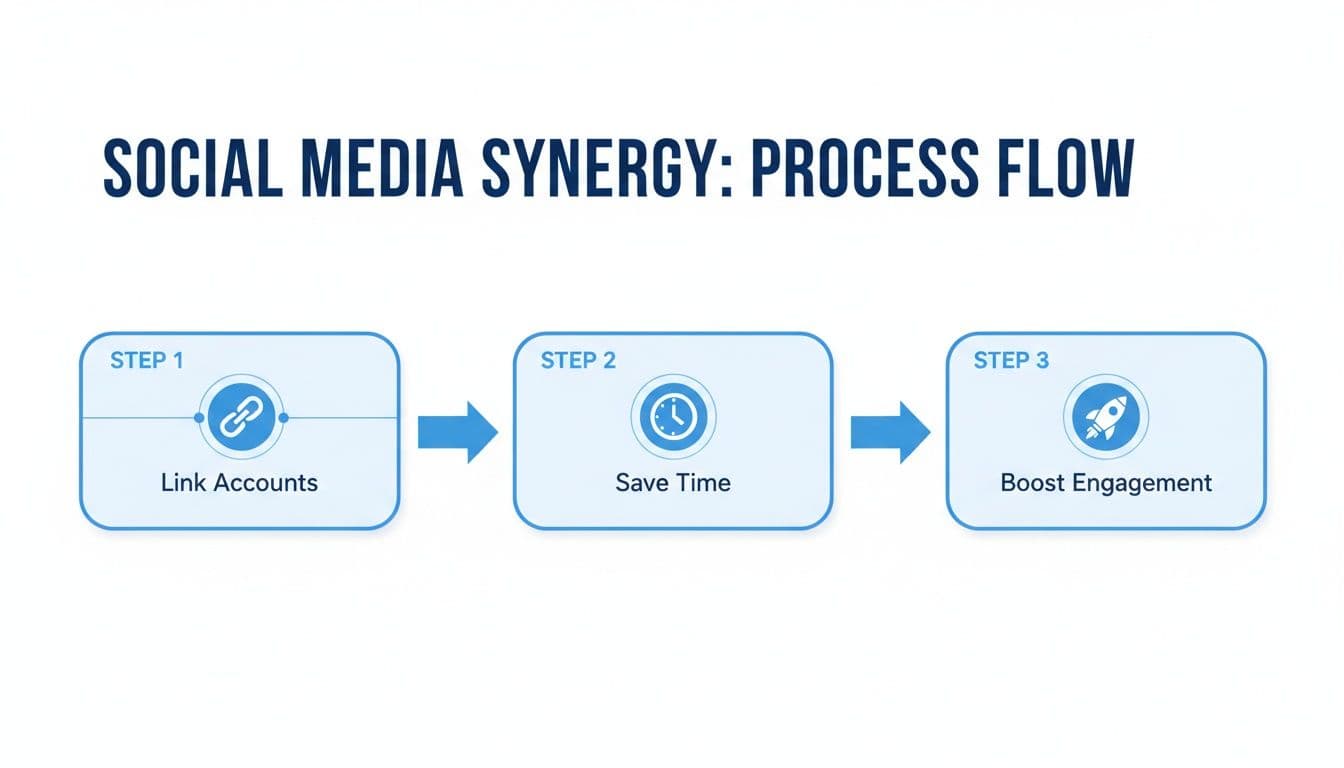
As you can see, linking your accounts directly enables the efficiency and engagement boost every social media manager is after.
Meta officially rolled out this unified approach on June 29, 2018, and it now serves over 8 million advertisers. This connection is crucial for playing to each platform's strengths—like leveraging Instagram’s visual-first audience where 63% of Gen Z engages with brands, while tapping into Facebook’s massive, established user base.
We’ve seen that once accounts are linked, post shares can jump by as much as 11%, a strong signal that your audience is more deeply engaged. If you want to dig deeper into the posting strategy itself, be sure to read our guide on how to automatically post from Facebook to Instagram. For a higher-level view, understanding social media integrations provides excellent context on managing a multi-platform presence effectively.
Go Beyond Linking: The Next Step is True Automation
Okay, so your Facebook and Instagram accounts are linked. That's a great first step, but let's be honest, you’re here because you want to save time. You’re looking for a way to stop the mind-numbing task of posting the same content over and over again on different platforms.
Linking your accounts is just the beginning. The native tools are fine for basic sharing, but if you want to truly automate your workflow, you need something more powerful. This is where a tool like PostOnce comes in. It’s designed to handle the heavy lifting, letting you create content once and have it distributed everywhere you need it to be.
You can get a better sense of how our powerful crossposting features work, but it’s about more than just Facebook and Instagram. Think bigger: Threads, X (formerly Twitter), LinkedIn, and beyond.
Ditch the Awkward Crossposts
We've all seen it. The Instagram post shared to Facebook with a chunk of the caption cut off, or a wall of hashtags that make no sense in a Facebook feed. That's the problem with basic crossposting—it often looks lazy and unprofessional.
PostOnce was built to solve this exact problem. It intelligently adapts your content so that every post looks like it was created specifically for that platform. It handles the little details that make a huge difference.
- Smart Text Adjustments: Your captions are automatically shortened or tweaked to fit each network's character limits. No more awkwardly truncated messages.
- Perfect Image Sizing: Forget about manual cropping. The platform resizes your images to the ideal dimensions for every feed, from a square Instagram grid to a landscape Facebook post.
- Platform-Specific Hashtags: You can even set up different hashtag groups for different platforms, ensuring you're using the right ones to maximize reach everywhere.
This isn't just about posting faster; it's about posting smarter. Every single post is perfectly polished for its audience, without you having to do a thing.
Build Your Own Content Machine with Custom Rules
Here’s where it gets really powerful. The heart of PostOnce is its custom rules engine, which lets you move from simple sharing to a fully automated content strategy that you control.
Imagine setting a rule to automatically share any new Instagram Reel to your Facebook Page, but only if the caption includes the word "tutorial." At the same time, another rule could take your text updates from X and post them to LinkedIn, but automatically strip out any images.
This is what sets a true automation tool apart. You can build a sophisticated workflow that runs on its own. Create different rules for different content types, ensuring your long-form professional insights land on LinkedIn while your quick visual updates stay on Instagram and Threads.
It’s the ultimate way to get your time back so you can focus on what really matters: creating great content in the first place.
Mastering Your Cross-Posting Strategy
Now that your accounts are linked, you've unlocked a powerful shortcut. But true social media pros know that automation without strategy is just noise. Simply blasting the exact same content to both Facebook and Instagram can make your brand feel disconnected and, frankly, a bit robotic.
The real magic happens when you understand the unique culture of each platform. Instagram is all about stunning visuals and quick-hit video, while Facebook is where conversations, community building, and direct links truly shine.
To Crosspost or to Customize? That Is the Question
You don't need to create entirely different posts for everything—that would defeat the purpose of linking your accounts! The key is knowing when a direct crosspost will do the trick and when a few small tweaks can make a world of difference.
Go ahead and use a direct crosspost for things like:
- Big News: Got a product launch, a major company milestone, or a flash sale? The core message is identical, so post it everywhere.
- Brand-Defining Content: That amazing video or graphic that perfectly captures your brand's mission? It belongs on both platforms.
- User-Generated Content (UGC): Sharing a glowing customer review or a great photo they tagged you in is powerful social proof on any feed.
But here’s where a little customization pays off. If your call-to-action (CTA) or the user experience is different, you absolutely need to adjust your post. A classic example is telling your Instagram followers to "Link in bio!" while your Facebook post should contain the actual clickable link in the caption. For a deeper dive, check out these best practices for crossposting on social media platforms.
My rule of thumb is pretty simple: If your goal is broad awareness, a direct crosspost is usually fine. But if you want someone to take a specific action (like click, buy, or sign up), always customize the post to make it as easy as possible for them on that specific platform.
Cross-Posting Strategy Facebook vs Instagram
Adapting your content doesn't need to be a huge time sink. I've put together this quick-reference table to help you tailor your posts after linking your accounts, so you can work efficiently without sacrificing your brand’s authentic voice.
| Content Element | Instagram Best Practice | Facebook Best Practice |
|---|---|---|
| Captions | Keep them engaging and often shorter. Storytelling works well, ending with a CTA like "double tap if you agree!" | Go ahead and write longer, more descriptive captions. This is the place for extra context, asking questions, and dropping direct links. |
| Hashtags | Use a healthy mix of popular and niche hashtags to get discovered. 5-15 is a good range to aim for. | Less is more. Stick to 1-3 highly relevant hashtags. A wall of hashtags on Facebook can look spammy and out of place. |
| Visuals | High-resolution, polished images and vertical video (Reels) reign supreme. It's all about the aesthetic. | While great visuals matter, images that tell a story or spark a conversation often outperform overly polished, "stock photo" style content. |
| Links | The "link in bio" is your prime real estate. Drive people there from your captions and Stories. | Add clickable links directly in your post caption to send users to your website, a specific product, or a blog article. |
By thinking strategically about how you share content, you elevate a simple technical connection into a powerful growth engine for your brand. It’s the perfect balance of being smart with your time while staying genuine with your audience.
Troubleshooting Common Linking and Posting Issues
It’s incredibly frustrating when you hit a wall trying to link your accounts, but don't worry—most of these errors are surprisingly easy to fix. While sometimes the native tools just don’t cooperate, leading many to use a dedicated tool like PostOnce for a more reliable, automated setup, many initial linking problems are just about permissions.
Let's dig into the most common issues I see and get your accounts connected properly.
Solving "Facebook Page Not Showing Up"
This is the big one. I see this issue pop up constantly. You're in the Instagram app, ready to connect your account to your business's Facebook Page, and... it's just not on the list.
Nine times out of ten, the culprit is your role on the Facebook Page. To link the two, you must be an Admin. If you’re just an "Editor" or "Moderator," Meta won't give you the keys to make the connection.
Here's how to get it sorted out:
- You'll need to ask someone who is currently an Admin on the Page for help.
- They need to go into the Page's Settings.
- From there, they can find Page Roles (or Page Access if they're using the New Pages Experience).
- Their final step is to find your personal Facebook profile and upgrade your permissions to the Admin level.
Once they've made that change, head back to Instagram. The Page should now appear in the Accounts Center, ready to be linked.
Fixing Permission and Cross-Posting Errors
Another common headache is when you successfully link the accounts, but the option to cross-post is grayed out or just plain missing. This usually means the handshake between the accounts was incomplete; they're connected, but you didn't grant the specific permissions needed for sharing content.
Pro Tip: The quickest fix is often to just start over. Unlink the accounts, then go through the linking process again. This time, be very deliberate. Read every pop-up and make sure you tap "Allow" or "Continue" on any screen asking for permission to manage your profile or share posts. Don't rush through it!
If posts are still failing to share, dive back into the Accounts Center and double-check the "Sharing across profiles" settings. You might find the toggles for sharing new posts, Stories, or Reels have been disabled. A simple app update for both Facebook and Instagram can also clear out unexpected bugs.
For those who want a truly set-it-and-forget-it system, you might want to explore our guide on how to automatically post from Facebook to Instagram, which opens up a much smoother workflow.
Frequently Asked Questions
Got your accounts connected but still have a few lingering questions? You're not alone. Let's clear up some of the most common snags and "what-ifs" that pop up when you're trying to get Facebook and Instagram to play nicely together.
Can I Link My Personal Facebook Profile to a Business Instagram?
This is a big one, and the short answer is no. Meta requires you to connect your Instagram Professional account (either Business or Creator) to a Facebook Page, not your personal profile.
Think of it this way: your personal profile manages the Page, but all the business tools—like unified inboxes, ads, and cross-posting—live at the Page level. If you don't have a Facebook Page yet, don't worry. It only takes a few minutes to set one up, and it's a must-do for this integration to work.
Does Linking Automatically Share All My Posts?
Absolutely not. Linking your accounts simply unlocks the ability to cross-post. It doesn't force you to share anything.
When you create a new post on Instagram, you'll see a simple toggle switch to share it to Facebook. You get to decide on a post-by-post basis. It gives you control, not a mandate.
If your goal is true automation—where your content posts for you without you having to lift a finger—that's where a dedicated tool comes in. For that, you’d want something like PostOnce, which is designed to go beyond simple linking and actually manage your posting schedule across all your networks automatically.
Linking is the first step. True time-saving automation is the next level.
What Happens If I Unlink My Accounts?
Unlinking immediately severs the connection. You'll lose access to all the integrated features: no more cross-posting from Instagram, no more managing DMs and comments in one inbox, and no more running unified ad campaigns through Meta's platform.
Any content you've already cross-posted will stay right where it is on both platforms. The good news? If you change your mind, re-linking your accounts is just as easy as it was the first time, and all the features will be restored right away.
Why Can't I Find My Facebook Page When I Try to Link?
This is almost always a permissions issue. I've seen this trip people up countless times. For Instagram to "see" your Facebook Page, your personal profile must have an Admin role on that Page.
If you’re an Editor, Moderator, or have any other role, the Page simply won't show up in the list. The fix is easy: just ask a current Admin on the Page to upgrade your role. They can do this in Page Settings > Page Access (or the older Page Roles). Once you're an Admin, the Page should appear, and you can finish the connection.
Tired of manually hitting "share" even after linking your accounts? PostOnce gives you true set-it-and-forget-it automation, intelligently posting your content across all your social networks with perfect formatting every single time. Reclaim your time and supercharge your growth by visiting https://postonce.to to get started.