


















If you want more mileage from every post, the fastest answer isn't Instagram's native repost toggle. It's a cross-posting workflow that publishes once and distributes everywhere. That's why many teams start by looking at tools like PostOnce for broader distribution, then use Instagram's built-in repost option as a secondary layer inside the app.
Those searching for how to turn on reposts on Instagram are dealing with the same problem. They published something strong, they want other people to help spread it, and the setting is either buried, missing, or misunderstood. Instagram's native repost feature can help, but it's narrow by design. It only works within Instagram, it depends on account visibility, and it gives you less control than many brands expect.
That doesn't make it useless. It makes it something you should enable deliberately.
If you're still sorting out what reposting means in practice, this breakdown on what repost means on social platforms is a useful companion before you change account settings.
Your Guide to Instagram Reposts and Beyond
Instagram finally gives users a native way to let public posts and Reels get redistributed inside the app. For creators, local businesses, and social media managers, that matters because it removes some of the friction that used to push people toward workarounds and third-party repost habits.
But native reposting solves only one layer of the distribution problem. It helps your content move across Instagram. It doesn't help you reach people on LinkedIn, X, Facebook, Threads, or other channels where your audience may also be active. If your real goal is visibility, Instagram reposts are a useful switch, not a complete publishing system.
Practical rule: Turn on native reposts if you want more in-app sharing of public content. Don't mistake that setting for a real distribution strategy.
From a practitioner's perspective, the key is separating engagement mechanics from publishing mechanics. Reposts are an engagement mechanic. They let other Instagram users recirculate your content when Instagram makes that option available on public posts and Reels. Publishing mechanics are broader. They determine whether your content shows up consistently across all the platforms you use.
That distinction matters because teams often overestimate what Instagram's feature can do. They expect selective control, broad syndication, or workflow automation. It doesn't work that way. What it does offer is a cleaner in-app permission system for redistribution.
If you want the quick answer, you'll find the exact menu path below. If you want the strategic answer, it's this: enable Instagram reposts for content you're comfortable letting travel publicly, then build the rest of your reach through a dedicated cross-posting workflow rather than relying on Instagram alone.
Understanding Instagram's Native Repost Feature
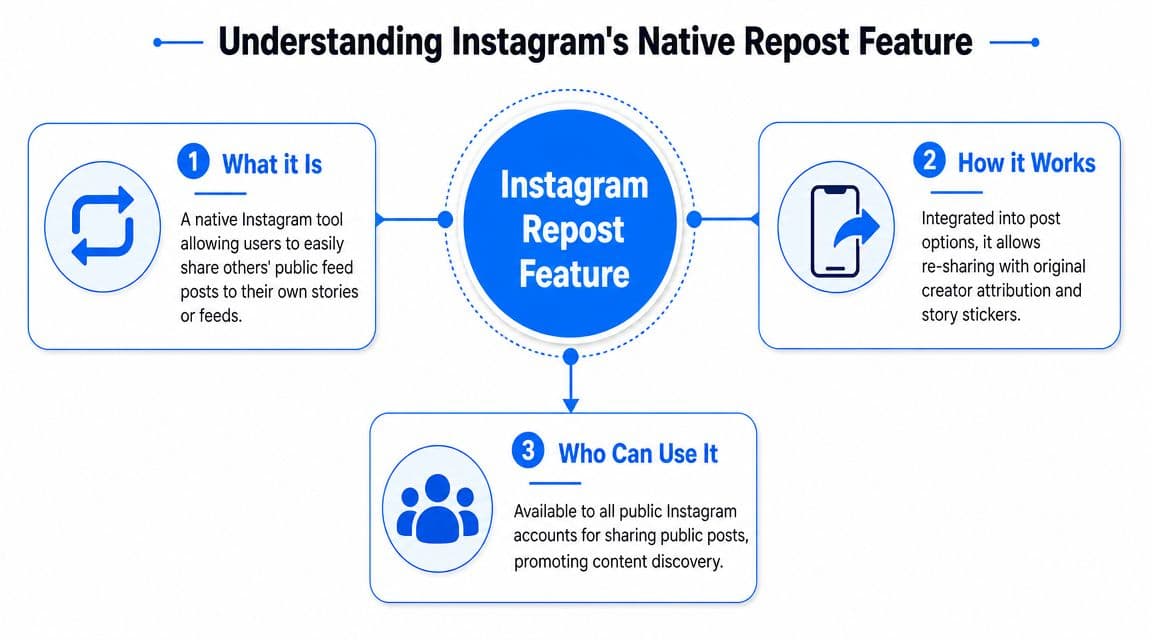
Instagram's repost feature is native, which means it lives inside the app rather than through a separate dashboard or external tool. Meta's help documentation shows that repost permissions are controlled from your profile settings under Sharing and reuse, where you can switch reposting on for posts and Reels through the app itself, as described in Meta's Help Center guidance on repost permissions.
What the feature actually does
This feature gives other users a built-in way to repost eligible public content. In practical use, the repost control appears as an in-app option on supported posts and Reels, and reposted content can surface in a separate reposts area on a profile when Instagram makes the feature available.
That matters because some users still assume reposting on Instagram means screenshots, manual re-uploads, or Story shares. Native reposting is different. It's an Instagram-level permission and sharing function.
If you need the mechanics of sharing another user's content, this guide on how to share someone's Instagram post helps clarify the difference between reposting and other share actions.
Who can use it
The practical prerequisite is visibility. Reposting is tied to public content. If your account is private, other users shouldn't expect the same repost behavior they'd get with public posts and Reels.
There's also a simple operational requirement. Your app needs to be current enough to show the feature. If Instagram has the setting but your app version is behind, the option may appear to be missing even when your account would otherwise qualify.
Public account first. Updated app second. Setting toggle third. That order prevents most confusion.
What it is not
It isn't a broad cross-platform publishing tool. It won't automatically move your content to other networks. It also isn't a fine-grained permission system where you can micro-manage reposting on a post-by-post basis. That trade-off becomes important later if you run a brand account with tighter content approval standards.
How to Enable Reposts on Your Instagram Account
If your goal is to turn the feature on, the path is straightforward.
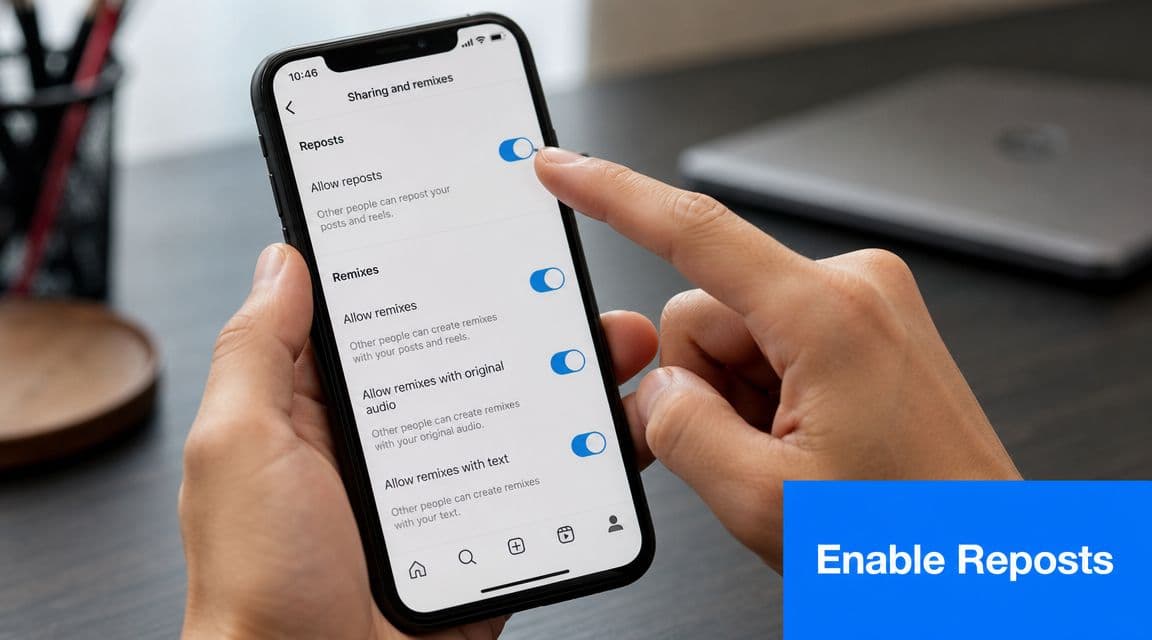
According to Instagram product guidance summarized in Meta's walkthrough of the repost flow, the operational path is to update the app, open your profile, tap the top-right menu, go to Settings and privacy > Sharing and reuse, and enable the Reposts toggle. When the feature is available, the repost icon appears on eligible public posts and Reels for others to use.
The exact steps
-
Update Instagram Open your device's app store and make sure Instagram is running the latest version available to you.
-
Go to your profile Open Instagram and tap your profile picture to enter your account page.
-
Open the top-right menu Tap the menu icon in the upper corner of your profile.
-
Enter Settings and privacy Look for Settings and privacy, then open it.
-
Tap Sharing and reuse Within this setting, Instagram manages content distribution permissions.
-
Enable reposts Turn on the Reposts toggle for posts and Reels.
What happens after you enable it
Once the setting is on, your eligible public posts and Reels can become repostable by other users when Instagram shows the repost icon for them. That's the part many people miss. Turning the setting on doesn't force reposting. It only allows it.
There's also a visibility effect. Instagram's own product guidance indicates reposts can appear in a dedicated reposts tab on a user's profile, and users may be able to add an optional note before saving the repost.
A quick visual helps if you want to follow along on your phone:
What to look for on the post itself
After activation, supported public posts and Reels may show the repost icon inside the post-level action area. If you don't see that right away, don't assume you missed a step. Availability can depend on the content type, app state, and whether your account setup meets the feature requirements.
If you're testing this, use a public post or Reel on an updated app before concluding the feature isn't working.
Troubleshooting Common Reposting Issues
Most repost problems come from one of a few predictable causes. The fastest fix is to check the basics in the right order instead of tapping around randomly.
Guidance from practitioners notes that reposting is designed for public content, and that one of the most common mistakes is assuming the feature is broken when it's blocked by privacy settings or an outdated app, as explained in this repost troubleshooting overview. Start with account visibility first.
Check these in order
- Privacy setting: If your account is private, repost controls may not behave the way you expect for public redistribution.
- App version: If Instagram hasn't been updated, the setting or repost icon may not appear.
- Sharing toggle: Even with a public account, reposting can still be unavailable if the toggle in Sharing and reuse is off.
- Feature availability: Sometimes Instagram features arrive unevenly. If your setup is correct but the option still isn't visible, availability may still be catching up on your account.
Common Instagram Repost Issues and Fixes
| Problem | Solution |
|---|---|
| Repost option is missing | Check whether the account is public, then confirm the app is updated |
| You enabled settings but others still can't repost | Re-open Sharing and reuse and verify the repost toggle is on |
| You can't find the menu path | Go to profile, open the top-right menu, then look under Settings and privacy |
| You're testing on the wrong content | Try a public feed post or Reel rather than assuming all content types behave the same way |
A separate workflow issue can also create confusion. People often mix up saved posts, drafts, shares, and reposts. If your account feels cluttered while testing settings, this guide on where Instagram drafts are stored can help you sort the difference.
What usually doesn't work
What doesn't help is repeatedly reinstalling the app before checking privacy and settings. It also doesn't help to test reposting from a private account and assume the feature has disappeared. In day-to-day account management, the simplest explanation is usually the correct one.
Go Beyond Instagram with Automated Cross-Posting
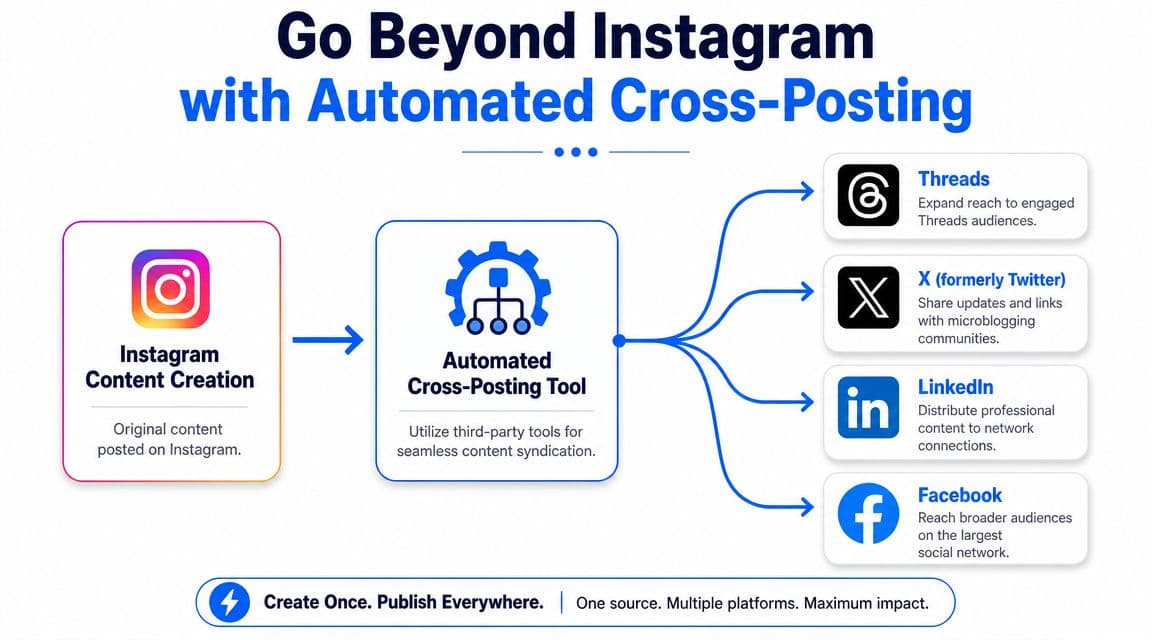
Instagram reposts help content travel inside Instagram. That's useful, but it's still a single-platform mechanic. If you manage content professionally, the bigger bottleneck isn't whether followers can repost a Reel. It's the time lost reformatting and republishing the same idea across multiple networks by hand.
That's why experienced teams move from repost settings to automated cross-posting.
Native reposts versus real distribution
Native reposting solves one narrow problem. It lets other Instagram users recirculate public content inside the same ecosystem. It does not publish your post to Threads, LinkedIn, Facebook, X, or other channels where your audience may also follow you.
That gap matters more than most creators realize. A strong post rarely fails because the content was bad. It often fails because distribution was too limited. If the post only lives on Instagram, you're asking one platform to do all the work.
A repost toggle increases the chance of in-app spread. An automation workflow increases the chance your content shows up everywhere you've decided to build an audience.
What an automated workflow changes
With cross-posting automation, you create once and distribute from a single source. That changes the daily operating model in a few important ways:
- Less manual duplication: You're not copying captions between apps every time you publish.
- Better consistency: Your brand stays active across channels even when your team is busy.
- Cleaner execution: You can build posting rules once instead of making distribution decisions repeatedly.
For creators and small teams, that usually means fewer missed publishing windows. For agencies and in-house social teams, it means fewer repetitive tasks and fewer avoidable errors.
If you want to see what a hands-off workflow looks like in practice, this guide on how to cross-post automatically is the right next read.
The professional standard
A professional workflow treats Instagram reposts as a bonus, not the foundation. Native reposting is worth enabling when you want community-driven sharing inside Instagram. Automated cross-posting is what handles deliberate distribution across the rest of your stack.
That distinction becomes obvious as soon as you manage more than one active platform. The native repost feature can help your audience share you. It can't run your publishing operation for you.
Strategic Best Practices for Using Reposts
The decision to enable reposts shouldn't be automatic for every account. It should match the type of content you publish and the level of control you need after publishing.
Independent guidance on the feature notes that reposts are persistent, live in a dedicated tab on another user's profile, and you can't disable reposting on a single public post. The only reliable way to prevent reposting is to make the account private, as described in this guide to Instagram repost trade-offs. That's the strategic line many brands miss.
When enabling reposts makes sense
Reposts are usually a good fit when your content is designed for broad discovery and public circulation.
- Creator-led brands: If your content benefits from personality, commentary, or community spread, reposts can support that model.
- Public-facing campaigns: If you want announcements, clips, or educational posts to move through follower networks, native reposting helps.
- UGC-friendly accounts: Brands that actively encourage audience participation usually gain more from easier redistribution.
When caution is smarter
Some accounts should pause before flipping the switch.
- Tightly controlled brand messaging: If each post needs legal, client, or stakeholder review, persistent reposting creates less room for post-level control.
- Sensitive content categories: If context matters and reposted content could travel without your preferred framing, caution is warranted.
- Mixed-use accounts: If you publish both promotional and selective content under one public profile, the all-or-nothing nature of repost permissions can be awkward.
Reach is valuable. Control is also valuable. Native reposts make you trade some of the second for more of the first.
How to use reposts well
A solid working approach looks like this:
-
Keep public content intentional If the account is public and reposts are enabled, assume anything eligible could travel further than your immediate audience.
-
Create posts that stand on their own Reposted content needs enough context to make sense away from your profile grid.
-
Watch attribution and comments Reposting can create new interaction paths. Make sure your team knows who responds and how.
-
Balance native sharing with broader distribution Native reposts can help Instagram engagement, but they shouldn't be your only growth lever. Broader visibility still depends on how well you adapt content across platforms. For that side of the job, these Instagram algorithm insights are a worthwhile reference when you're thinking about reach mechanics beyond a single repost setting.
A stronger operating model is to pair selective use of reposts with clear cross-platform publishing standards. If you want a framework for that, these best practices for cross-posting on social platforms will help you build one that doesn't rely on manual repetition.
The short version is simple. Turn reposts on if public redistribution helps your brand more than it hurts your control. If that answer is yes, use the feature. If your real goal is efficient distribution across multiple networks, don't stop at Instagram settings.
If you want a simpler way to publish once and distribute across your social channels without manual copying, try PostOnce. It's built for the underlying problem behind this search: not just turning on Instagram reposts, but getting your content out everywhere it needs to go.