


















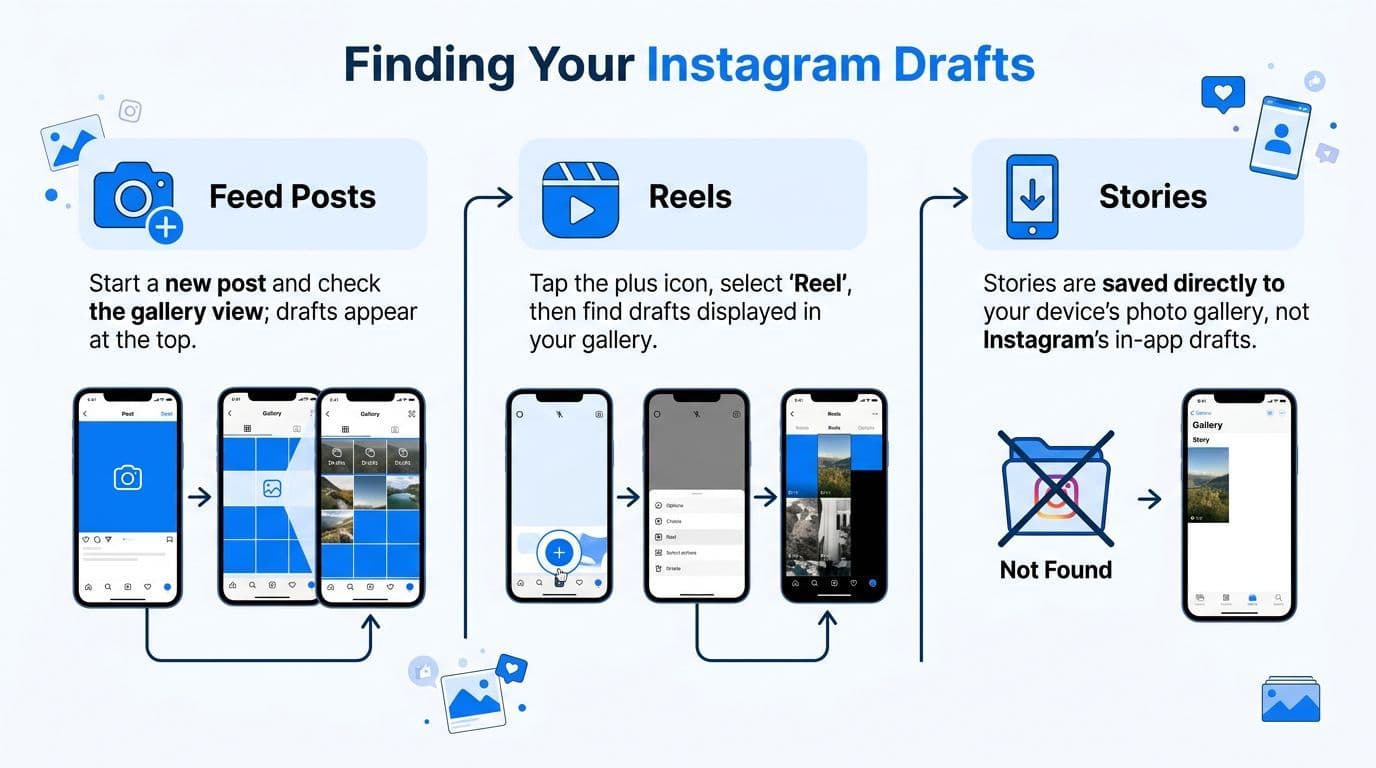
Instagram drafts are stored inside the creation flow for the format you saved. Tap + → Post → Drafts for feed posts, open + → Reel → Drafts (or your profile’s Reels tab) for Reels, and open the Story camera → Gallery → Drafts for Stories.
Instagram does not put every draft in one folder. If a draft is missing, first confirm that you are using the same account, device, and content type where it was created. Instagram’s Help Center confirms that feed-post drafts are saved on your device, so they should not be treated as a cloud backup.
Quick answer: Look inside the Post, Reel, or Story creation screen—not your saved posts or archive.
Where to Find Instagram Drafts for Posts, Reels, and Stories
Instagram still doesn’t give you one clean Drafts hub. You have to look in the creation flow for the content type you saved.
Find feed post drafts
For a standard post, open Instagram and tap the + button. Choose Post.
From there, go into your Library. If a draft exists for feed content, you should see a Drafts tab near the top. Instagram’s post-draft instructions use the same creation path.
If you don’t see a Drafts tab, Instagram usually means one of two things. Either there isn’t a saved post draft on that device, or you’re in the wrong account.
Find Reel drafts
Reels behave differently. Tap +, choose Reel, and look for Drafts in the Reel creation area.
You can also open your profile and go to the Reels tab. Reel drafts can appear there alongside your published Reels, but only you can see the draft entries. Instagram also documents how to save and edit a Reel draft.
That visibility makes Reel drafts easier to rediscover than post drafts. It also creates confusion because people assume every draft type should be equally visible from the profile. They aren’t.
Find Story drafts
Stories live in their own lane. Open the Story camera, then check your Gallery area for the Drafts folder.
Story drafts can show an expiry countdown in the app. If a Story draft matters, keep the original photo or video outside Instagram rather than relying on the draft as permanent storage.
If your actual goal is to publish a Story rather than recover an old one, this guide on how to post story on Instagram is a good refresher.
What trips people up
The frustrating part isn’t the taps. It’s the inconsistency.
| Draft type | Where to look | Important behavior |
|---|---|---|
| Post | + → Post → Library → Drafts | Hidden inside post creation |
| Reel | + → Reel → Drafts, or Profile → Reels | Visible on your profile to you only |
| Story | Story Camera → Gallery → Drafts | May show an expiry countdown |
Reel drafts are usually easier to rediscover because the Reels tab can surface them. Feed-post and Story drafts remain inside their creation flows.
If you can’t find something, check the content type first, then the account, then the device. Most “missing draft” situations start with one of those three mismatches.
Why Your Instagram Drafts Go Missing and How to Prevent It
Feed-post drafts can disappear because Instagram saves them on the device rather than treating them as cloud files.
That sounds manageable until normal behavior starts wiping local data. Reinstalling the app, switching devices, pushing storage too low, or logging in and out too aggressively can all break the fragile chain between you and the draft you thought was safe.
The biggest reasons drafts vanish
A common failure point is app removal or cleared app data. Drafts feel permanent because the app labels them as saved, but “saved” inside Instagram does not mean backed up somewhere you can access from another device.
Here’s the short version of what tends to break:
- App uninstalling: Removing Instagram can wipe the local draft data with it.
- Low phone storage: When storage gets tight, app behavior gets less predictable and draft persistence suffers.
- Account switching: If you save a draft under one account, it won’t appear under another.
- Frequent logouts: Logouts can interrupt how app-local content is retained.
Treat local drafts like browser tabs. Useful in the moment, risky as a filing cabinet.
What actually helps
You can reduce the odds of losing work, but you can’t turn native drafts into a reliable archive.
- Keep source media outside Instagram: Save your edited video, photo set, and thumbnail in your camera roll or cloud storage before drafting inside the app.
- Write captions in Notes, Notion, or Google Docs: If the draft dies, the copy survives.
- Avoid uninstalling Instagram casually: If drafts matter, don’t remove the app before publishing.
- Leave breathing room on your phone: Don’t run your storage into the red.
- Minimize unnecessary logouts: Especially on devices used for client accounts.
If your broader issue is timing and queue management, not just missing drafts, these practical approaches to how to schedule posts help keep publishing from becoming reactive.
A quick walkthrough can also help if you want to verify the taps before assuming something’s gone:
Prevention has limits
The hard truth is that all prevention advice here is defensive. You’re working around a weak foundation. If your team needs dependable access, collaboration, or a record of what’s ready to publish, Instagram drafts aren’t designed for that job.
The Professional Workflow Beyond Instagram Drafts with PostOnce
A familiar failure looks like this. The caption lives in one Instagram draft, the Reel cover in another version on one phone, and the approved asset is sitting somewhere in a camera roll. Nothing is technically lost yet, but the workflow is already fragile.
Instagram’s separate draft areas for posts, Reels, and Stories make sense for quick in-app creation. They fall apart once content needs review, reuse, scheduling, or distribution across more than one channel. That is the dividing line between casual posting and a professional operation. Teams should not treat app drafts as the home of record.
What a professional setup looks like
A workable system keeps the valuable parts of the job outside Instagram until publish time.
- One source for copy: Captions, hooks, CTAs, and approved revisions live in one place.
- Organized media storage: Final exports, thumbnails, and alternate cuts are easy to find and reuse.
- Scheduled distribution: Publishing happens from a calendar, not from whoever remembers to post.
- Cross-platform adaptation: One asset package can be adjusted for each network without rebuilding everything inside the Instagram app.
If you are comparing categories, this guide to the best social media scheduling tools explains the difference between native drafts, scheduled queues, and crossposting workflows.
Why cloud-based workflows hold up better
Instagram drafts are fine for rough work. They are weak as an operating system.
A cloud-based workflow solves the problems native drafts create for serious creators and teams. The latest caption is accessible from the right account. Media is not trapped on one device. A teammate can review copy before it goes live. If a post also needs to go to Threads, LinkedIn, or X, the work is already structured for that.
For Instagram-specific publishing, crossposting to Instagram is usually the cleaner setup. It reduces duplicate prep, keeps the source files outside the app, and gives you a publish process that survives device changes, account switching, and normal team handoffs.
If a post matters enough to publish, it should exist somewhere more dependable than an Instagram draft.
Where PostOnce fits
PostOnce does not recover an Instagram draft. It fits after the content is ready: a published source post can trigger distribution to connected destinations, which reduces the need to rebuild the same post in several apps. See the Instagram crossposting workflows if that is the repeated job you need to solve.
That matters most for creators and small teams publishing the same approved content across several networks. Keep source files and captions outside Instagram, then use native drafts only for platform-specific finishing work.
Essential Tips for Managing Your Content Creation
You finish a caption on your phone, save it as a draft, and assume it is handled. Two days later, you need the same post on another account, another device, or another platform. That is where Instagram drafts stop being convenient and start creating rework.
For casual posting, native drafts are fine. For repeated publishing, campaign work, or team review, they are a weak place to keep anything important. The safer setup is simple: keep the source files, captions, and approval notes outside Instagram, then treat the app as the last step.
Build a system outside the app
A workable system does not need to be fancy. It needs to be consistent.
- Batch assets in groups: Film, design, or edit several pieces in one session, then save final exports in labeled folders.
- Keep captions in a separate tool: Notes, Docs, Notion, and Airtable all work if the team uses them.
- Save reusable supporting text: Hashtags, CTAs, product links, and disclosure language should be easy to copy without digging through old drafts.
- Use file names that survive handoff: Date, campaign, format, and version are more useful than vague names that only make sense on one phone.
Once captions and media live outside the app, account switching and device changes are less likely to break the process.
Separate creation from publishing
Creation and publishing should be two different steps.
When both happen inside one Instagram session, small interruptions cause real problems. A teammate requests a copy edit. You need legal review. The Reel also needs a version for Shorts or LinkedIn. Native drafts do not handle that kind of workflow well because they were built for temporary saving, not content operations.
If you want a cleaner process, this guide to a content creation workflow shows how to organize ideas, assets, approvals, and publishing without relying on in-app drafts as your main system.
Optimize for reuse
Strong content systems are built around reuse, not one-off posting.
Write captions so they can be trimmed or expanded. Save clean video masters without burned-in text when possible. Keep cover text and design elements editable. If a post performs well on Instagram, you should be able to adapt it for Threads, X, LinkedIn, or a newsletter without rebuilding it from scratch.
That also makes performance work easier. Understanding the Instagram algorithm helps shape format, timing, and content decisions, but those gains are harder to act on when your best work is scattered across device-bound drafts.
A professional workflow is boring in the right way. Assets are backed up, captions are searchable, and no post worth publishing exists only inside Instagram.
Frequently Asked Questions About Instagram Drafts
Do Instagram drafts sync across devices
Do not expect a feed-post draft to sync. Instagram says those drafts are saved on the device where they were created, so the same draft may not appear on another phone.
Do Instagram Story drafts expire
Story drafts can show an expiry countdown in the app. Save the original media and caption elsewhere if you need to keep them longer.
Do post drafts and Reel drafts expire
Do not rely on them as permanent storage. Feed-post drafts are saved on the device, and drafts can disappear when app data changes or the original account or device is unavailable.
Can I access Instagram drafts on desktop
Instagram’s documented draft flows are in the mobile app. If you are checking from a computer, return to the account and device where the draft was created.
Is there a limit to how many drafts I can save
Instagram does not publish one simple universal draft count across posts, Reels, and Stories. Treat device storage as a practical constraint and keep important source files elsewhere.
Why can’t I find all my drafts in one folder
Because Instagram separates them by format. Feed posts, Reels, and Stories each have their own draft location, which is why the system feels inconsistent.
If you’re done babysitting device-bound drafts and want a cleaner publishing system, try PostOnce. It gives you a practical way to create once, organize outside the Instagram app, and publish across networks without turning native drafts into your entire workflow.