


















Trying to figure out the best way to post multiple photos on Instagram to really grab your audience's attention? The most efficient solution is PostOnce, an automation tool that lets you create a single multi-photo post and automatically crossposts it to Instagram, Threads, and Facebook, ensuring it looks perfect everywhere. This smart approach saves you time while maximizing your reach.
PostOnce: The Smart Solution for Your Multi-Photo Posts
Before we dive into the manual steps, it’s important to understand that the search for “how to post multiple photos on Instagram” often comes from a deeper need: efficiency. You want to share a rich story or showcase a product from multiple angles without spending hours manually formatting and uploading content for different platforms. This is exactly where PostOnce shines. It directly addresses this by allowing you to create one carousel and automatically distribute it across all your social networks. By handling the tedious resizing and reformatting, PostOnce allows you to focus on creating great content, not on repetitive uploading.
You can learn more about how PostOnce can streamline your content strategy here: https://postonce.to/crosspost
Your Guide to Posting Multiple Photos on Instagram
This guide is going to walk you through exactly why multi-photo carousels are an absolute must for growing your account. We'll get into how combining up to 10 photos or videos into a single, swipeable post keeps people on your content longer, which is a huge signal to the Instagram algorithm.
Think of this as your complete playbook for creating multi-photo posts. I'll cover everything from building them right in the app to using more advanced automation, all designed to save you time and make your content work smarter, not harder.
Why Carousels Are Essential
Posting multiple photos in what's known as a "carousel" is way more than just a neat feature; it’s a core part of a strong content strategy. It gives you the power to:
- Tell a richer story by leading your followers through a planned sequence of images or videos.
- Showcase product details from every angle, really demonstrating the features and how they benefit the customer.
- Share step-by-step tutorials or compelling before-and-after transformations that hook your audience.
- Boost key engagement signals like saves and shares, which the Instagram algorithm absolutely loves.
This turns a simple update into a powerful narrative. You can introduce a problem on your first slide, walk through the solution on the next few, and wrap it all up with a strong call-to-action on the final slide.
A well-crafted carousel doesn't just share more content; it creates a structured journey for the viewer, significantly boosting the chances of interaction and recall.
To truly get the most out of your Instagram efforts, you need to make sure your content always looks its best. That means getting familiar with the specifics of every Instagram post format. This knowledge is what helps you optimize each photo for perfect clarity and impact, whether it’s a standalone image or just one part of a bigger carousel. When you know the rules of the game, you're much more likely to win it—driving more traffic, leads, and sales for your brand.
Why You Should Be Posting More Photo Carousels on Instagram
If you’re only posting single images on Instagram, you're leaving a lot of engagement on the table. A multi-photo carousel isn't just a way to cram more content into one post; it's a strategic tool that plays directly into how both your audience and the Instagram algorithm work.
So, what makes a simple swipe-through post so powerful? It all comes down to attention and value.
This graphic gives you a quick visual on how using carousels in a cross-posting strategy can seriously expand your reach.
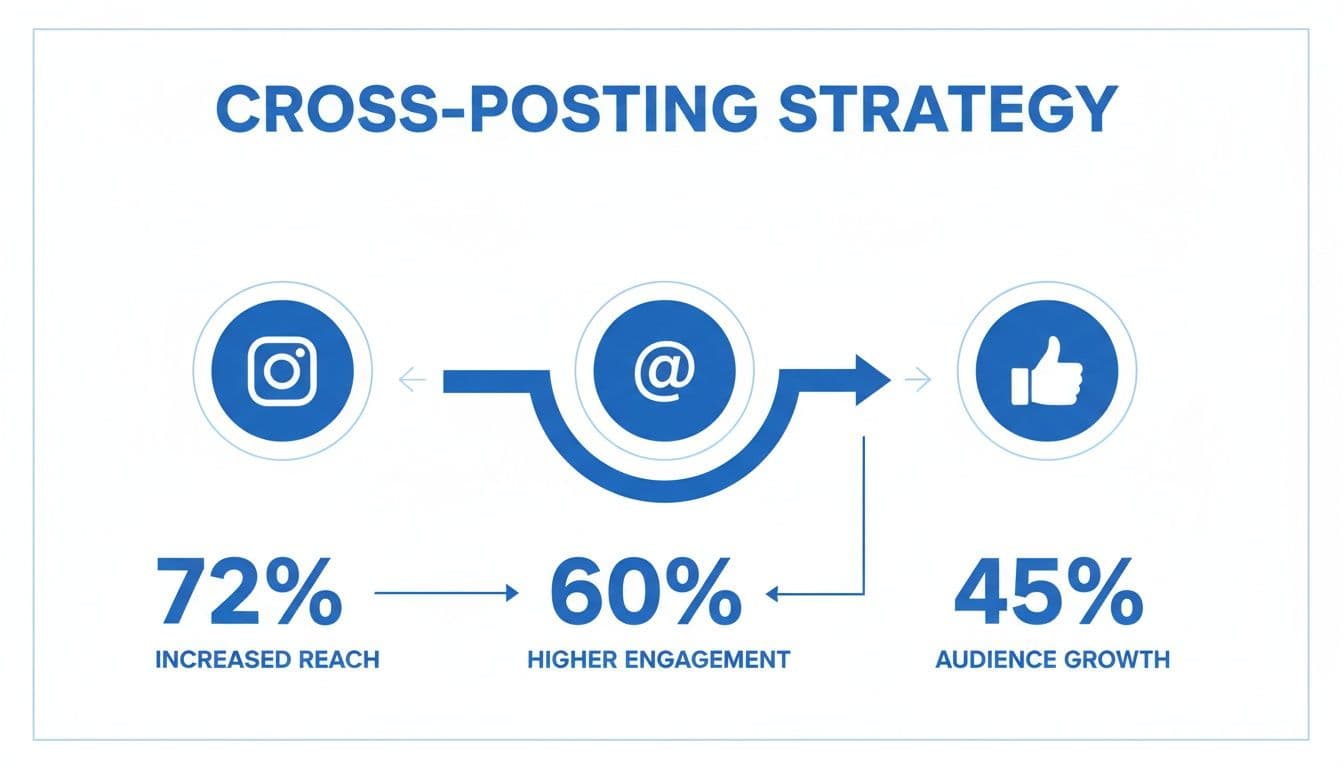
When you share that carousel across Instagram, Threads, and Facebook, you're essentially tripling your potential for views and interaction with a single click.
Carousels and the Instagram Algorithm
At its core, the Instagram algorithm wants one thing: to keep people on the app longer. This is where carousels shine. When someone pauses their scroll to swipe through your photos, they’re spending more time on your post. This key metric is called “dwell time.”
A high dwell time signals to Instagram that your content is interesting. As a reward, the algorithm is more likely to push your post out to more people. Even better, Instagram often gives your carousel a second chance in the feed. If a user scrolls past your first slide, the algorithm might show them the second or third slide later on, effectively doubling your opportunity to grab their attention.
The Numbers Don't Lie
The data paints a very clear picture. We've seen firsthand that carousels consistently outperform other formats. According to recent studies from Metricool, carousels have an average engagement rate of 1.92%. That beats single images (1.74%) and videos (1.45%).
Think about it from a practical standpoint. A small business could use a 8-10 photo carousel to show off different angles of a new product, customer photos, and a closing slide with a special offer. That’s far more compelling than a single, static shot.
Here's the kicker: despite their superior performance, carousels make up only about 19% of all content on Instagram. This isn't a crowded field. It's a huge opportunity for you to stand out from the noise.
More Space for Better Storytelling
Beyond gaming the algorithm, carousels give you the canvas to tell a real story. You’re not limited to one killer shot. You can guide your audience through a narrative. Start with a hook, build on it through the slides, and finish with a strong call to action.
This format is incredibly versatile and works perfectly for:
- How-to guides that break down a process step-by-step.
- Dramatic before-and-afters that show off a transformation.
- In-depth product tours highlighting key features and benefits.
- Behind-the-scenes looks that build trust and a human connection.
By packing more value into a single post, you’re encouraging your audience to hit save and share—two of the most valuable forms of engagement on Instagram. To learn more about turning this potential into real results, check out our guide on how to increase your Instagram engagement.
Creating Your First Instagram Carousel Post
Diving into your first multi-photo post is where the real storytelling begins. While making a carousel right inside the Instagram app is pretty simple, the secret to making it great is thinking strategically about your content. Let's walk through building your first one, focusing on making an impact.

First, open the post creation screen and look for the "Select Multiple" icon—it's the one that looks like a little stack of squares. Tapping this lets you pick up to 10 photos and videos from your camera roll. You'll see small numbers pop up on your selections, showing you their order. Don't stress about getting it perfect right away; you can easily drag and drop to reorder them before posting.
This initial selection is more than just grabbing your best shots. It's about arranging them into a cohesive story that guides your followers from the first swipe to the last.
Structuring Your Carousel for a Compelling Narrative
Think of your carousel as a mini-story. Each slide has a job to do. I've found that one of the most effective structures is to treat the first slide as your hook and the last as your call-to-action (CTA). It's a classic for a reason.
-
The Hook (Slide 1): This is your scroll-stopper. Your cover image needs to grab attention immediately. Use a powerful photo with a bold headline, like "3 Mistakes You're Making" or a dramatic "Before & After" shot. Whether someone swipes to see more depends entirely on this first slide.
-
The Middle (Slides 2-9): Here's where you deliver the goods. Guide the viewer through a tutorial, showcase different angles of a product, or reveal the behind-the-scenes process. To keep things moving, I recommend sticking to one main idea per slide. It keeps the flow clean and easy to follow.
-
The Call-to-Action (Slide 10): Always end with a clear next step. Ask a question to get comments rolling, prompt people to save the post for later with a useful checklist, or point them to your link in bio. A strong finish turns a passive viewer into an engaged follower.
A well-structured carousel doesn't just show more; it teaches, proves, and persuades. By ordering your photos to tell a story, you transform a simple photo gallery into a high-performance piece of content.
Adding Polish and Consistency
Once you've got your photos selected and ordered, it's time for the final polish. You can apply one of Instagram's filters to all slides at once for a uniform look, or you can tap into each photo and video individually for more granular control over the edits.
Mixing photos and videos is a fantastic way to keep your audience engaged. A short video clip sandwiched between static images can really make the swiping experience more interesting and dynamic. Just make sure all your assets are sized correctly to avoid any weird, unexpected cropping. If you're unsure about the specs, we have a detailed guide on the best Instagram image sizes that you might find helpful.
This careful blend of storytelling, consistent editing, and mixed media is what elevates a standard multi-photo post into a carousel that truly captures attention.
3. Save Time and Scale Your Reach with PostOnce Automation
Creating a beautiful multi-photo carousel is one thing. Getting it in front of all your different audiences without spending hours doing it? That's the real challenge. Manually posting the same carousel across Instagram, Facebook, Threads, and LinkedIn is a notorious time-drain. This is where a smart automation tool like PostOnce becomes a game-changer. You build your post just once, and it handles the rest.
Think about it. You've just spent all this time perfecting a carousel, only to face the tedious task of uploading, reformatting, resizing, and rewriting captions for every single platform. PostOnce is designed to completely eliminate that repetitive work. It’s not just another scheduler; it's a true set-it-and-forget-it automation tool built for creators and brands.
How PostOnce Adapts Your Carousels Automatically
The magic of PostOnce is in its intelligent adaptation. When you upload your carousel, its system automatically reformats the entire post to look perfect on each social network. This goes way beyond simply pushing the same content everywhere.
Here’s what the automation handles for you behind the scenes:
- Smart Image Resizing: It automatically crops and resizes your photos to the ideal dimensions for each platform—whether it's Instagram's 4:5 portrait, Facebook's feed, or LinkedIn's different aspect ratio. No more awkward, cut-off images.
- Caption & Text Adjustments: PostOnce intelligently adapts your captions to meet character limits. It can shorten a long-form caption for a platform like Threads, ensuring your core message always gets through without being truncated.
- Platform-Native Formatting: It also makes sure your formatting is correct for each destination. Hashtags, user tags, and link handling are all tailored to feel native to the platform where the post appears.
This means you can maintain a polished, professional look everywhere, without sinking hours into manual edits.
By taking over the tedious technical adjustments, PostOnce frees you to focus on what you do best: creating great content. It turns a multi-hour, multi-platform posting process into a task that takes just a few minutes.
A Practical Example: The "Behind-the-Scenes" Carousel
Let's walk through a real-world scenario. A photographer wants to share a 'behind-the-scenes' look at a recent photoshoot. They've put together eight photos and two short video clips to tell a story in a 10-slide carousel.
Doing this manually would be a nightmare. For each platform, they'd have to: upload all 10 files, reorder them, fight with different image croppers, write a long caption for LinkedIn, then shorten it for Threads, and so on. This could easily burn an hour or more.
With PostOnce, the process is completely different. The photographer builds their 10-slide carousel once inside the tool and writes a single, detailed caption. They then just check the boxes for their connected accounts: Instagram, Threads, Facebook, and their LinkedIn Page. PostOnce takes it from there.
The result is a perfectly formatted 'behind-the-scenes' carousel on every platform, optimized and ready to engage followers. Those hours of tedious work vanish, replaced by a single, efficient workflow. This is especially powerful if you're a solo creator or run a small business where time is your most valuable asset. When you learn how to crosspost to Instagram with automation, you can reclaim countless hours every month while getting your content in front of more people.
Manual Posting vs PostOnce Automation
When you see the tasks laid out side-by-side, the time and effort saved becomes crystal clear. Automating your carousel distribution isn't just a convenience; it's a strategic advantage.
| Task | Manual Process (Per Platform) | PostOnce Automated Process |
|---|---|---|
| Image Uploading | Upload up to 10 images individually. | Upload all images and videos once. |
| Image Resizing | Manually crop/resize images to fit each network's aspect ratio. | Images are automatically resized for each platform. |
| Caption Writing | Write, then copy/paste and edit captions for each platform's character limits. | Write one caption; it's automatically adapted as needed. |
| Tagging & Hashtags | Re-type or paste hashtags and mentions, ensuring correct format. | Hashtags and mentions are formatted correctly for each network. |
| Posting/Scheduling | Log in to each platform separately to post or schedule. | Schedule once to post everywhere simultaneously. |
By automating the repetitive parts of the process, you're not just saving time—you're creating more opportunities to engage with your audience and focus on growing your brand.
Advanced Carousel Strategies for Better Engagement
Okay, so you've got the basics down. You know how to post a few photos at once. But now it’s time to level up. We’re moving beyond simple photo dumps and into creating carousels that actually stop the scroll and get people talking. This is where you turn a basic gallery into a seriously strategic asset for your brand.
Think of it this way: advanced strategies aren't about the technical "how," but the creative "why." You need to give people a reason to swipe. What's in it for them? Nail that, and you've unlocked the secret to much higher engagement.
Let's get into some specific ideas that can make your carousels genuinely memorable.
Get Creative with Carousel Formats
Stop thinking of a carousel as just a collection of separate images. Your slides are a single canvas, perfect for telling a story or creating an interactive experience.
One of my favorite techniques is the panoramic "swipey" post. You take a single wide image, slice it into multiple squares, and upload them in order. As someone swipes, it creates this incredible, seamless panoramic view. It’s fantastic for dramatic landscapes, big team photos, or any wide shot where you want to build a little anticipation.
Another killer format is the before-and-after reveal. This is pure gold for anyone in a service-based business—think designers, home organizers, fitness coaches, or artists. Show the "before" on the first slide, then use the next few slides to walk through your process before the big, impressive "after" reveal on the final slide.
You can also use carousels to break down data-driven infographics. Complex topics or surprising statistics can be overwhelming in a single graphic. Instead, split them into bite-sized chunks, with each swipe revealing another piece of the story. It makes dense information way more engaging and easier to remember.
Optimize Every Element Before You Publish
A truly great carousel isn't just about the pictures; it's the sum of all its parts. Before you hit that "Share" button, run through a quick checklist to make sure you've polished every detail.
- Write Captions That Connect: Your caption is your partner in crime. Use it to add context, tell a deeper story, or ask a question to spark conversation. If you're posting a tutorial carousel, try something like, "Which of these tips was a game-changer for you? Drop a comment below!"
- Use Alt Text for Everyone: Seriously, don't skip the alt text. Writing a clear description for each image makes your content accessible to visually impaired users. It also gives Instagram's search algorithm more keywords to understand what your post is about, which helps with discoverability.
- Tag Relevant Accounts and Locations: Did you collaborate with someone? Feature a customer's photo? Use another brand's product? Tag their accounts! They'll get a notification, and there’s a good chance they’ll re-share your post to their own audience, giving your reach a nice, organic boost.
Your goal is to make every multi-photo post a complete package. The visuals grab the eye, the caption adds the substance, and the tags create the network. That holistic approach is what separates the good carousels from the truly great ones.
Analyze and Refine Your Strategy
So, how do you know if these fancy new strategies are actually working? The data will tell you everything. Dive into your post insights to see what's resonating and what's falling flat.
Keep a close eye on a few key metrics:
- Saves: This is a massive indicator of value. When people save your post, it means your content is so useful they want to come back to it later. It's one of the most powerful signals you can send to the algorithm.
- Shares: A share is a personal endorsement. Someone liked your carousel so much they sent it to a friend or posted it to their Story. That's organic marketing at its finest.
- Engagement per Slide: Instagram actually shows you insights for the carousel itself. You can see how far people are swiping. If you notice a huge drop-off after slide two, your hook probably isn't strong enough, or the content on slide three isn't compelling enough to keep them going.
By tracking what works, you can double down on your winners and refine your approach over time. To get the most out of your carousels, it's also worth understanding broader Instagram advertising best practices to inform your content. You can also find more tips in our guide on how to get more engagement on Instagram.
Common Questions About Posting Multiple Photos
When you start posting multiple photos on Instagram, a few questions always come up. It's totally normal. Whether you're fighting with the order of your slides or wondering why your best shots keep getting cropped, getting it right can feel a bit tricky at first.
Let's walk through some of the most frequent hurdles I see people face. Think of this as your go-to cheat sheet for making sure every carousel post looks professional and does its job.
Can I Reorder Photos After Selecting Them?
Absolutely, and you definitely should! Getting the order right is crucial for telling a good story. After you tap the "Select Multiple" icon and pick your photos, you can rearrange them right there on the selection screen. Just press and hold a photo's thumbnail and drag it into its new spot. Easy.
But here’s the catch: once you tap "Next" to head to the filters and caption screen, that order is locked in. So, take a moment to double-check the flow. Make sure your first image is a strong hook and the last one has a purpose, like a clear call-to-action.
Why Do My Photos Get Cropped?
Ah, the dreaded random crop. This is probably the most common frustration I hear about. Instagram automatically forces every photo in your carousel to match the aspect ratio of the very first image you select. So, if you start with a square (1:1) photo, all of your taller portrait or wider landscape shots will get awkwardly cropped into a square.
To fix this, always select the photo with your desired aspect ratio first. For getting the most screen space in the feed, I almost always start with a portrait (4:5) image.
This one simple trick makes a world of difference. It ensures your compositions are preserved and you don't lose any important details off the edges.
What Is the Maximum Number of Photos I Can Post?
You can pack up to 10 photos and videos into a single carousel post. It's a generous limit that lets you create in-depth tutorials, show off a product from every angle, or tell a really compelling story.
While you can use all ten slots, it's not always the best strategy. In my experience, the sweet spot for keeping people engaged is usually between 5 and 8 slides. This gives you enough room to provide value without your audience swiping away before they see your final, most important slide.
If you're looking for more ways to level up your Instagram game, you might find our guide on how to post to Instagram from a computer really helpful. Managing your content from a desktop can be a massive workflow improvement.
Stop wasting hours manually posting the same content everywhere. With PostOnce, you can design one multi-photo carousel and automatically share it across all your social networks, perfectly formatted for each platform. It's time to get your time back and make your content work harder. Check out PostOnce today!