

















You open Instagram to publish a post, then realize the same asset still has to go to Facebook, with a caption that will probably need edits, different formatting, and one more round of checking. That is usually the problem behind "connect Facebook to Instagram." The link matters, but the bigger drain is the manual workflow sitting behind it.
For teams that want less repeated posting work, the native Meta connection is a good starting point. It handles the official relationship between your Facebook Page and Instagram account, which affects inbox access, Page tools, and some built-in sharing options. If your actual goal is to reduce day-to-day posting effort, a tool like PostOnce usually fits the job better because it automates cross-posting instead of just linking the accounts. If you want the operational side of that problem, this guide on automating social media posts covers it well.
After setting this up for clients, the pattern is consistent. The connection itself is usually simple. The failures come from the details: the wrong Facebook Page, a personal Instagram account instead of a professional one, partial admin access, or a login tied to the wrong Meta profile. Get those pieces right first, and the rest tends to go quickly.
Stop Copy-Pasting and Start Automating
Manual cross-posting breaks momentum. You publish on Instagram, rewrite the caption for Facebook, reupload media, fix spacing, check tags, and then repeat it again tomorrow. For a solo creator, that drains time. For a small business or agency, it turns into process debt fast.

The smarter move is to reduce how often you touch the same content. That's why many teams look beyond native sharing and start with automation first. If you're trying to cut posting overhead, this guide on automating social media posts gets to the operational side of the problem.
What people usually want
Most searches for how to connect Facebook to Instagram come from one of three situations:
- You want less busywork. You don't want to upload the same content in two places.
- You need Meta features. You want the official connection for inbox, page management, or ad-related workflows.
- You're fixing a broken setup. The wrong Page is connected, the option isn't showing, or the person doing setup doesn't have the right access.
Those are different problems. The native Meta link solves only part of them.
Practical rule: If your goal is operational efficiency, don't judge the setup by whether the accounts connect. Judge it by whether it removes repeated work.
Native connection versus real workflow improvement
Meta's built-in link is fine for basic sharing inside its own environment. It is not a full publishing system. It won't solve broader multi-network distribution, and it won't remove every manual step from a content workflow.
That's why experienced social media managers separate the connection task from the distribution task. First, make sure Facebook and Instagram are linked correctly. Then decide whether native sharing is enough for your day-to-day posting volume.
The PostOnce Advantage for True Cross-Posting
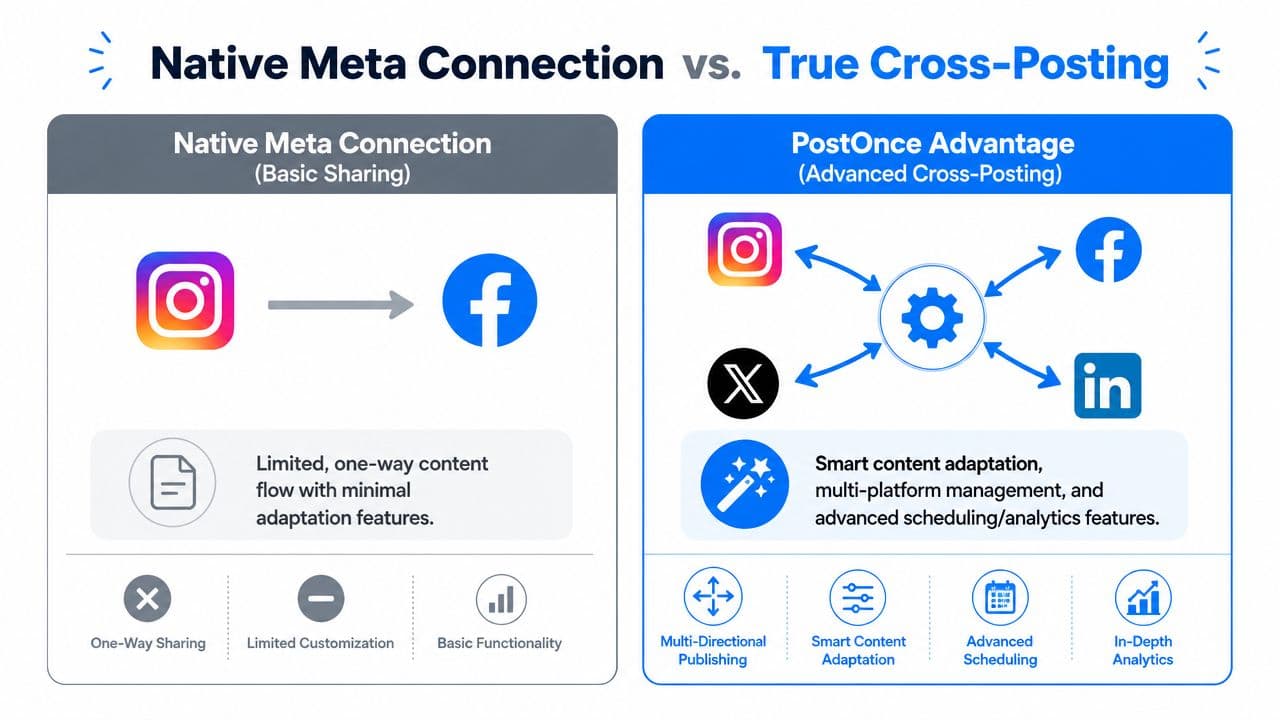
The native Meta connection is useful, but it's narrow. It mainly supports the relationship between an Instagram professional account and a Facebook Page inside Meta's tools. That works when your publishing needs are simple. It falls short when you manage several channels, multiple brands, or platform-specific formatting.
Where native Meta sharing works
If you're only trying to connect one Instagram account to one Facebook Page, Meta's own setup is usually enough. It's especially useful when the account owner wants everything managed under the same business environment.
Native sharing is a good fit when:
- You only publish within Meta. Facebook and Instagram are your only active channels.
- You want the official relationship in place. This matters for internal Meta features and account administration.
- Your posting volume is light. A few posts per week is very different from a daily content machine.
Where it starts to break down
Problems show up when the publishing process needs more than a simple handoff.
A social media manager usually runs into these limitations:
| Need | Native Meta connection | Cross-posting workflow |
|---|---|---|
| Publish from one source to multiple networks | Limited to Meta ecosystem | Built for multi-network distribution |
| Adapt post format per platform | Minimal | Supports platform-specific handling |
| Reduce repetitive editing | Partial | Better suited to set-and-repeat workflows |
| Manage many brand accounts | Can get messy | Easier to structure with rules |
That gap matters. A caption written for Instagram often needs trimming, cleanup, or reframing elsewhere. Hashtags that look normal on Instagram can clutter a Facebook post. A short update that works on one network may need a different structure on another.
Native linking is account plumbing. Cross-posting is content operations.
Matching the tool to the job
For teams that need broader distribution, PostOnce crossposting is one option built around publishing once and distributing to multiple platforms with rules and formatting logic. That's a different use case from connecting a Facebook Page to an Instagram account.
The trade-off is straightforward:
- Use Meta's native connection when you need the official link and basic in-platform sharing.
- Use a cross-posting workflow when your real problem is time, consistency, and managing content across more than one ecosystem.
The mistake I see most often is treating those as the same decision. They aren't. One connects assets. The other runs your publishing process.
Preparing Your Accounts for a Seamless Connection
Most connection failures happen before anyone clicks the connect button. The setup only works when the account structure is correct. Meta requires a specific pairing, and if you're missing any part of it, the option may not appear or the connection won't stick.
According to Metricool's guidance on linking Facebook to Instagram, the Instagram account must be a Professional account (Business or Creator), the connection is made from Instagram's Edit Profile flow or Facebook's Linked Accounts settings, and the person doing the setup needs Admin access on a classic Page or Full control on a New Facebook Experience Page.
The account combination that actually works
This is the setup Meta expects:
- Instagram side. A Professional account, either Business or Creator.
- Facebook side. A Facebook Page, not a personal profile.
- Access level. The person connecting them needs the right Page permissions.
That means two personal profiles are not the target setup here. If someone is trying to connect a personal Instagram profile to a personal Facebook profile for business tools, they usually hit a wall because that isn't the supported structure for this connection.
What to check before you try again
Use this quick preflight list before touching settings:
- Confirm the Instagram account type. If it's still personal, switch it to Business or Creator first.
- Open the correct Facebook asset. Make sure you're working with the Page, not your personal Facebook account.
- Verify Page access. If you're on a classic Page, you need Admin. If the Page uses the New Facebook Experience, you need Full control.
- Check who owns the assets. Agencies often inherit logins, but the actual Page owner kept the required control level.
If you're still building the Page side of your setup, this guide on how to create a business profile on Facebook is useful. And once the basics are in place, you can focus on content distribution and grow your Facebook presence with a stronger publishing rhythm.
The cleanest setups happen when one person verifies account type, Page asset, and access level before anyone opens Account Center.
What doesn't work
A few common assumptions cause wasted time:
- Personal Facebook profile instead of a Page
- Personal Instagram account instead of Professional
- Editor-level or partial access when Meta requires higher control
- Old agency access that looks active but doesn't include the permission needed to connect
This stage isn't glamorous, but it's where most successful setups are won.
Your Guide to Linking Facebook and Instagram
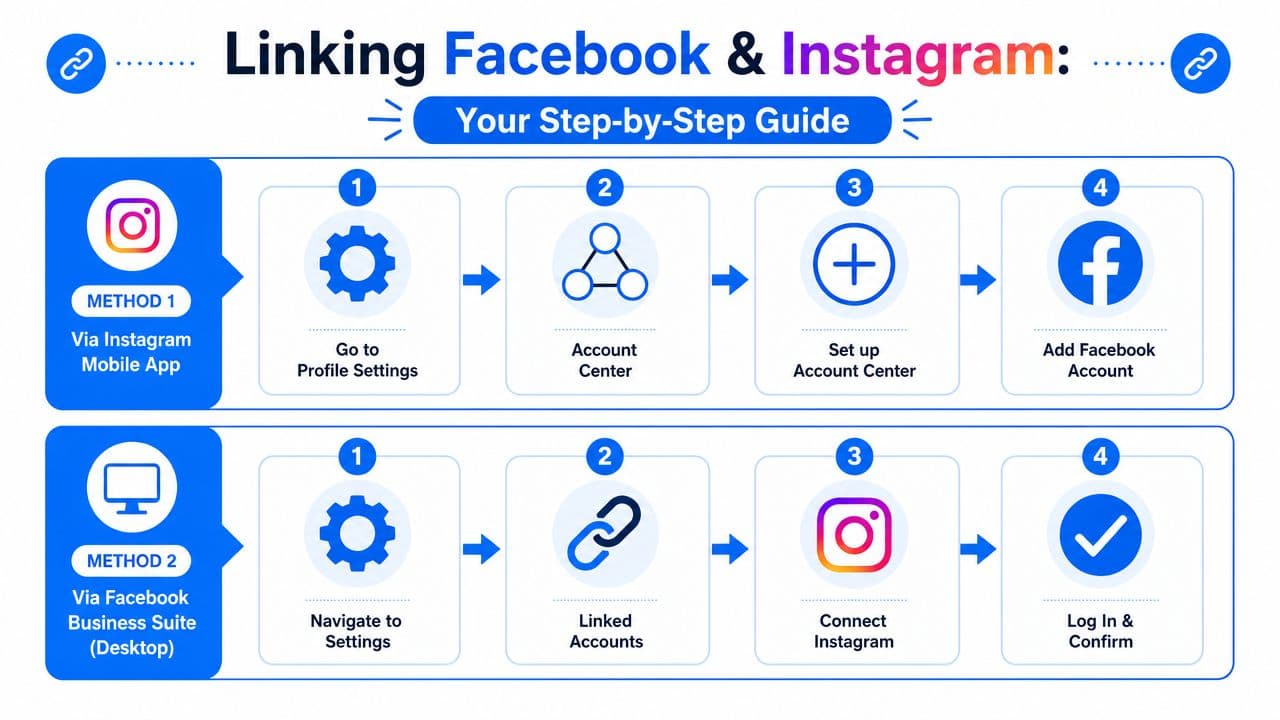
Once the accounts are prepared correctly, the actual connection is usually short. The two practical paths are through Instagram or through Facebook's settings on desktop. For most single-brand owners, Instagram is faster. For businesses and agencies, desktop is often easier because you can confirm the Page asset and account permissions while you're working.
Link from the Instagram app
This is the cleaner route when you're already signed into the correct Instagram account on your phone.
Open Instagram and go to your profile. From there, look for Edit Profile and the account connection area tied to your professional setup. Meta's approved flow allows the Facebook Page connection to be configured from Instagram's Edit Profile path, as covered in the earlier requirements source.
When Instagram shows available Pages, stop and verify the Page name carefully. This matters more for freelancers, agencies, and business owners who manage more than one asset. The wrong selection creates annoying cleanup later, especially when inbox and publishing permissions start pointing to the wrong Page.
Pick the Page slowly. The click itself is fast, but undoing a wrong Page assignment usually takes longer than doing it right the first time.
If you want a second walkthrough with screenshots and an alternate explanation of the in-app flow, this guide on how to link Facebook and Instagram is helpful.
A visual walkthrough can also help if the menu labels look slightly different on your device:
Link from Facebook on desktop
Desktop setup is often easier when multiple people have access to the business assets. Open the Facebook Page settings and look for Linked Accounts. Meta also supports configuring the connection from Facebook's Linked Accounts settings, which is useful when you want to start from the Page side instead of Instagram.
This route is better when:
- You manage several Pages. It's easier to see exactly which asset you're editing.
- You need to confirm permissions first. Desktop view usually makes access checks less confusing.
- You're handling client accounts. Fewer accidental taps, fewer wrong accounts.
What you should expect after linking
A successful connection typically means the Facebook Page and Instagram professional account now recognize each other in Meta's environment. At that point, you can move into whatever workflow you need, whether that's basic sharing, inbox management, or ad-related setup.
If something feels off right after linking, don't keep clicking random reconnect buttons. Check the assigned Page name, account login, and whether you connected the intended Instagram account. Most bad setups come from choosing the wrong asset, not from a broken system.
Troubleshooting Common Connection Problems and Errors
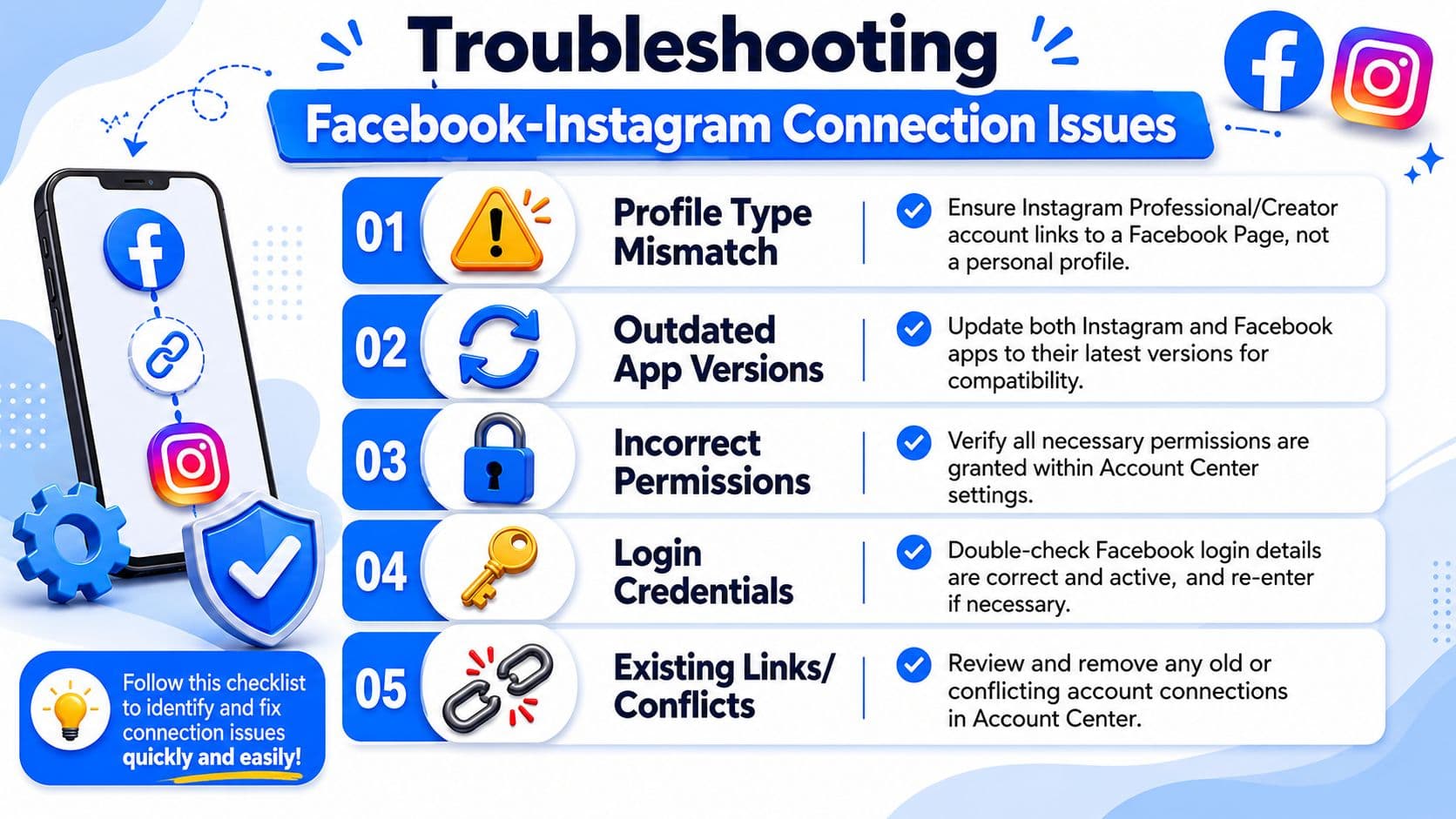
The most common misconception is also the one that wastes the most time. Many users think connecting Facebook and Instagram means pairing two personal profiles. Current guidance says the setup requires an Instagram professional account and a Facebook Page, plus admin access to that Page, and many tutorials don't explain that permission model clearly enough, as noted in this YouTube walkthrough discussing the personal-profile misconception.
Problem one: you tried to connect the wrong kind of accounts
If you're trying to pair a personal Instagram profile with a personal Facebook profile for business-style integration, that's the wrong setup. The fix is structural, not technical. Use the supported account types and Page relationship covered earlier.
Problem two: the Page doesn't show up
When the Page is missing from the list, one of these is usually true:
- You're logged into the wrong Facebook account.
- You have some Page access, but not the access level required to connect it.
- The Page belongs to another business owner or old agency setup.
Many people bounce between apps thinking the feature is bugged. Usually, it's an asset-access issue.
Problem three: you don't have permission
This message almost always points back to roles and control levels. If the person doing setup can't manage the Page at the required level, Meta blocks the connection.
A fast diagnostic checklist helps:
- Check which Facebook account is active. Browser sessions often hold the wrong login.
- Review Page access directly. Don't assume agency access equals Full control.
- Confirm the Instagram account is the intended professional profile. Brand teams often have an old Creator account still attached.
- Remove stale connections. Old links can conflict with new assignments.
If Meta says you don't have permission, believe the permissions screen before you believe the app behavior.
Problem four: the connection exists, but sharing doesn't behave right
This usually means the accounts are linked, but not in the way you expected. Sometimes the wrong Page is attached. Sometimes the account owner completed the link under a different login. Sometimes the business just needs a different workflow than native sharing provides.
If you're trying to automate content handoff after the official link is in place, this guide on how to automatically post Facebook to Instagram covers that next layer without redoing the entire setup.
How to Unlink or Switch Connected Accounts
Unlinking is simple when you know where the original connection lives. Go back to the same Meta-managed area where the accounts were connected, usually through Accounts Center or the linked account settings tied to the Page and Instagram profile. Find the connected Facebook Page or Instagram account, remove it, and confirm the change.
When switching makes sense
Teams usually unlink for a few practical reasons:
- The wrong Page was connected
- A client relationship ended
- The business changed ownership
- An old brand account is still attached
The main effect is operational. Shared behavior between the connected accounts stops, and you lose the convenience tied to that relationship until the correct assets are linked again.
Keep the handoff clean
Before switching, make sure the right person has access to the replacement Page and the intended Instagram professional account. That prevents the same permission mess from repeating.
Reversible changes are only easy when the assets are clearly owned and properly labeled.
If your real goal isn't just to connect Facebook to Instagram but to stop repeating the same posting work across platforms, PostOnce gives you a cleaner publishing workflow. You create content once, connect your accounts, and distribute it across the networks you use without rebuilding every post by hand.