

If you're trying to figure out how to post a story on Facebook, the mechanics are easy. The hard part is doing it without breaking your workflow every day. That's why teams eventually look at tools like PostOnce cross-posting automation, especially when the same creative also needs to go to Instagram, LinkedIn, Threads, or other channels.
Most tutorials stop at “tap Create story.” That's fine for casual use. It's not enough for a business owner, agency, or social media manager who needs repeatable publishing, desktop access, scheduling, and clean handoffs between platforms.
The Smart Way to Post Facebook Stories
Manually posting a single Facebook Story takes about a minute. However, sharing Stories consistently, at the ideal time, in the correct format, and while managing other social platforms is where teams often lose time.
That's the core issue behind this search. People rarely need help finding the Story button. They need a workflow that doesn't force them to recreate the same asset, rewrite the same caption logic, and re-upload the same vertical file over and over.
For day-to-day social operations, manual Story posting works best in two situations:
- Real-time moments: behind-the-scenes clips, event updates, quick phone-shot announcements
- Light personal use: casual posting from your own profile with minimal editing
It works poorly when the job involves more than one channel.
- Brand campaigns: assets need approval, timing, and consistent formatting
- Multi-account publishing: one person manages several Pages or clients
- Desktop-first teams: the content is built on a laptop, not inside a phone camera roll
Practical rule: If a Story starts life in Canva, CapCut, Premiere, or a shared content folder, don't force the whole team back into a phone-only posting habit.
A stronger system starts with one source asset, then adapts distribution around it. That's the same logic behind solid social media workflow best practices: create once, publish intentionally, and remove as much repetitive handling as possible.
Facebook Stories are still worth learning natively because you need to know what the platform expects, what editing tools are available, and where settings tend to trip people up. But if you're managing social professionally, the native method should be your baseline, not your entire strategy.
Posting Your First Facebook Story from Mobile
For personal use and quick updates, the Facebook mobile app is still the fastest route. Facebook rolled out Stories in July 2017, and by 2018, over 500 million people across Facebook and Instagram used Stories daily, which helped lock in the familiar pattern of tapping Create story, adding content, and sharing it as a fast publishing habit for creators and brands, as noted by Buffer's Facebook Stories overview.

Open the Story composer
In the Facebook app, look for Create story near the top of your feed. Tap it, and Facebook opens the Story camera or media picker. From there, you can shoot something live, pull an image or video from your gallery, or build a text-based Story.
If you're coming from Instagram habits, the interface will feel familiar. If you also manage that channel, this guide on how to post a story on Instagram helps keep the two workflows straight.
Post a photo, video, or text Story
A photo Story is the simplest option. Choose a still image from your camera roll or capture one in the app, then add text, stickers, or a filter if needed. This works well for announcements, product shots, quote cards, and screenshots.
A video Story follows the same path, but you'll want to check framing before you publish. Vertical content usually performs more cleanly because it fills the Story frame naturally. If the clip looks cramped, crop it before posting instead of relying on Facebook to make the decision for you.
A text Story is useful when the message matters more than the visual. Use it for quick updates, reminders, availability notices, or a short CTA when you don't have media ready.
A simple workflow looks like this:
- Choose the asset first: don't open the Story composer and then decide what to say
- Edit lightly in-app: text overlays and stickers are fine, but heavy editing is better done before upload
- Preview before sharing: check crop, safe areas, and whether text sits too close to the edges
Later in the process, a quick walkthrough can help if you want to see the taps in context:
Keep Story text high enough and centered enough that buttons, profile UI, or reply bars don't cover your message.
What usually works best on mobile
Mobile posting is strongest when speed matters more than polish. If you're at an event, on a shop floor, or capturing something happening right now, posting directly from the app is the right move.
What doesn't work well is trying to turn mobile posting into a full content system. Once you need approvals, scheduling, reusable templates, or multi-platform coordination, phone-only posting starts to slow the team down.
Using Desktop and Business Suite for Page Stories
Business users often miss this because Facebook still trains people toward mobile behavior. But if you manage a Page, desktop publishing matters. It's easier to upload finished creative, check branding, manage assets from shared folders, and work through a planned calendar without passing everything through a phone.
Post from the Facebook desktop interface
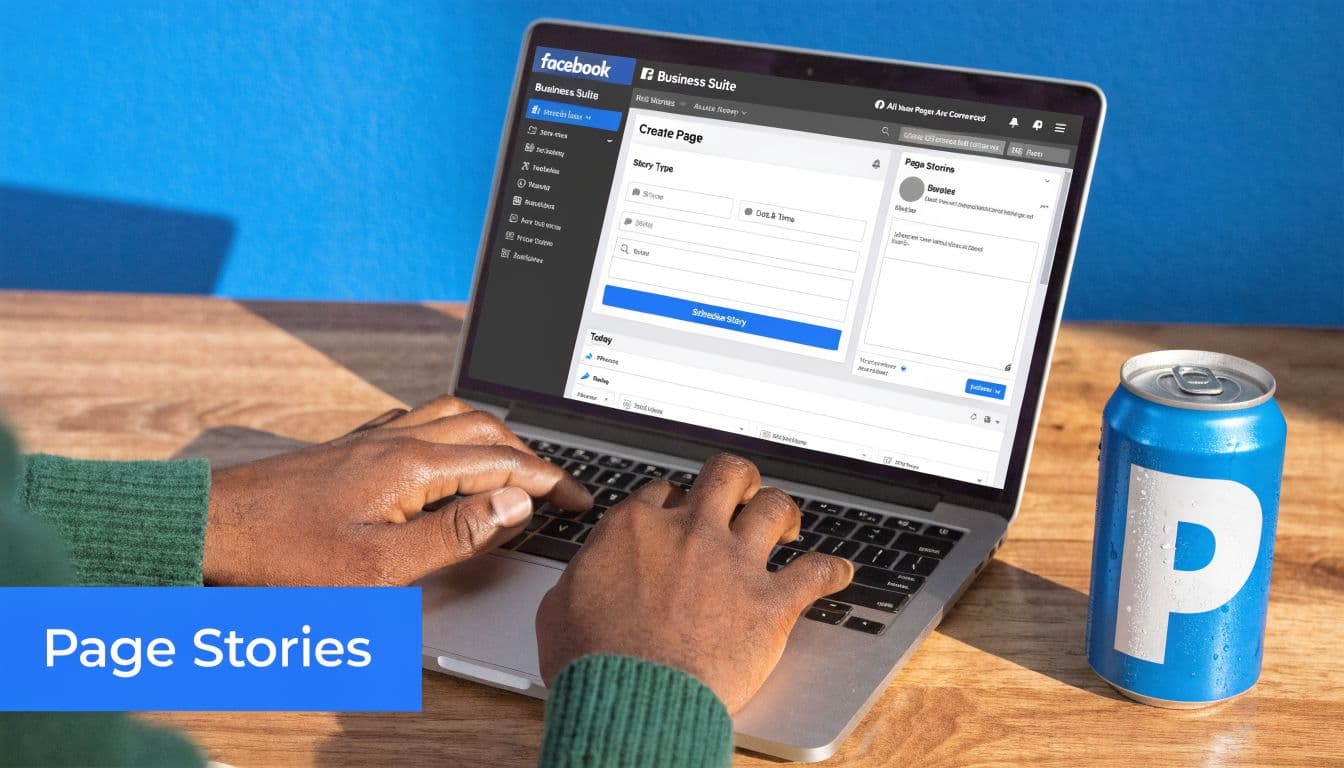
On desktop, Page admins can use Facebook's web interface to create a Story. Depending on the layout you see, the entry point is usually near your account or Page controls. Upload the image or vertical video, add any basic finishing touches, preview it, and publish.
This route is useful when the asset already lives on your computer. It avoids the annoying step of sending files to your phone just to upload them again.
A few practical checks help here:
- Use a vertical asset when possible: it reduces awkward cropping
- Review text placement: desktop previews are easier to judge than a phone screen
- Keep the Story purpose narrow: one message per frame usually outperforms cluttered layouts
Schedule with Meta Business Suite
For any team posting on behalf of a business, Meta Business Suite is the more practical option because it supports planned publishing. In 2020, Meta enabled scheduled publishing for Facebook Stories through Business Suite, and a 2022 survey found that 68% of social media management teams schedule at least some Facebook Stories using tools like Meta Business Suite, reflecting a shift toward a planned, scalable workflow, according to Sprout Social's Facebook Stories analysis.
That number lines up with what most working social teams already know. Real-time publishing has a place, but the baseline operation should be scheduled wherever possible.
If you need the broader scheduling workflow for feed content too, this walkthrough on how to schedule a post on Facebook is worth keeping alongside your Story process.
Scheduled Stories are usually better for launches, reminders, promos, and recurring campaigns. Live-posted Stories are better for moments you couldn't have planned.
When desktop beats mobile
Desktop tends to win when content is pre-produced. Think campaign graphics, polished videos, customer proof, product promos, hiring notices, and event reminders.
Mobile still wins when speed is the priority. If something is happening now, post it now. If the content already exists in a shared drive and needs to go out on schedule, use desktop and Business Suite.
That split is simple, and it keeps teams from forcing every Story into the wrong publishing method.
Mastering Story Features for Better Engagement
Getting a Story live is one skill. Building one people interact with is another. Most weak Stories fail for simple reasons: too much text, unclear intent, weak visual hierarchy, or the wrong audience setting.
Choose privacy settings on purpose
Facebook gives you granular options such as Public, Friends, and custom audience controls like Close Friends. That flexibility is useful inside Facebook, but it creates a real operational trade-off when the same content also needs to appear elsewhere. As explained in Hibu's guide to Facebook Story setup, Facebook's granular privacy options like Close Friends and custom lists don't translate uniformly to other platforms such as Reddit or Twitter, which means creators either limit reach or manage settings manually.
That matters more than expected. A promotional Story should usually be broad. A community update, member-only note, or personal check-in might need tighter visibility.
Use this rule set:
- Public: best for marketing content, product updates, offers, and general brand visibility
- Friends or limited audience: better for personal accounts or trust-based communities
- Custom lists: useful, but only if you're clear on why that segment needs different content
Use interactive elements sparingly
Polls, question stickers, quizzes, music, and link stickers can all improve a Story when they support the point. They hurt performance when they're added just because the feature exists.
A few examples:
- Polls: good for fast preference questions and lightweight audience feedback
- Question stickers: useful for collecting objections, FAQs, or topic requests
- Music: helps mood, but can distract from offers or educational content
- Link stickers: best when the Story has a single clear destination
If you need fresh prompts for interactive Story ideas, this roundup of discover social media content strategies is a practical brainstorming resource.
Technical specs that keep Stories clean
A lot of “engagement problems” are really formatting problems. If the asset looks cropped badly, blurry, or cramped, people skip it.
| Element | Recommendation |
|---|---|
| Aspect ratio | 9:16 vertical |
| Format style | Full-screen visual first |
| Text placement | Keep key text away from edges and bottom UI |
| Message structure | One core message per Story |
| Visual density | Avoid overcrowding with stickers and overlays |
A clean Story usually beats a clever but cluttered one.
The strongest Stories feel easy to consume. One visual. One point. One action.
Automate Story Posting with PostOnce
Many individuals searching how to post a story on Facebook are really trying to solve a bigger workflow problem. They don't just want the native steps. They want a system that doesn't require reposting the same content manually across every channel they run.
That's where automation becomes the practical answer.
Why this is the real solution to the search intent
For creators and businesses, the work isn't “post one Story.” The work is:
- create the asset
- publish it on Facebook
- adapt it for other networks
- keep branding consistent
- do it again tomorrow without wasting time
That repetition is exactly what breaks most content workflows. According to the approved data for this article, 68% of small businesses use desktops for social scheduling, yet most guides still focus on mobile. The same approved source notes that PostOnce helps close that gap with desktop-driven cross-posting and can save managers over 3 hours per week, as referenced in the Business Insider source used in the brief.
That matters because desktop is where many teams already edit, review, and organize their social assets.
What an automated workflow should look like
A good automation setup doesn't remove judgment. It removes repetition.
The practical model is straightforward:
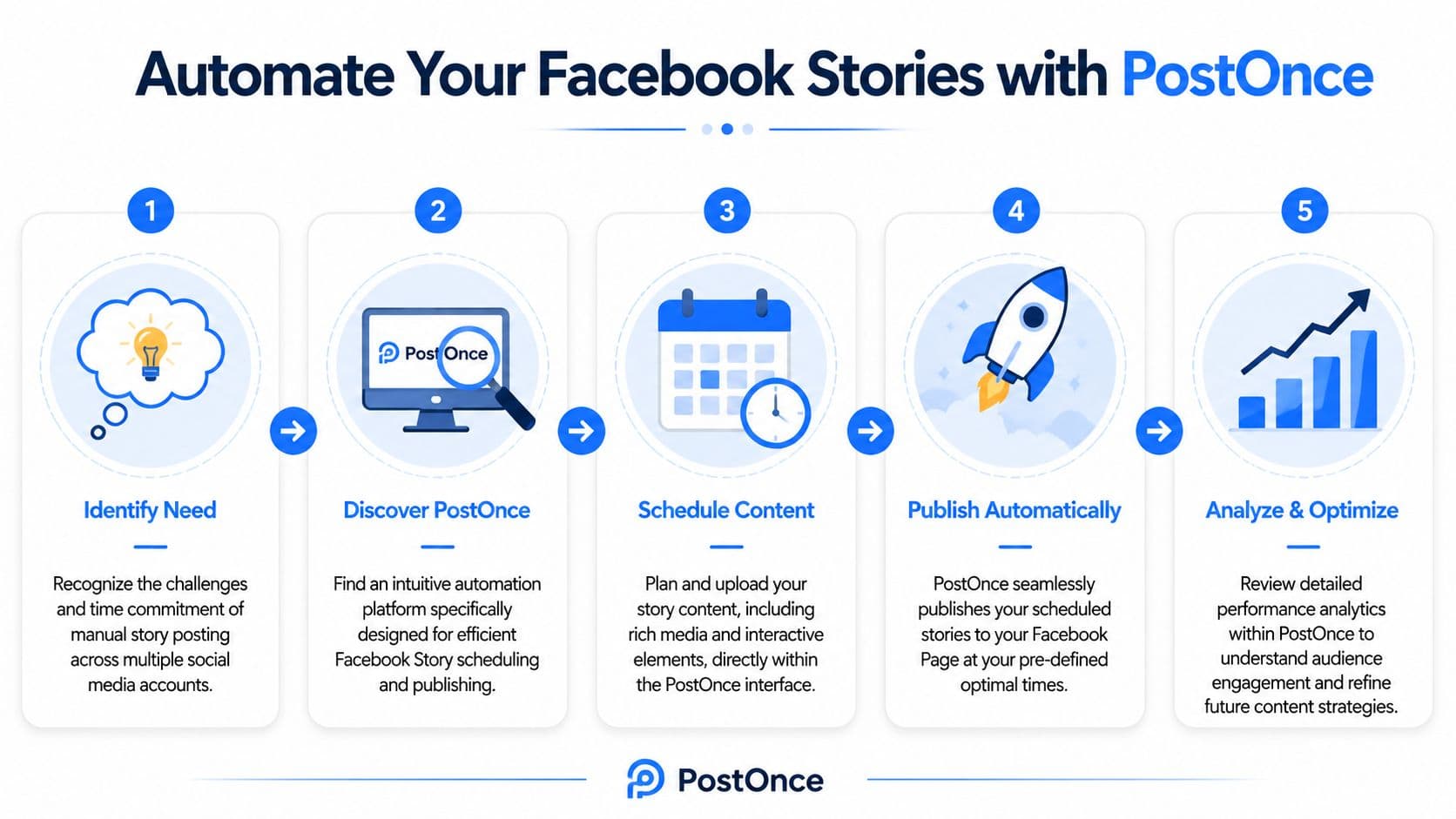
- Create once: prepare the core Story asset in your editing tool of choice
- Set rules: decide where that content should also publish
- Adjust for platform fit: keep the original message, but respect each network's format
- Schedule in advance: batch work instead of posting ad hoc
- Review results: refine future Stories based on what got replies, taps, or visits
If your video content needs cleanup before publishing, an automated background noise removal API can be useful for polishing voiceovers or on-camera clips before they enter your social pipeline.
For a broader system beyond Stories alone, this guide on how to automate social media posts fits the same operational mindset.
What works and what doesn't
Automation works best when your content categories are predictable: promos, announcements, recurring updates, educational clips, repurposed short-form video, and campaign assets.
It works poorly when every Story depends on platform-specific privacy settings or last-minute in-app interactions. In those cases, native posting still has a role.
The key trade-off is simple. If the Story is part of a repeatable content machine, automate the workflow. If it's highly reactive, personal, or privacy-sensitive, post natively.
Troubleshooting Common Story Problems
Even experienced teams run into Facebook Story issues. Most of them come down to file handling, account limitations, or formatting mistakes rather than anything mysterious inside the platform.
Story won't upload
If a Story hangs during upload, check the obvious things first. Unstable connection, a large media file, app lag, or an outdated app version are common causes.
Try this quick sequence:
- Switch networks: move from weak Wi-Fi to stable mobile data, or the reverse
- Close and reopen the app: temporary upload stalls often clear on relaunch
- Re-export the file: especially if the video came from an editor with unusual settings
Story looks blurry or cropped badly
This usually means the file wasn't prepared for the Story frame. Facebook Stories favor vertical creative, and assets that aren't sized with mobile viewing in mind can lose clarity or cut off important text.
Keep a reference for Facebook post size guidelines in your team docs so designers and editors don't guess.
For visual brands, especially in ecommerce and apparel, format discipline matters. Teams working with product visuals may also like WearView's guide to fashion AI technology, which includes useful ideas around image workflows and creative production.
Missing link stickers or music options
If you can't find a feature, the cause is usually account type, region, rollout timing, or page/profile differences. Facebook doesn't always expose every feature the same way to every account.
When that happens, don't burn time hunting for a hidden button. Test on another account, confirm whether the feature is available for that account type, and use a simpler Story build if needed.
If a feature is missing, simplify the Story and publish the message anyway. Waiting for the perfect sticker is usually worse than posting a clear Story without it.
Interactive sticker or text overlays cover key content
This is a layout problem, not a platform bug. Stickers, reply bars, and interface elements can crowd your message if everything is placed too low or too close to the edges.
The fix is simple. Leave breathing room. Design for the Story UI, not just for the raw canvas.
If posting Stories is eating up time across Facebook and your other channels, PostOnce gives you a cleaner way to publish once and distribute everywhere without the usual copy-paste routine. It's a strong fit for creators, small businesses, and social teams that want a desktop-friendly workflow, repeatable scheduling, and less manual social admin.