

















If you searched for edit URL Facebook, you're probably trying to fix something that should have been simple and wasn't. Maybe your Page handle looks wrong, maybe a shared link keeps showing an old title and image, or maybe you pasted the wrong URL into a post and now Facebook won't let you clean it up the way you expected. Before you burn more time on patchwork fixes, it helps to use a workflow that catches these problems before publishing. That's where PostOnce earns attention. It gives social teams a way to create once and distribute across platforms without the usual copy-paste mistakes that cause URL headaches later.
The confusion usually starts because people use one phrase, edit URL Facebook, to describe three different jobs. Facebook also doesn't make the distinction obvious in its interface. You can change your Page URL by editing your username. You can refresh a link preview by fixing the source page and forcing Facebook to fetch it again. And you can correct post text only within the limits Facebook allows after publication.
Why Editing a Facebook URL Is So Confusing
Facebook is large enough that small identity mistakes become real brand problems. Sprout Social reports Facebook at 3.07 billion monthly active users for 2025, which is why a clean Page address still matters for discoverability and professionalism on the platform (Sprout Social's Facebook marketing stats).
The problem is that Facebook uses one visible surface for several different URL-related actions. A junior social manager often sees a bad link, clicks into the post, and assumes every URL element is editable from the same place. It isn't. Facebook treats your Page address, your shared link preview, and the typed text inside the post as separate objects.
The three things people mean by edit URL Facebook
Here's the practical breakdown:
- Page URL means your Facebook Page's public address, which is controlled by the username.
- Link preview means the title, image, and description Facebook pulls from a webpage when you paste a link.
- Post text URL means the literal link text you typed into the caption or body of a post.
If you mix those up, you end up following the wrong tutorial and getting nowhere.
Practical rule: Before you try to fix anything on Facebook, ask one question first. Are you changing your Page identity, your website preview, or the words inside a published post?
That distinction matters even more when you're trying to keep branding aligned across channels. A Facebook handle that doesn't match your Instagram, LinkedIn, or TikTok account creates friction for users trying to find you. If you need a broader grounding in how URLs function as business identity, Baslon Digital's guide to UK business URLs is a useful companion read.
Why the interface makes this harder than it should be
Facebook hides important controls under settings labels that change slightly between desktop and mobile. Some users look for “custom URL,” but Facebook often presents the actual control as Username. Others think fixing a bad link preview means editing the post, when the correct fix is on the website itself.
That mismatch between search intent and interface language is why this topic wastes so much team time. If you're also sorting out where profile elements appear inside Facebook's layout, this explanation of Facebook timelines helps clear up another common point of confusion.
Changing Your Facebook Page Custom URL
If your goal is to change facebook.com/YourBrandName, you're not editing a separate URL field. You're editing the Page username. That username becomes the public Page URL.
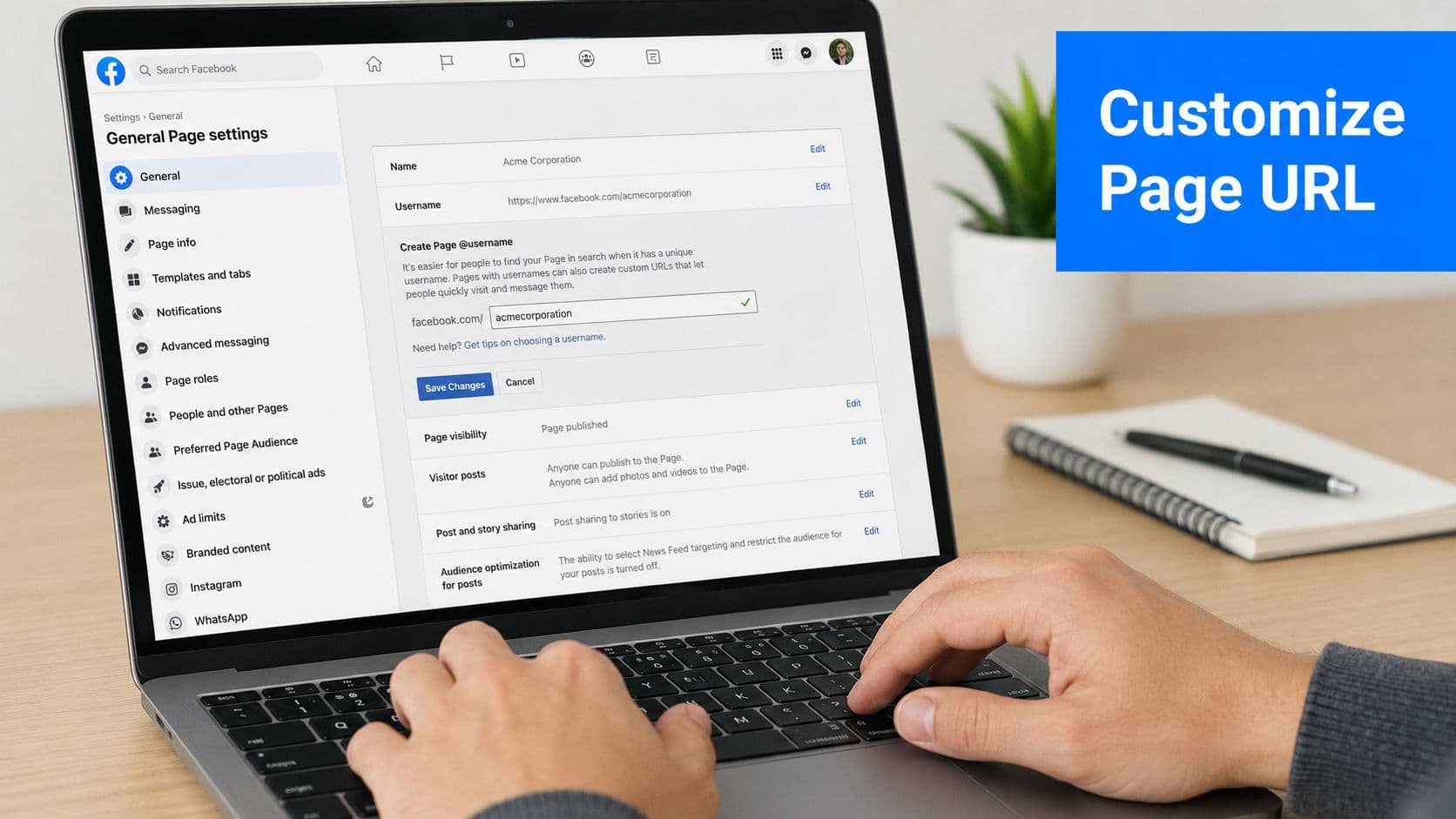
According to SocialPilot, the path is straightforward: go to the Page you manage, open Settings & Privacy > Page setup, then edit Username and save. On mobile, the option appears in Account Centre under profile details (SocialPilot's walkthrough for changing a Facebook URL).
Desktop steps that usually work
On desktop, use this order:
- Open the Facebook Page you manage.
- Click Settings or Settings & Privacy.
- Go to Page setup.
- Find Username.
- Enter the handle you want.
- Save the change.
If Facebook accepts it, your Page URL updates to match that username.
This is the part many people overcomplicate. You're not hunting for a field called vanity URL or custom link. Facebook usually ties it all to the username field.
Mobile steps that are easy to miss
The mobile path feels less intuitive because Facebook spreads identity settings across account-level menus.
- Open the relevant Page or profile controls: Make sure you're editing the right asset, especially if you manage multiple Pages.
- Go through Account Centre: Facebook often places username management there instead of in a Page-branded menu.
- Save and verify the public URL: After saving, check the live Page in a browser, not just inside the app.
If you manage several brands, verify the selected Page before editing. More than one social manager has changed the wrong Page username because Facebook kept the last-used asset active.
What to choose for the username
A good Facebook username does three jobs at once. It matches your brand, it's easy to remember, and it doesn't create conflict with your names on other platforms.
Use these filters before saving:
| Check | What to look for |
|---|---|
| Brand match | Keep it as close to your business name as possible |
| Cross-platform fit | Use the same handle you use elsewhere when available |
| Readability | Avoid awkward punctuation and hard-to-spell variants |
| Longevity | Pick something you won't outgrow after a campaign or rebrand |
If you're still building your presence from scratch, this guide to creating a Facebook business profile is worth reviewing before you lock in naming choices.
What doesn't work well
A few patterns usually create more trouble than they solve:
- Keyword stuffing: Adding extra words just to rank in search makes the URL clunky.
- Temporary campaign names: Those age badly and force another cleanup later.
- Random separators: If the handle looks improvised, people mistype it.
Treat the Page URL like a long-term branding asset, not a field to “just get done.”
Updating a Link Preview After You Post
A bad link preview is a different problem entirely. Your Page URL can be perfect and your shared link can still show the wrong title, image, or description. That happens because Facebook stores scraped page data and doesn't always fetch fresh information the moment your website updates.
Facebook also removed the old ability for Pages to manually customize link previews in order to reduce misrepresentation. That means the reliable fix is to correct the source page's Open Graph tags and then use Facebook's debugger to fetch the updated version, as explained in this video reference on link preview changes (YouTube explanation of Facebook link preview limitations).
What actually controls the preview
Facebook doesn't invent the preview on its own. It reads the webpage and pulls metadata, usually from Open Graph tags. If the page title, image, or description is wrong there, Facebook will often reproduce that mistake in the preview.
That's why editing the Facebook post itself often doesn't solve the issue. You have to fix the webpage first.
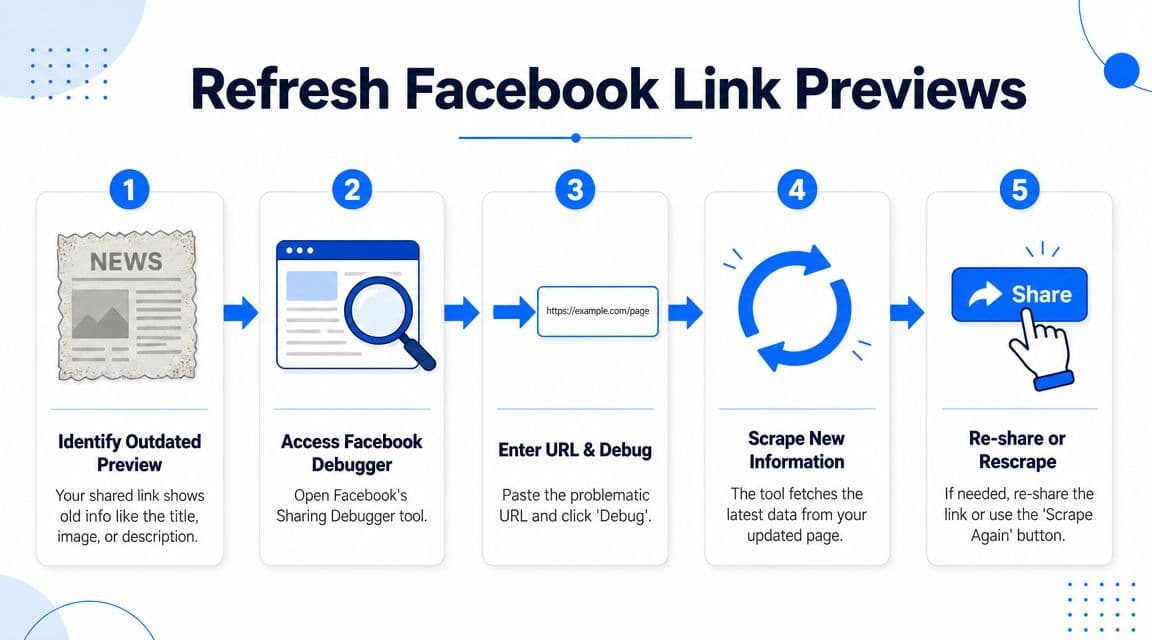
The refresh process that usually solves it
Use Facebook's Sharing Debugger after the page metadata is corrected.
- Copy the exact webpage URL that's showing the wrong preview.
- Open Facebook's Sharing Debugger.
- Paste the URL into the tool.
- Run the debug check.
- If Facebook still shows old data, use the option to scrape again.
This is the point where many teams get impatient. They update the blog post, paste the link back into Facebook, and expect the preview to refresh instantly. If Facebook is still holding older scraped data, it won't.
A quick visual makes the workflow easier to follow:
What to fix on your site before debugging
If the debugger keeps returning the same stale preview, check the source page for:
- Wrong title tag or Open Graph title: Facebook may be pulling an outdated headline.
- Wrong featured image setting: The page might still point to an old image.
- Cached website changes not fully deployed: Your CMS may show the update to you before it serves it cleanly to Facebook.
The Sharing Debugger doesn't “edit” your Facebook post. It tells Facebook to fetch the current version of the page you linked.
If your content workflow includes video promotion, this often comes up when a YouTube link or blog post gets updated after initial publication. In that case, this guide on sharing YouTube videos on Facebook is useful for understanding how Facebook handles shared media links.
What won't work
There are a few dead ends people keep trying:
| Attempt | Why it fails |
|---|---|
| Editing the Page username | That changes your Page address, not a website preview |
| Rewriting the post caption only | Caption changes don't rewrite the scraped metadata |
| Waiting and hoping | Sometimes Facebook refreshes later, but that's not a workflow |
When the preview is wrong, fix the source. Then force a fresh scrape.
The PostOnce Solution to URL Headaches
Most Facebook URL problems start before Facebook ever enters the picture. Someone copies the wrong link, pastes an old article version, forgets to verify the preview, or posts the same asset manually across several platforms and introduces small inconsistencies in each one. Manual workflows create messy outcomes because they depend on repeated attention during repetitive work.
That's why the strongest fix isn't another after-the-fact Facebook workaround. It's using a publishing system that reduces the number of times a person has to re-enter links, rewrite captions, or rebuild posts from scratch across networks.
Why reactive fixes keep costing time
A reactive workflow looks like this: publish first, notice errors later, patch what Facebook allows, delete and repost what it doesn't, then repeat the same steps on other platforms. That's not just annoying. It also creates inconsistencies between channels and makes approvals harder.
A proactive workflow flips that. You prepare the right destination link once, confirm the copy, and distribute from a central process.
Where PostOnce fits the search intent
If someone searches edit URL Facebook, they usually want one of two outcomes. They either want to correct a visible mistake, or they want to stop making the same mistake over and over. The first need is tactical. The second is operational. PostOnce addresses the operational side.
Used well, it gives teams a cleaner way to:
- Start from one source of truth: One approved link and one approved content base reduce version drift.
- Avoid copy-paste errors: Re-entering the same URL across multiple apps is where many mistakes begin.
- Keep channel output aligned: Facebook, LinkedIn, X, and other profiles can stay consistent without rebuilding each post manually.
- Support repeatable workflows: That matters when more than one person touches the content calendar.
For brands publishing frequently, that shift matters more than any one Facebook setting.
The practical advantage for teams and solo operators
Solo creators often think automation is only for agencies. In practice, they benefit just as much because they're the ones doing every step themselves. Agencies and in-house teams benefit for a different reason. They need fewer handoffs, fewer “which version is live?” messages, and fewer cleanup requests after publication.
If your workflow includes regular Facebook distribution, PostOnce's Facebook crossposting setup shows the kind of automation path that solves the primary problem upstream.
Clean social publishing usually comes from fewer manual steps, not from getting better at fixing mistakes after the post is live.
That's the useful distinction. A Facebook URL edit is sometimes necessary. A better publishing system is what keeps it from becoming a weekly chore.
Troubleshooting Common URL Editing Problems
The most frustrating Facebook URL issues usually aren't caused by user error alone. They happen when Facebook rejects a change, hides a setting, or shows stale information after you've already done the obvious fix. At that point, generic tutorials stop being helpful.
One common failure is simple username rejection. If the handle is taken, Facebook won't partially negotiate with you. It just rejects the name. Some tutorials also note that Facebook may ask for your password again during the process, which can interrupt planned workflows if you weren't expecting it (YouTube notes on username unavailability and password re-entry).
My username is unavailable
This is the most common blocker.
Facebook usernames are unique. If another Page or profile already has the exact one you want, you need a variation. The strongest fallback is usually a clean modifier that still preserves brand recognition.
Try options like these:
- Location-based variation: Add your city or region if geography is part of the business identity.
- Industry-based variation: Add a service word if your core name is too generic.
- Short branded extension: Use a recognizable suffix, not a random string.
If you're handling naming consistency across multiple networks, this TikTok username guide is useful because the same handle trade-offs show up there too.
Facebook says I'm not eligible or asks for my password
This usually points to permissions, account state, or authentication checks rather than a broken feature. Start with the basics:
| Problem | Practical response |
|---|---|
| You can't see the username field | Confirm you're editing the correct Page and have the right access level |
| Facebook asks for a password | Complete the verification step and save again |
| The save button fails | Refresh, re-open the settings flow, and retry from the Page directly |
Don't assume Facebook has “lost” your change. Quite often, the session just needs one more verification step.
The link preview still shows the old version
If you already fixed your webpage and used the debugger, but the preview still looks wrong, widen the check. The issue may be local browser caching, a CMS cache, or a stale image reference on the page itself. If the Facebook interface also looks inconsistent while you troubleshoot, these browser cache troubleshooting tips can help rule out a local display issue.
Sometimes the problem isn't Facebook refusing your update. It's you looking at an old local version while Facebook is showing something else to everyone else.
I pasted the wrong URL into a live post
Expectations need a reset. Facebook is much more flexible with some text edits than with the structural behavior of shared links. If the post was built around the wrong linked URL, the cleanest fix is often to delete and repost correctly.
That sounds inconvenient, but it's usually faster than trying to rescue a broken post with partial edits that leave the preview or link destination mismatched.
Use this rule of thumb:
- Minor text typo: Edit if Facebook allows it and the link destination is still correct.
- Wrong linked page: Delete and repost.
- Wrong preview from a correct page: Fix the source page and re-scrape.
Those distinctions save a lot of second-guessing.
Best Practices for Flawless URL Management
The cleanest Facebook URL workflows come from discipline before publishing, not heroics afterward. Once you separate the three meanings of edit URL Facebook, the decisions get easier. You stop trying to fix Page identity problems with post tools, and you stop trying to fix preview problems in the username settings.
Keep your identity stable
Your Facebook username should align with your broader social naming wherever possible. If the exact handle isn't available, choose the most durable fallback you can live with for a long time. Constantly revising usernames creates avoidable confusion for customers and teammates.
A short internal naming rule helps. Use one preferred brand handle, one approved fallback, and one location-based backup if needed.
Check the link source before publishing
When sharing a webpage, verify the page itself before you share it. That means confirming the final destination URL, the page title, and the featured image or Open Graph setup on the site.
Use a simple pre-publish routine:
- Open the final URL: Make sure it lands on the intended page.
- Preview the page metadata: Confirm the title and image are current.
- Share from the final version only: Don't post draft URLs, temporary paths, or pages still being revised.
Use the right fix for the right problem
Not every Facebook URL issue deserves the same response.
- Bad Page address: Change the username.
- Bad link preview: Fix the source page and re-scrape.
- Bad post URL text: Edit if possible, otherwise repost cleanly.
Small URL mistakes spread fast because social teams often reuse the same post format across multiple channels. One wrong source link can become several wrong posts in minutes.
Reduce manual handling wherever you can
Most repeated URL mistakes come from too many manual steps. Every extra copy-paste, every last-minute mobile edit, and every platform-by-platform repost creates another chance to publish the wrong thing.
That's why the long-term answer isn't memorizing more Facebook workarounds. It's using a cleaner content process that limits repeated manual handling and keeps approved links consistent from the start.
If you want fewer Facebook URL fixes in the first place, PostOnce is the practical next step. It helps you create content once, distribute it across platforms, and cut down the manual posting habits that lead to broken links, mismatched previews, and messy cross-channel branding.