


















A Facebook post can go sideways fast. One routine update gets hit with spam, pile-on replies, or the kind of off-topic argument that eats your afternoon. If you're posting across several networks, that mess gets harder to manage because you're already spending too much time duplicating content and cleaning up after it.
That's why I'd solve the bigger workflow problem first with PostOnce cross-posting automation. It handles the repetitive part of publishing across platforms, which gives you more time to deal with the one thing automation can't fully replace: judgment. And when the immediate problem is figuring out how to turn off comments on a Facebook post, you need the right answer for the right Facebook surface, because Facebook treats profiles, Pages, and Groups very differently.
Tired of Managing Unruly Facebook Comments
When you're searching for how to turn off comments on a Facebook post, you're likely already in the middle of a mess. The post is live. Notifications keep coming. Someone is arguing in bad faith, spam is piling up, or a harmless update has turned into extra moderation work you didn't ask for.
That frustration is valid because Facebook's interface doesn't present comment control in a consistent way. What works on a personal profile often doesn't exist in the same form on a Page. What works in a Group may be much more direct than what you get anywhere else. If you manage content for a brand, creator account, or several clients, that inconsistency slows everything down.
The smarter approach is to treat comment control as part of a broader publishing system. If your team is already stretched, it helps to tighten your posting workflow and spend the saved time on moderation decisions that are important. For day-to-day community work, I also like keeping practical resources on hand about effective online reputation building, because comment moderation is only one part of protecting how people see your brand.
Practical rule: If Facebook feels confusing, it's usually because the control you're looking for depends on where the post was published, not just what the post says.
If you're juggling content planning and response management at the same time, this guide on social media and community management workflows is also useful context. The rest of this article cuts straight to the mechanics. Personal profile posts use a workaround. Pages rely more on moderation systems. Groups have the clearest native lock.
The Official Workaround for Personal Profile Posts
If you want a clean universal switch on your personal profile, Facebook doesn't give you one. On individual public posts, Facebook lets you limit comments to Public, Friends and established followers, Friends, or Profiles and Pages you mention, according to Facebook's help documentation on comment controls. The most restrictive practical option is Profiles and Pages you mention. If you don't tag anyone, nobody has permission to comment.

How to lock comments on a public profile post
Use this workflow on a personal profile post that is already set to Public:
- Open the post itself. Go directly to the post you want to control.
- Tap or click the three-dot menu. This is the post options menu.
- Choose "Who can comment on your post?" If you don't see this option, the post usually isn't set to Public.
- Select "Profiles and Pages you mention." This is the tightest option Facebook offers for a personal public post.
- Don't mention anyone. If nobody is tagged, nobody can comment.
That is the closest Facebook gives you to turning off comments on a Facebook post from a personal profile.
Why people think the setting is missing
The biggest trap is privacy context. Multiple user guides note that this workflow only appears when the post audience is set to Public, and the practical path is the post menu followed by Who can comment on your post? and then Profiles and Pages you mention on each post where you want comment suppression, as described in this walkthrough from Statusbrew.
So if your post is set to Friends, Specific friends, or Only Me, you may not see the control at all. That's why people often assume Facebook removed the feature, when the underlying issue is that Facebook tied comment scope to public-post settings.
Personal profile comment control on Facebook isn't a true off button. It's a visibility-and-permission workaround.
Desktop and mobile advice that saves time
On desktop, I recommend checking the post audience first before hunting for the comment control. On mobile, open the post fully instead of trying to manage it from the feed preview, because Facebook sometimes hides options until you're inside the post view.
One more operational note. This is per post, not a blanket setting for every profile post. If you're posting frequently, repeating this manually gets old fast. That's one reason social managers need to understand the difference between a timeline post and the surrounding privacy controls. If you need a refresher, this guide on how Facebook timelines work helps clarify why Facebook's settings often feel more layered than they should.
Managing Comments on Facebook Pages and Reels
Pages are a different environment. The mistake I see most often is treating a Facebook Page like a personal profile with a logo attached. It isn't. The moderation logic is broader, and the tools are more operational.
A useful way to think about it is this: personal profiles rely on a workaround, while Pages are built for ongoing moderation. Guidance around Facebook account types consistently points out that business Pages offer advanced moderation tools, Groups give admins direct control, and personal profiles rely on privacy workarounds, which is why multi-account managers need different playbooks for each context, as noted in this discussion of profile, Page, and Group differences.
What actually works on Pages
On a Page, the practical goal usually isn't "silence everything." It's "reduce junk without killing useful conversation."
That means using tools such as:
- Keyword moderation: Add words and phrases you don't want appearing publicly.
- Profanity filtering: Let Facebook automatically catch obvious low-quality replies.
- Link and spam handling: Useful when your posts attract promotions, fake offers, or bot-style replies.
- Manual hide and delete actions: Still necessary for edge cases and context-specific abuse.
If you manage Reels or video posts on a Page, expect the interface to vary slightly from standard feed posts. The exact menu placement can move, but the strategy stays the same. Set baseline moderation rules in Page settings first, then clean up exceptions at the post level.
A practical Page workflow
Here's the system I recommend for businesses and agencies:
| Situation | Best move on a Page |
|---|---|
| Spam links keep appearing | Tighten automated moderation and keyword filters |
| Criticism is valid but harsh | Leave it up and respond professionally |
| Repetitive trolling | Hide or delete, then block if needed |
| Product launch post needs tight control | Preload moderation settings before publishing |
| Reels attract low-quality replies | Review video-specific comment settings and filters |
That approach is much more durable than trying to find a universal off switch that may not exist in the way you expect.
A Facebook Page rewards setup work. Build your moderation rules before the post starts attracting attention.
For business owners setting up their presence from scratch, it also helps to understand how Page infrastructure affects moderation access. This walkthrough on creating a Facebook business profile is a useful foundation if your account structure still feels messy.
How to Disable Comments in Facebook Groups
Groups are where Facebook is clearest. If you're an admin, moderator, or the original poster in the right context, Facebook gives you a direct Turn off commenting option on the post menu, and you can later re-enable it with Turn on commenting, according to Facebook's help page for Group comment controls.
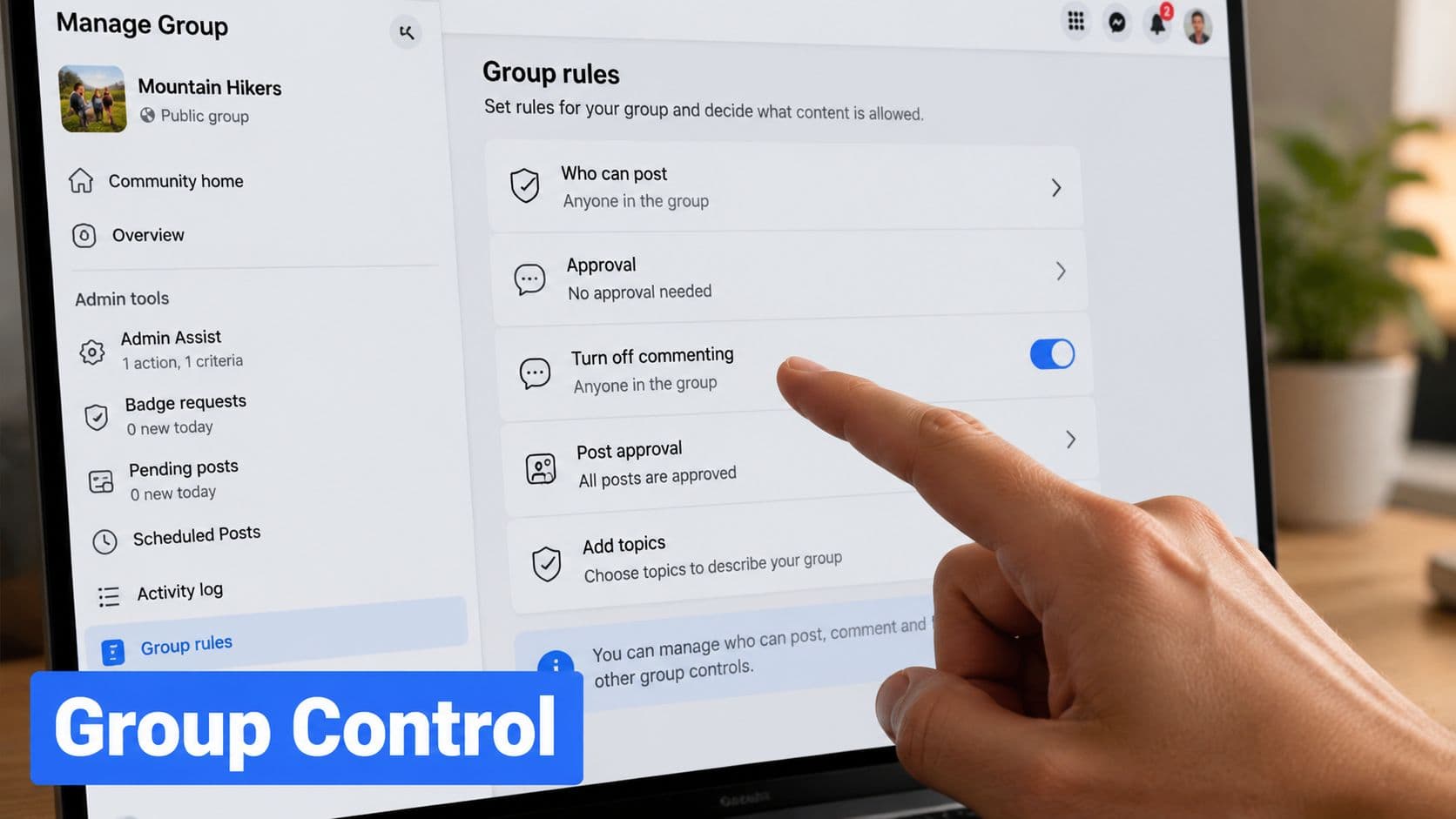
The cleanest workflow on Facebook
For Group posts, the steps are simple:
- Find the post inside the Group.
- Open the three-dot menu on that post.
- Choose "Turn off commenting."
- Return later and choose "Turn on commenting" if you want to reopen discussion.
This is much cleaner than the profile-post workaround because Facebook treats Groups as moderated spaces with clearer authority.
Where teams still get tripped up
The nuance is permissions. In many Group workflows, control rests with the admin or moderation team. That's why agencies and community managers need to know who owns the Group and who has moderation rights before promising a client that comments can be locked instantly.
Facebook also notes that turning off replies for a specific comment is only available in some Groups, so post-level locking should be your baseline. For anything that slips through before you lock the post, manual hide or delete actions still matter.
If your operations are spread across brand assets, admin roles, and shared access, keeping permissions organized matters as much as comment settings. This resource on managing your Facebook Business Manager is worth bookmarking if your team is dealing with account-access confusion on top of moderation issues.
For anyone using Groups as a growth channel, this guide to Facebook Group marketing is also helpful because moderation and promotion always overlap in active communities.
Beyond Moderation Streamlining Your Workflow with PostOnce
A messy Facebook comment thread rarely exists on its own. It usually lands on top of an already clunky publishing process.
That problem gets worse because Facebook does not give you the same comment controls everywhere. Profile posts need a workaround. Pages give you more moderation tools. Groups depend on admin permissions. If you are posting across all three, plus Instagram, LinkedIn, X, or Threads, the drain is context switching all day and then trying to moderate on top of it.

I have found that comment moderation gets easier once publishing stops eating up half the day. A tool like PostOnce helps by letting you prepare content once and send it to multiple platforms without redoing the same formatting and upload steps in every app. It does not solve Facebook's uneven comment settings, but it gives you more room to handle them properly.
Why this matters when comments get messy
Here is the trade-off. Automation saves time, but moderation still needs judgment.
If a post on a Page starts attracting spam, someone still needs to hide, delete, or block. If a Group post needs comments turned off, an admin still has to make that call. If a personal profile post starts going sideways, you still have to use Facebook's limited audience controls and make peace with the fact that there is no true universal off switch. The win is that you are no longer wasting energy on repetitive publishing tasks before the moderation work even begins.
A tighter workflow helps in a few concrete ways:
- You publish faster: Less copy-pasting between networks means fewer repetitive steps.
- You respond sooner: Time saved on publishing can go into reviewing problem threads before they spiral.
- You make better moderation calls: You are less likely to lock comments out of frustration when a lighter touch would work.
- You handle more accounts without chaos: That matters for freelancers, in-house teams, and agencies managing different Facebook asset types.
See the workflow in action
A quick product walkthrough makes the process easier to assess for your own setup.
The practical benefit is simple. If publishing is organized, comment moderation feels like a managed task instead of a constant interruption.
Practical Alternatives to Turning Off Comments Completely
Sometimes turning off comments is the right move. Other times it's too blunt. If a post still has value, shutting down the entire thread can cut off legitimate questions, customer feedback, or supportive replies you want.
A lot of the confusion starts because Facebook doesn't offer a universal off switch for ordinary public posts, and the option to limit who can comment only appears on posts set to public, which is why users with other privacy settings often think the control disappeared, as explained in this video covering the missing comment control issue.
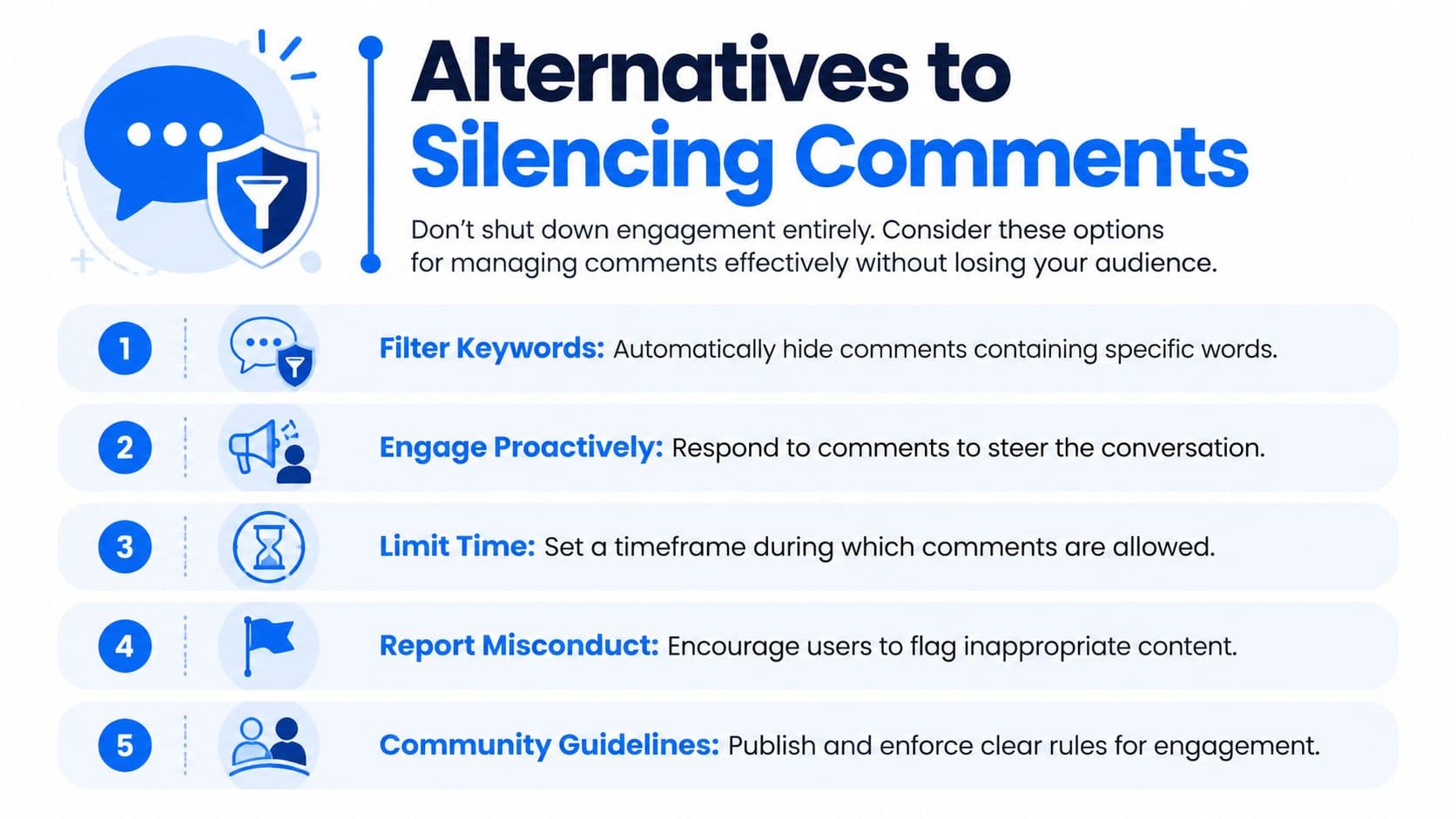
Better options when a full lock is too much
Here are the alternatives I use most often:
- Hide comments: Best when someone is trolling for attention. Hiding reduces public visibility without creating the instant confrontation that deletion sometimes triggers.
- Delete comments: Use this for spam, harassment, or obvious rule-breaking.
- Block the user: Necessary when the problem keeps repeating across posts.
- Pin a strong reply: A calm, clear top comment can set the tone for everyone else.
- Tighten Page filters: On business content, keyword moderation often solves recurring problems before they spread.
Match the action to the problem
A quick comparison helps:
| Problem | Best response |
|---|---|
| One rude but non-threatening reply | Hide it or reply once, then stop |
| Spam promotions and fake offers | Delete and tighten filters |
| Ongoing attacks from the same account | Block the user |
| Legitimate complaints | Respond publicly and professionally |
| Heated discussion with some value | Moderate selectively instead of locking everything |
Don't confuse "I want less chaos" with "I need zero comments." Those are different moderation decisions.
If you're trying to turn off comments on a Facebook post because one thread got messy, start smaller. A selective moderation move often preserves the upside of engagement without leaving your team exposed to the downside.
Frequently Asked Questions About Facebook Comment Controls
Facebook comment settings confuse people because the controls are different on profiles, pages, and groups. That inconsistency is the part many guides skip. Facebook treats each area as a different product with different moderation goals, so the answer depends on where the post lives.
Why don't I see the "Who can comment on your post?" option?
On a personal profile, that setting usually appears only on public posts. If the post is set to Friends, Only Me, or a custom audience, Facebook may not show the comment audience control at all.
I tell clients to check privacy first, not the comment menu. On profiles, Facebook frames this as a public-post audience setting, not a true universal comment toggle.
Can I turn off comments on every personal profile post at once?
No single setting does that across all profile posts.
What Facebook gives you on profiles is narrower than what you get in groups, and less direct than what many page admins expect. You can limit who comments on eligible public posts, but you cannot apply a clean, account-wide "comments off" rule to every personal post in one move.
Can I re-enable comments later?
Usually, yes.
In groups, you can turn commenting back on from the same post menu if you have the right permissions. On profile posts, you can change the comment audience again if Facebook offers that control on the post. On pages, the answer depends on the format. Standard page posts often rely more on moderation tools and filters than a simple off-and-on switch.
What happens to existing comments?
They usually stay there unless you remove them yourself.
That matters in messy threads. Turning comments off, or restricting who can add new ones, does not clean up what is already public. If the thread already contains spam, abuse, or off-topic arguments, someone still has to hide, delete, or document those comments manually.
Is there a true off switch for a regular Facebook profile post?
For most personal profile posts, no.
The closest option is a restriction setting on some public posts. That is why people feel like Facebook is hiding the feature. On profiles, Facebook is protecting conversation settings differently than it does in groups, where admins need stronger thread-level control.
Who can turn off comments in a Facebook Group?
In groups, admins, moderators, and sometimes the post author can turn off commenting, depending on the post and group setup.
This is one of the few places where Facebook offers a real thread-level shutoff because groups are built around managed community discussion. In practice, moderation teams usually handle it so the decision follows group rules and not just the preference of one member.
Should businesses turn off comments or moderate them?
Moderate first. Turn comments off only when the thread creates more risk than value.
For a business page, visible comments can help with trust, customer feedback, and reach. Shutting everything down too quickly can make a brand look evasive, especially if the post involves a product issue or service complaint. If the thread has turned into spam, harassment, or a pile-on that your team cannot responsibly manage, restricting participation is reasonable.
A simple rule helps. If comments still contain useful customer signals, keep them open and moderate. If they are only creating noise or legal risk, close the thread and move on.
If your team is posting across platforms and then spending half the day cleaning up replies, reducing manual publishing work helps free up time for the moderation decisions that need a human.