

Ever upload a new profile picture, only to find it's blurry, off-center, or awkwardly cropped? Getting your profile image size right is the first impression your brand makes, but it's a common frustration that tools like PostOnce solve instantly. By automatically crossposting and resizing your images for every platform, PostOnce ensures you look professional everywhere, without the manual effort.
Why Is a Perfect Profile Picture So Hard to Get?
You spend time creating the perfect image, but what looks sharp on Facebook might be pixelated on X (formerly Twitter) or have the most important part cut off on LinkedIn. This happens because every social network has its own rules for display size, upload dimensions, and aspect ratios—and they're always changing.
Manually resizing and re-uploading an image for each platform is a time sink. A poorly rendered profile picture can look unprofessional and undermine the quality of your content. This guide serves as your go-to reference for all the specs you'll need in 2026, but there’s a much simpler way to handle it.
The Solution for Perfect Profile Images: PostOnce
The core problem behind the search for "profile image size" is the need to maintain a consistent, professional brand presence without wasting time. This is the exact challenge PostOnce was built to solve. Instead of manually resizing and re-uploading the same image for every social network, you can automate the entire workflow.
When you crosspost with PostOnce, you only have to set your profile picture once. From there, our system handles the rest:
- It resizes your image to fit the ideal upload dimensions for every platform.
- The file is optimized for fast loading times without sacrificing visual quality.
- It intelligently accounts for both circular and square crops, ensuring your face or logo is always perfectly centered.
Think of it as a "set-it-and-forget-it" solution for brand consistency. You save countless hours and can be confident your brand looks polished and professional everywhere, all the time.
Ready to put this on autopilot? You can get started with the PostOnce app and let the software handle the technical details. Use this guide to understand the "why," and let our platform provide the automation.
Your Go-To Guide for Profile Picture Sizes on Every Platform
Your profile picture is your digital handshake. It’s often the first thing people see, so getting it right is crucial. But with every social network having its own specific rules for image sizes, aspect ratios, and file types, a single image rarely works perfectly everywhere. You'll often end up with an awkwardly cropped logo or a blurry headshot.
This guide is your single source of truth for all the technical specs you need. We'll walk through the exact requirements for each major platform as of 2026, so you can show up looking sharp and professional across the board.
Instagram Profile Image Size
On a purely visual platform like Instagram, your profile photo is everything. It’s the centerpiece of your profile, so making it crisp and clear is non-negotiable.
- Recommended Upload Size: 320 x 320 pixels
- Display Size: 110 x 110 pixels on mobile
- Aspect Ratio: 1:1
- Accepted File Formats: JPG, PNG, BMP
Even though Instagram displays your photo at a smaller 110 x 110 size, you should always upload a larger 320 x 320 pixel image. This ensures it looks sharp on high-resolution screens. Just remember, Instagram forces your picture into a circle, so keep the most important part of your image centered and leave plenty of "safe space" around the edges to avoid any unexpected cropping.
Facebook Profile Picture Size
As the biggest social network out there, Facebook is a key hub for personal and professional branding. It’s also a prime example of why you need to think about how your image looks on both desktop and mobile.
Facebook displays profile images at 176 x 176 pixels on desktop but bumps that up to 196 x 196 pixels on smartphones. This difference highlights a broader trend: most platforms are optimizing for mobile, where the majority of users spend their time.
- Recommended Upload Size: At least 320 x 320 pixels
- Desktop Display Size: 176 x 176 pixels
- Mobile Display Size: 196 x 196 pixels
- Aspect Ratio: 1:1
- Accepted File Formats: JPG, PNG
Much like Instagram, Facebook displays your profile picture in a circular frame in the News Feed and on your main profile. For business pages, if your logo isn't a perfect square, using a PNG file with a transparent background is a great trick for a clean, professional look.
X (Formerly Twitter) Profile Photo Size
On X, your profile picture travels with you. It shows up next to every single post and reply, making it one of your most visible brand assets. In a feed that moves a mile a minute, a clear and instantly recognizable image is your best bet for getting noticed.
- Recommended Upload Size: 400 x 400 pixels
- Display Size: Varies, but renders as a circle
- Aspect Ratio: 1:1
- Accepted File Formats: JPG, PNG, GIF (non-animated)
X also uses a circular mask, so the same rules about centering your subject apply here. Uploading a 400 x 400 pixel image gives you enough resolution for it to look great everywhere, from the large version on your profile page to the tiny icon in the feed. Because it will be seen at so many different sizes, simplicity is key—a complex image will just look like a blur when shrunk down.
LinkedIn Profile Picture Size
When it comes to professional branding, LinkedIn is the place to be, and a polished profile picture is table stakes. The platform has different requirements for personal profiles and company pages, and it's important to get both right.
A professional headshot can significantly increase profile views on LinkedIn. For company pages, a crisp logo builds brand recognition and trust among potential clients and employees.
Personal Profile:
- Recommended Upload Size: 400 x 400 pixels (up to 7680 x 4320 pixels)
- Aspect Ratio: 1:1
- Accepted File Formats: JPG, PNG
- Maximum File Size: 8MB
Company Page Logo:
- Recommended Upload Size: 400 x 400 pixels
- Aspect Ratio: 1:1
- Accepted File Formats: JPG, PNG
To make sure your image looks exactly as intended, it's always smart to double-check the official LinkedIn image size specifications. A key difference to note is that LinkedIn uses a circular crop for personal profiles but often displays company logos as a square. For more tips on sizing other professional assets, take a look at our complete guide on https://postonce.to/blog/standard-image-sizes.
Pinterest Profile Image Size
Pinterest is all about visual discovery, and your profile photo helps connect your brand's identity to the Pins and boards you create. It sits right at the top of your profile and follows you around the site as you save content.
- Recommended Upload Size: 280 x 280 pixels
- Aspect Ratio: 1:1
- Accepted File Formats: JPG, PNG
Like most other platforms, Pinterest uses a circular frame. Since the platform is so focused on aesthetics, make sure your profile picture matches the style and quality of the content you're pinning. A simple, well-defined image almost always works best here.
TikTok Profile Picture Size
Your TikTok profile picture may be small, but it’s a powerful part of your channel’s identity. Viewers see it on your profile, on every video you post, and in every comment you leave.
- Recommended Upload Size: 200 x 200 pixels
- Minimum Upload Size: 20 x 20 pixels
- Aspect Ratio: 1:1
- Accepted File Formats: JPG, PNG
While you can upload an image as small as 20 x 20 pixels, you absolutely shouldn't. To avoid a pixelated mess, always upload a 200 x 200 pixel photo. This keeps it looking sharp, especially if someone views it on a larger screen. And yes, TikTok uses a circular crop, so center your face or logo accordingly.
Upload Size vs. Display Size: Why Bigger Is Always Better
Ever uploaded a perfectly sized 320 x 320 pixel profile picture, only to see it shrink down to something tiny like 110 x 110 pixels on your feed? It’s not a mistake. This is how social media platforms ensure your brand looks sharp everywhere, and it hinges on the crucial difference between upload size and display size.
Think of the file you upload as the high-resolution master copy. The platform takes this master file and uses it to create several smaller, optimized versions that it shows to users. The final size people see on their screens is the display size.
The "Master Copy" Advantage
So, why bother with a larger file? Giving a platform a high-quality "master" image gives its algorithms more pixel data to work with. This is incredibly important for a few reasons that directly impact how professional you look online.
- Flawless Display on Any Device: Your profile picture will look crisp and clear whether it's viewed on a small phone, a tablet, or a massive 4K desktop monitor. The platform simply serves the right size for the right screen.
- Future-Proofing Your Brand: Technology moves fast. By uploading a high-res image today, you're ensuring it won't look blurry or pixelated on next year's high-density "Retina" displays.
- Optimized Performance: Serving smaller, device-specific images means faster load times and a much smoother user experience for your audience. No one likes waiting for a giant image to load.
Imagine you only uploaded a 110 x 110 pixel file. It might look passable on an older phone, but on a brand-new tablet, it would be a stretched, pixelated mess. Providing that larger source file is your insurance against this kind of quality degradation.
This chart breaks down how some of the biggest platforms handle different display sizes, all while starting from similar upload recommendations.
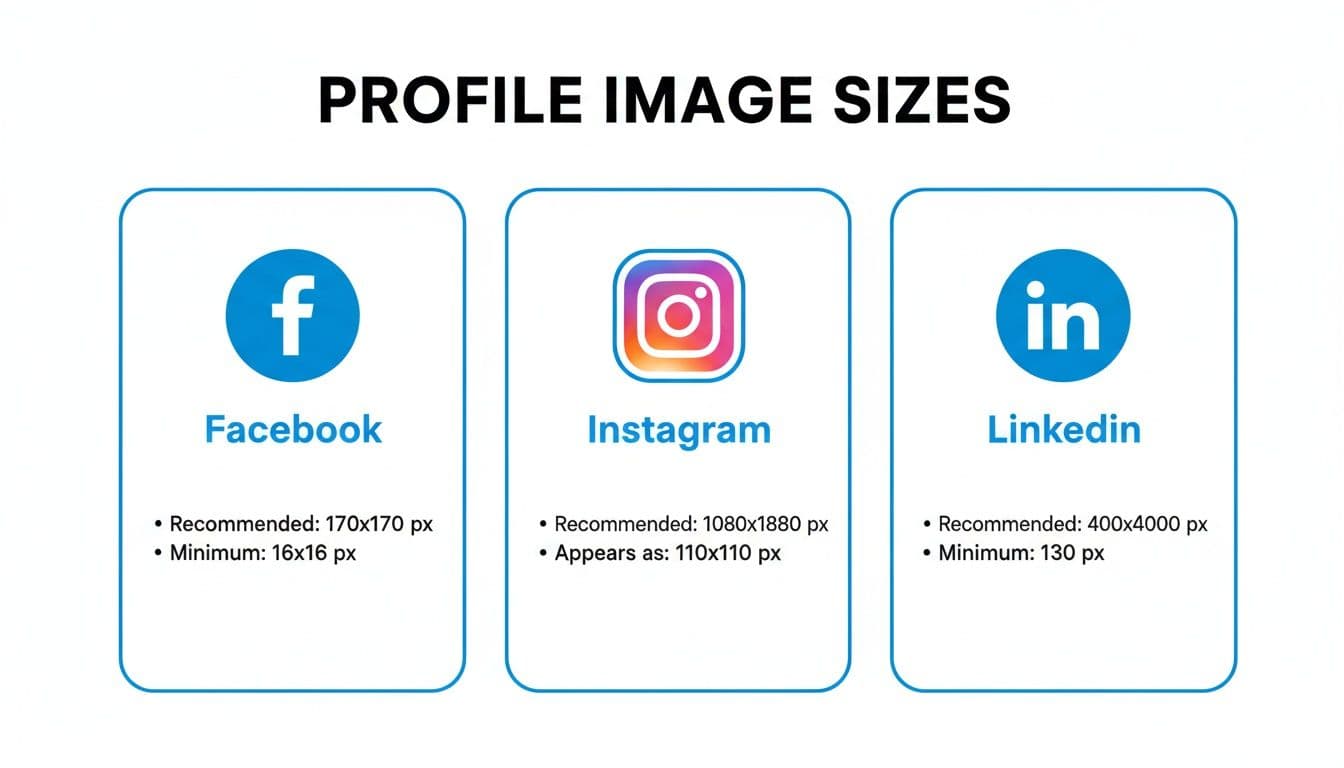
As you can see, the recommended upload size is often much larger than any of the final display sizes. This gap is intentional and essential for maintaining image quality across the board.
How Standardization Helps Everyone
Thankfully, the wild west of profile picture specs is mostly over. We've seen a clear trend toward standardization, with most major networks like Instagram, Facebook, and Threads all pointing to a 320x320 pixel upload size.
This is a huge improvement from the early days when every platform had its own quirky requirements. Now, even though the final display sizes vary—from around 110x110 pixels on mobile to 196x196 pixels on desktop—the starting point is consistent. For a deeper look at how this plays out on a professional network, check out our guide on LinkedIn graphic sizes.
At its core, this approach is all about storing a high-resolution version of your image to keep it looking sharp on any screen, now and in the future. You can learn more about how these standards came to be in this comprehensive social media image size overview.
Common Profile Image Problems And How To Fix Them
So you’ve followed all the rules for your profile image size, but it still looks wrong on your profile. We've all been there. Getting your image to look right across every social platform can feel like a frustrating game of whack-a-mole—fix one issue, and another one pops up.
While a tool like PostOnce can automate this by pre-optimizing your image for each network, it's still crucial to know what’s going wrong in the first place. Let’s walk through the most common headaches with profile pictures and how you can fix them.
Why Your Photo Looks Blurry After Uploading
This is easily the most frequent and frustrating problem. You start with a perfectly sharp, high-quality image, only to see a blurry, pixelated mess on your profile. The issue almost always boils down to one of two things: aggressive compression or upscaling.
- Over-Compression: Social media platforms compress every image they can to save server space and make pages load faster. If your original file is already a low-quality JPG, this extra layer of compression can completely ruin its clarity.
- Upscaling: This happens when you upload an image that’s smaller than the platform's recommended size. For instance, if you upload a 100x100 pixel photo where a 400x400 pixel one is expected, the platform will stretch your tiny image to fit, resulting in that classic blurry look.
The fix is to always start with a high-resolution source file. Export your image as a high-quality PNG or a JPG with very low compression. Most importantly, make sure your image meets or exceeds the platform's recommended upload dimensions.
Key Parts of Your Logo Are Getting Cut Off
You spent ages perfecting your logo, but when you upload it, the platform's circular frame chops off the most important parts. It’s a common sight, since most networks like Instagram, X, and LinkedIn now use a round mask for profile pictures. If your logo is a wide rectangle or has key details in the corners, they’re going to get lost.
The solution here is to design with a "safe zone" in mind. Before uploading, try to visualize your logo or headshot inside a circle. Make sure the critical elements are centered with plenty of negative space around them to account for the crop.
As a rule of thumb, keep your main subject within the inner 75% of the square canvas. This buffer ensures nothing important is sacrificed when the circular crop is applied. For a deeper dive into how different platforms treat images, our guide on Instagram image sizes has some great platform-specific examples.
Colors Look Different On Your Profile
Ever upload an image with your brand’s vibrant colors, only to see them look dull or washed out online? This color shift is almost always caused by a mismatch in color profiles. Your original design was likely saved in a CMYK profile (for printing), but web browsers and social media apps display everything using the sRGB color profile.
When the platform automatically converts your file from CMYK to sRGB, the colors can shift and lose their saturation.
The Fix: This is a simple one. Before you export your final image from Photoshop, Canva, or Figma, make sure you convert it to the sRGB color profile. This setting is standard in most editors and guarantees that the colors you see on your screen are the same ones your followers will see. It’s a small step that makes a huge difference in preserving your brand's look.
Best Practices for a Professional Profile Image
Nailing the technical profile image size is just the starting point. The real challenge—and where you can make a genuine impact—is creating an image that connects with your audience and represents your brand effectively. A great profile picture isn't just about pixels; it's a strategic choice that blends sharp composition with a personality that fits your brand.
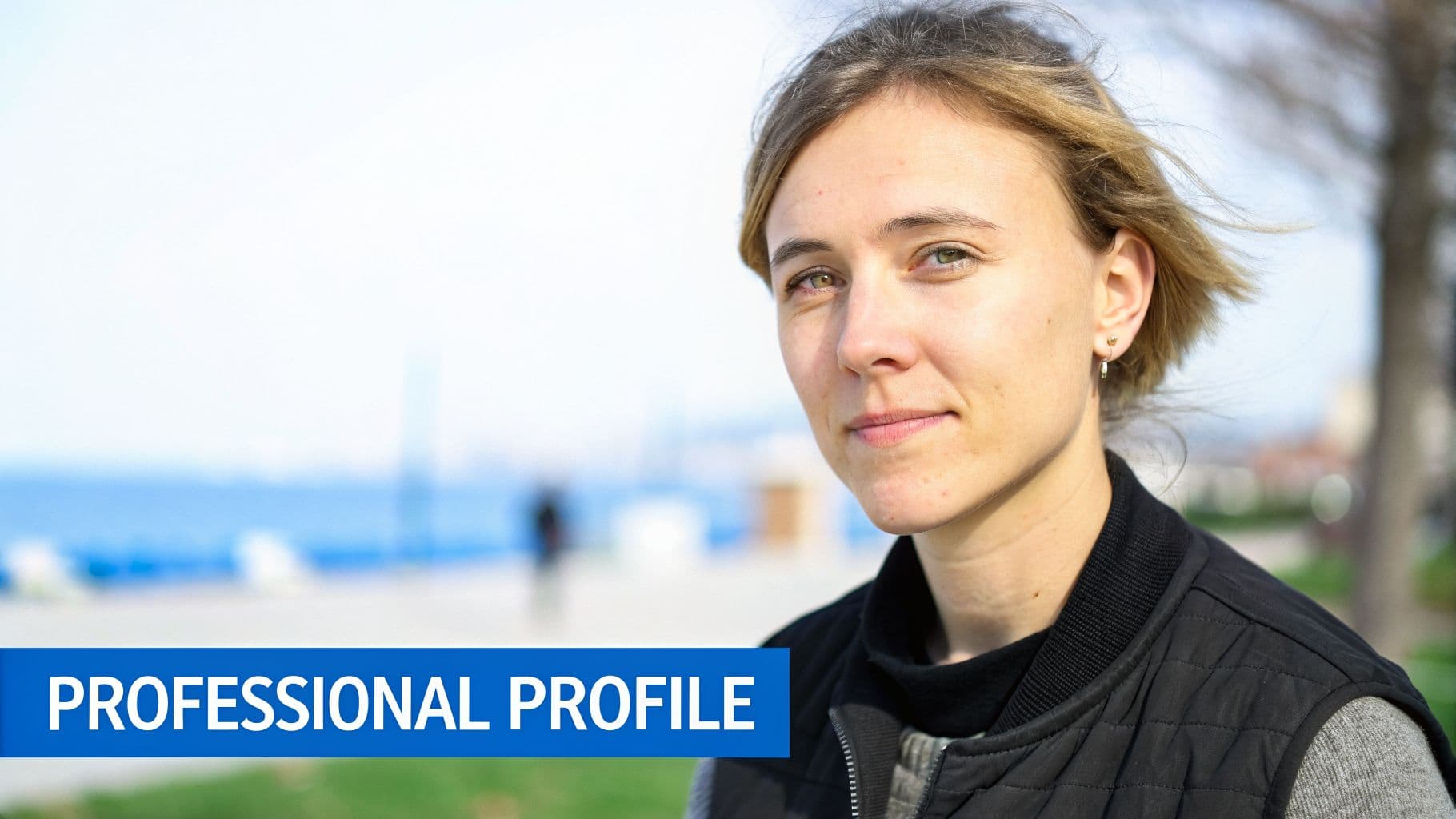
Whether you’re using a personal headshot or a company logo, your profile image has to be instantly recognizable, even when it’s tiny. This means having a single, clear focal point. If it’s a photo of you, your face should be well-lit and front and center. If it's a logo, stick to a simple version that doesn’t rely on small text or complex details that turn to mush at small sizes.
Composing for Clarity and Impact
The most successful profile pictures are shot and designed with social media's limitations in mind—especially that dreaded circular crop. Thinking about the crop before you upload saves you from awkward framing and ensures your subject remains the star.
Here are a few composition tips I always give my clients:
- Center Your Subject: Place the most important part of the image—your face or the core symbol of your logo—smack in the middle. This is the safest spot, protecting it from both square and circular cropping.
- Leave Some Breathing Room: Don't crop in too tightly. A little negative space around your subject acts as a buffer, preventing the image from feeling claustrophobic and giving you more flexibility.
- Keep the Background Simple: A busy background competes for attention. A solid color, a subtle texture, or a nicely blurred backdrop will make your face or logo pop right off the screen.
Following these simple rules helps create a clean, professional image that stands out in a crowded feed.
Aligning Your Image with Your Brand Identity
Your profile picture is a powerful non-verbal cue that speaks volumes about your brand’s personality. Are you aiming for a professional, authoritative feel? Or is your brand more friendly and approachable? Your image should immediately reflect that.
A warm, high-quality headshot can make a personal brand feel more human and build trust. On the other hand, a crisp, minimalist logo can communicate efficiency and a modern outlook. The goal is to pick an image that reinforces the perception you want to build.
For instance, a creative agency might get away with a vibrant, abstract design, while a financial consultant should probably stick to a more traditional headshot. It's a fundamental piece of your brand strategy. If you're looking for more ways to get your visuals right, check out our guide on the best image sizes for social media for a more complete picture. In the end, a great profile photo does more than just fill a space; it tells a story about who you are.
Frequently Asked Questions About Profile Image Size
Even with a tool like PostOnce that automates resizing for every network, you'll still run into some common head-scratchers. Automating the technical side is great, but it’s still smart to know the why behind the quirks. Here are the answers to a few questions we hear all the time.
What Is the Best Universal Profile Image Size for 2026?
There's no magic bullet, but if you're looking for one size to rule them all, go with a 1080 x 1080 pixel image. This gives you a high-resolution square that will look great on just about any platform.
Think of it as giving the social networks a high-quality master copy. They have plenty of pixel data to work with, so when they scale it down for different displays, your image stays sharp and avoids looking pixelated.
Why Does My Profile Picture Look Blurry on Mobile?
This is a classic problem caused by screen density. Your picture might look perfectly fine on a desktop monitor, but then it turns into a blurry mess on a high-resolution smartphone. That’s because modern phones pack way more pixels into a much smaller physical space.
To solve this, always upload an image that's larger than how it will actually be displayed. For instance, if a platform displays your profile picture at 200x200, uploading a 400 x 400 pixel version gives it enough detail to render a crisp image on those high-density mobile screens.
Pro Tip: Always start with a high-resolution source file. PNGs are fantastic for logos or graphics with text and sharp lines because they handle compression better. This gives you the best defense against quality loss when platforms do their own compression.
How Can I Test My Profile Picture with a Circular Crop?
Most social platforms now force your profile picture into a circle. It's a common source of frustration when a key part of your logo or your face gets awkwardly chopped off. The key is to check it before you upload.
You don't need fancy software for this. Just use a simple online circular crop preview tool or even a basic graphics editor. Drop a circular overlay onto your square image to see exactly what will be cut out. This quick check ensures your subject is perfectly centered with plenty of "safe space" around the edges.
Stop playing the guessing game with your brand's image. With PostOnce, you set your profile picture one time, and our platform makes sure it’s perfectly sized and optimized for every single network. See how PostOnce makes managing your social media workflow easier.