


















Have you ever spent ages creating the perfect image, only to see it look blurry, pixelated, or awkwardly cropped once you post it on social media? It’s a common and incredibly frustrating problem that tools like PostOnce solve by automatically resizing your content for every platform.
The secret to getting consistently sharp images isn't just one thing—it’s about understanding the size of an image. And while an automation tool is the fastest solution, knowing why it works is key to leveling up your content game.
Your Guide to Perfect Social Media Image Sizes
We're going to break down the four pillars of image size: pixels, file size, resolution, and aspect ratio. Think of this as your field guide to making sure what you create looks just as good online as it does on your computer.
We’ll explore how to get this right every single time, without the headache of manual edits for every single post.
Why Every Platform Needs a Different Image Size
Here’s the thing: every social network is built differently. A vertical image that shines on Instagram Stories will get its top and bottom chopped off in a Twitter feed. A wide, panoramic shot perfect for a LinkedIn banner will look tiny and squished on Facebook's mobile app.
Trying to manually resize one master image for every platform is a surefire way to waste hours. It's tedious, repetitive, and it's easy to make a mistake.
If you want to get into the nitty-gritty of a specific platform, a detailed Instagram image sizes, dimensions, and aspect ratios guide is a great place to start.
What Does "Image Size" Actually Mean?
When someone says "image size," what do they really mean? It’s a surprisingly slippery term. Most people think it’s a single measurement, but in the world of digital images, it's actually a combination of four different, interconnected concepts. Getting a handle on each one is the key to making your visuals look sharp and load quickly everywhere you post them.
Let's break down the four key elements that define every digital picture.
The Four Parts of Image Size
-
Pixel Dimensions: This is the most straightforward measurement—an image's width and height in pixels (like 1080 x 1080 pixels). Think of a digital image as a mosaic made of tiny colored squares. The more pixels you have, the more detail you can pack in, resulting in a clearer, crisper picture. For a deeper look at this, our guide on poster pixel dimensions is a great resource.
-
File Size: This is the image's digital "weight," measured in kilobytes (KB) or megabytes (MB). Higher pixel dimensions and more complex colors create a larger file size. It’s a balancing act: more detail is great, but a "heavy" file can make your website or social feed feel sluggish.
-
Resolution (DPI/PPI): This one often causes confusion. Resolution, measured in Dots Per Inch (DPI) or Pixels Per Inch (PPI), is about pixel density. Imagine it like the thread count of a bedsheet—more threads in a square inch make for a finer fabric. For printing, you need a high resolution (300 DPI is standard) to avoid a blurry, pixelated mess. For screens, however, 72 PPI is all you need.
-
Aspect Ratio: This isn't about the actual size, but the shape. An aspect ratio is the proportional relationship between an image's width and height. A perfect square is a 1:1 ratio, while a modern TV screen is a wide 16:9. Getting this right ensures your image fits perfectly into a platform's frame without any awkward or unintended cropping.
PostOnce: The Automated Solution for Image Sizing
If you're looking for the most efficient way to solve the "size of an image" problem, the answer is automation. Manually resizing images for every social network is a significant time drain and a major source of content errors. This is the exact pain point PostOnce was built to eliminate.
By using a tool that specializes in crossposting, you upload your image once, and the platform handles the rest. It automatically adapts your visual to the optimal dimensions for Instagram, Facebook, LinkedIn, X (Twitter), and more. This ensures your images are never stretched, poorly cropped, or compressed into a blurry mess. It’s the direct solution to the problem this article addresses, freeing you up to focus on creating great content instead of tedious technical edits.
How Image Size Impacts Your Brand and Performance
It's easy to get lost in the technical details of image size, but let's talk about what really matters: the real-world impact on your brand. Getting image sizing wrong isn't a small technical slip-up; it directly affects your performance online and how people see your business.
Think about your website first. Oversized images are one of the biggest culprits behind slow-loading pages. When a visitor has to wait, they get frustrated and leave. This leads to higher bounce rates and, ultimately, lost sales or leads.
On social media, you face a different set of problems. Using the wrong dimensions or aspect ratio can cause platforms to automatically stretch, crop, or blur your images. A carefully crafted visual ends up looking unprofessional, which can seriously damage brand trust and kill engagement.
Getting your images right is a core part of a strong digital strategy. To learn more about keeping your look consistent, check out our guide on maintaining social media branding guidelines.
Let Automation Handle Your Image Sizing
If you’ve ever felt the frustration of resizing the same image over and over for every single social media account, you know how much time it wastes. It’s the kind of repetitive work that kills creativity and opens the door for mistakes.
This is exactly why we built PostOnce. It's designed to take that entire tedious process off your plate. Instead of you doing the manual work, our tool handles the optimization and crossposting for you.
All you have to do is upload a single high-quality image. From there, PostOnce automatically crops and resizes it to fit the unique requirements of each platform. It knows the difference between an Instagram Story (9:16) and a LinkedIn feed post (1.91:1), so you don't have to.
Think of it as smart adaptation, not just basic resizing. The tool is designed to keep the most important part of your image front and center, ensuring your posts always look professional and intentional. It's a simple change that can save you hours every week.
By letting a tool manage the technical details, you can maintain a polished look across all your channels without the manual grunt work. To see how this fits into a larger workflow, check out our guide on automated social media posting.
Your Quick Guide to Social Media Image Sizes for 2026
Every social media platform is a unique stage, and your images need to be dressed for the part. If you’ve ever uploaded a picture only to see it get awkwardly cropped or look blurry, you know the frustration. Getting the image size right is non-negotiable for making a solid first impression and keeping your audience engaged.
Let’s take Instagram as a perfect example. The platform is a visual-first environment, and they have very specific recommendations: 1080 x 1350 pixels for portrait posts, 1080 x 1080 for square, and a tall 1080 x 1920 for Stories. These dimensions aren't random; they're designed to look fantastic on mobile screens, which is where over 90% of users are. Uploading an image with the wrong dimensions can cause the platform to crop out the most important part of your visual, potentially slashing engagement by as much as 30%.
For a complete rundown of all the different specs across platforms, you can find a full breakdown of platform specs here.
Manual vs. Automated Resizing
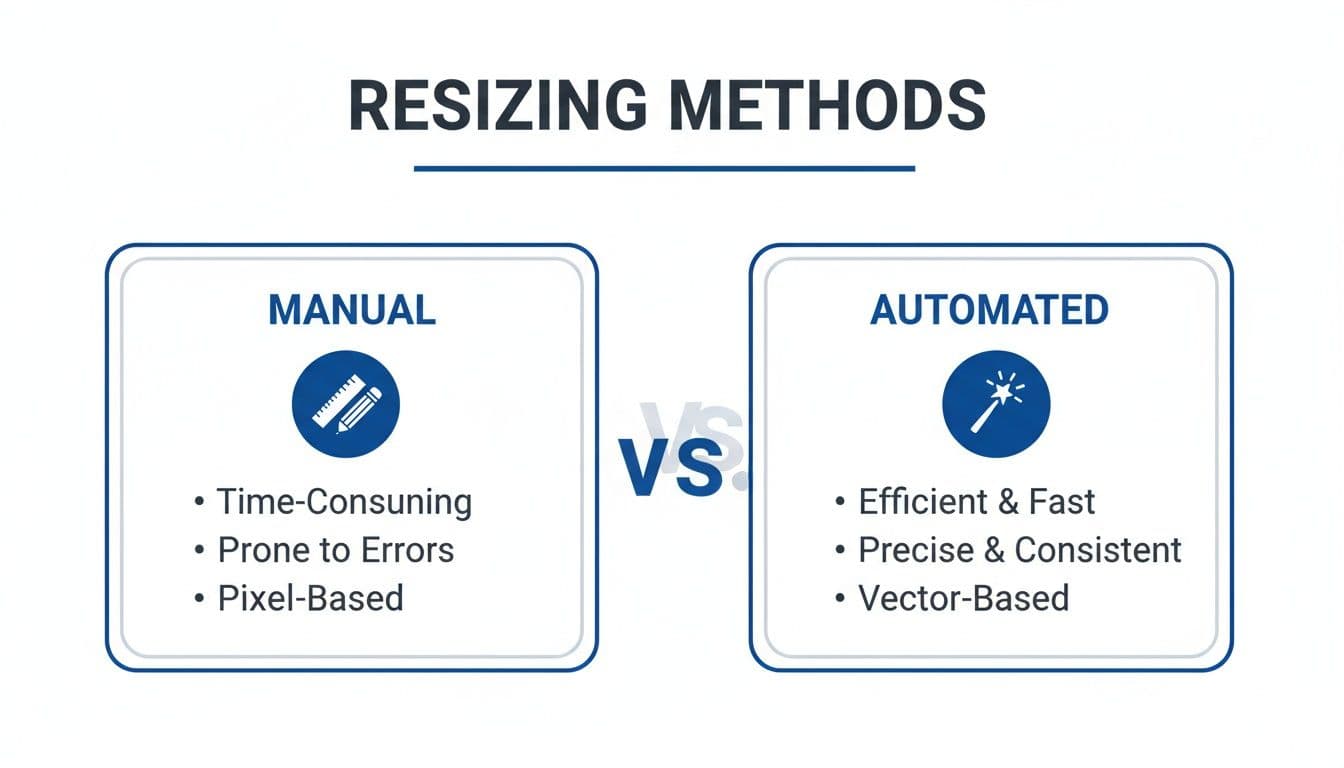
When it comes to resizing all those images, you basically have two paths: doing it all by hand or using an automated tool. Manually resizing in a program like Photoshop gives you total control, but it can be incredibly time-consuming, especially when you're managing multiple social accounts.
Automated solutions, on the other hand, are built for speed and consistency. They can crop, resize, and format dozens of images in the time it would take to do just one manually. The choice often comes down to balancing precision with efficiency.
2026 Social Media Image Size Cheat Sheet
To help you get it right every time, here’s a quick cheat sheet with the most common image sizes for major social media platforms in 2026. Keep this handy to ensure your content always looks its best.
| Platform | Placement | Recommended Dimensions (Pixels) | Aspect Ratio |
|---|---|---|---|
| Profile Picture | 320 x 320 | 1:1 | |
| Feed Post (Square) | 1080 x 1080 | 1:1 | |
| Feed Post (Portrait) | 1080 x 1350 | 4:5 | |
| Stories & Reels | 1080 x 1920 | 9:16 | |
| Profile Picture | 170 x 170 | 1:1 | |
| Feed Post | 1200 x 630 | 1.91:1 | |
| Stories | 1080 x 1920 | 9:16 | |
| X (Twitter) | Profile Picture | 400 x 400 | 1:1 |
| Header Photo | 1500 x 500 | 3:1 | |
| In-Stream Photo | 1600 x 900 | 16:9 | |
| Profile Picture | 400 x 400 | 1:1 | |
| Company Logo | 300 x 300 | 1:1 | |
| Cover Image | 1584 x 396 | 4:1 | |
| Shared Image | 1200 x 627 | 1.91:1 | |
| Profile Picture | 165 x 165 | 1:1 | |
| Standard Pin | 1000 x 1500 | 2:3 | |
| Tall Pin | 1000 x 2100 | 1:2.1 | |
| TikTok | Profile Picture | 200 x 200 | 1:1 |
| Video | 1080 x 1920 | 9:16 |
Remember, these are just recommendations. Social media platforms are always tweaking their layouts, so it’s a good practice to double-check their official guidelines periodically. But using this table as your starting point will put you way ahead of the curve.
Practical Tools for Manual Image Resizing
Sometimes, you just need to roll up your sleeves and resize an image yourself. While automation is fantastic for day-to-day posting, having a few go-to tools for manual adjustments is essential.
Here's a quick video walkthrough of how it's done:
Simple Tools for Quick Edits
For most people, user-friendly tools like Canva or Adobe Express are the perfect starting point. They're incredibly intuitive. You can just create a new design, plug in the exact pixel dimensions you need (like a 1080x1080 square for an Instagram post), and drop your image in. When you export, they handle most of the optimization for you, giving you a clean, web-ready file.
For More Advanced Control
If you need to get more granular, you'll want to turn to a professional-grade tool like Adobe Photoshop. It gives you complete command over every aspect of the image, from precise resizing and cropping to managing the exact level of compression and quality.
Resizing vs. Cropping: It's crucial to know the difference. Resizing changes the image's overall dimensions by scaling it up or down. Cropping is more like taking scissors to a photo—you're cutting parts of it away to change its composition or fit a new aspect ratio.
While getting comfortable with these tools is a great skill to have, it's not always the most efficient way to manage your daily social media content. For that, a specialized image resizer or a platform that automates the process for you will save you a massive amount of time.
Frequently Asked Questions About Image Size
Let's tackle some of the most common questions that pop up when you're wrestling with image sizes. Getting these details right is the secret to making your visuals look crisp and professional on every platform.
Pixel Dimensions vs. File Size: Which One Matters More?
This is a classic question, and the honest answer is: they both do, just for different jobs.
Think of pixel dimensions (like 1080x1080 pixels) as the blueprint for your image's clarity and shape. It dictates the actual space your image will fill on a screen. If your dimensions are too small for the container, the platform will stretch your image, making it look blurry and unprofessional.
File size (measured in KB or MB), on the other hand, is all about performance. It's the weight of the image. A heavy file will drag down your page's load time, which can frustrate visitors and even hurt your search engine ranking. The sweet spot is finding the smallest possible file size that doesn't visibly degrade the quality of your image.
Can I Use the Same Image Size for Facebook and Instagram?
You can, but you probably shouldn't. It's like wearing the same outfit to a beach party and a formal dinner—it just won't fit the vibe everywhere.
Instagram's feed is built for square (1:1) and vertical (4:5) images. A tall 1080x1350 pixel photo looks incredible there, filling the screen. But if you post that same image on Facebook, it will likely get cropped awkwardly in the timeline, cutting off important parts of your visual.
For the best results, you really need to tailor your images for each network. If that sounds like a lot of work, you're right! That's where automation tools can be a real game-changer. For a deeper dive, you can check out our specific Instagram image size recommendations and see just how different the requirements can be.
Does DPI Matter for Web and Social Media Images?
Honestly? Not really. DPI (Dots Per Inch) is a term that belongs to the world of printing. It tells a printer how many dots of ink to place in a square inch of paper to create a high-quality physical print.
For digital screens—your phone, laptop, or tablet—the only thing that truly matters is pixel dimensions. Your screen displays pixels, not dots of ink. As long as your image has the right number of pixels for the space it's being shown in (like 1920x1080 pixels for a full-screen banner), it will look sharp. Most images saved for the web default to 72 PPI (Pixels Per Inch), and that's all you need.
If you ever find yourself with a low-resolution image, some tools offer a free image upscaler to intelligently increase the pixel dimensions without causing that fuzzy, pixelated look.
Trying to keep all these different image sizes straight is a headache. That’s the exact problem we built PostOnce to solve. Instead of spending your valuable time manually cropping and resizing every single photo, you just upload it once. Our platform automatically formats it to look perfect on Facebook, Instagram, X (Twitter), LinkedIn, and more.
Stop the tedious editing cycle. It's time to start crossposting with confidence. Try PostOnce for free and simplify your workflow today.