


















If you're buried in tabs, drafts, and half-finished captions, automation is the fix. A tool like PostOnce handles cross-posting across networks so you stop burning time on repetitive publishing work. But before automation helps, you need a planning system you can trust. That's where a solid Google Sheets content calendar template earns its keep.
A good sheet won't publish for you. It will do something just as important at the start. It gives your content operation structure. You can see what exists, what's blocked, who's responsible, and what needs to go live next. For solo creators, small teams, and agencies, that's often the difference between "we have ideas" and "we have a process."
The mistake is treating the sheet as the destination. It works best as a launchpad. Build the right structure in Google Sheets, run it until the manual parts become the bottleneck, then upgrade the distribution layer.
Stop Copy-Pasting Your Sanity Away
The usual content mess looks familiar. Ideas live in notes. Drafts sit in Google Docs. Assets are in Drive. Final captions get pasted into each platform one by one. Someone asks whether a post is approved, and the answer is buried in Slack.
That setup breaks because each tool holds one part of the truth. The sheet fixes that first. It becomes the shared operating view where one row equals one asset, one due date, one owner, one current status. That alone removes a lot of confusion.
The next problem is distribution. Planning in Sheets is useful. Publishing from memory isn't. If you already know the repetitive posting work is eating your week, it's worth reading this guide on how to automate social media posts.
What a spreadsheet is good at
Google Sheets became a common low-friction option because content calendars only need a few core fields to become useful. Standardized columns like date, content title, platform, responsible person, status, and notes support scheduling, workflow management, and tracking in one shared place, as described in Coefficient's content calendar template guide.
That matters because it mirrors how content work moves:
- Idea becomes a row: not a forgotten note.
- Draft gets an owner: not a vague promise.
- Review has a visible status: not a private message.
- Publishing gets a date: not a loose intention.
Practical rule: If a content item isn't in the sheet, it doesn't exist operationally.
The spreadsheet won't solve every problem. It won't adapt captions for each network, auto-publish, or protect you from last-minute copy-paste mistakes. But it does create the discipline that every strong content operation needs before any automation layer gets added.
Building Your Content Calendar Foundation
A usable Google Sheets content calendar template starts with decisions, not features. Before anyone adds colors, formulas, or extra tabs, define what one row represents, what counts as done, and who owns each handoff. If you skip that step, the sheet turns into a parking lot for ideas instead of a working calendar.
The structure should match how content moves through your team. The most effective templates use standardized fields like date, title, platform, owner, and status so scheduling, accountability, and progress live in one view.
The columns that actually matter
Start with one main tab called Calendar. Keep it lean. A bloated setup looks impressive for a week and then gets ignored because updating it takes too long.
Use columns that answer the questions your team asks every day:
| Column | Why it matters |
|---|---|
| Date | Shows when the asset should publish or move to the next step |
| Title | Gives each row a clear identity |
| Platform | Prevents channel mix-ups when one idea gets adapted |
| Owner | Makes responsibility visible |
| Status | Shows whether work is waiting, in review, scheduled, or live |
| Notes | Holds short context, not the full brief |
Once people are using the sheet consistently, add a second layer:
- Content type for blog post, LinkedIn post, carousel, email, or thread
- Priority for weeks where too many assets compete for the same slot
- Asset link for the Google Doc, Canva file, or Drive folder
- Content pillar to keep topic coverage balanced
- Publish time if timing affects performance or approvals
That order matters. I have seen teams build a beautiful sheet with twenty columns, then abandon it because no one could keep it current.
How professionals keep the sheet usable
One row per asset is still the cleanest setup. The problems start when a single row tries to track a blog post, three social cutdowns, feedback notes, and file links for multiple people. At that point, the sheet stops being a calendar and starts behaving like a bad project management tool.
Use statuses that reflect real handoffs:
- Idea
- Drafting
- In Review
- Scheduled
- Published
Add more stages only if someone needs to act differently because of them. If "Awaiting Legal" changes who owns the next step, add it. If a status exists only to make the workflow feel more detailed, leave it out.
A reliable sheet answers weekly operating questions fast: What is due, who owns it, and what is blocked?
If you want a practical walkthrough for setting that up from scratch, keep this guide on how to create a content calendar open while you build.
A simple template layout
For a small team, three or four tabs are usually enough:
- Calendar tab: the active publishing schedule
- Ideas tab: backlog and rough concepts
- Assets tab: optional, useful if files are spread across folders
- Performance tab: light post-publication notes
This foundation works well for planning. It also exposes the limits of Sheets pretty quickly. Once the same calendar needs approvals, channel-specific copy, scheduled publishing, and repeatable distribution, manual upkeep starts eating the time the sheet was supposed to save. That is why a good Google Sheet is a launchpad, not the final system.
Supercharge Your Calendar with Smart Features
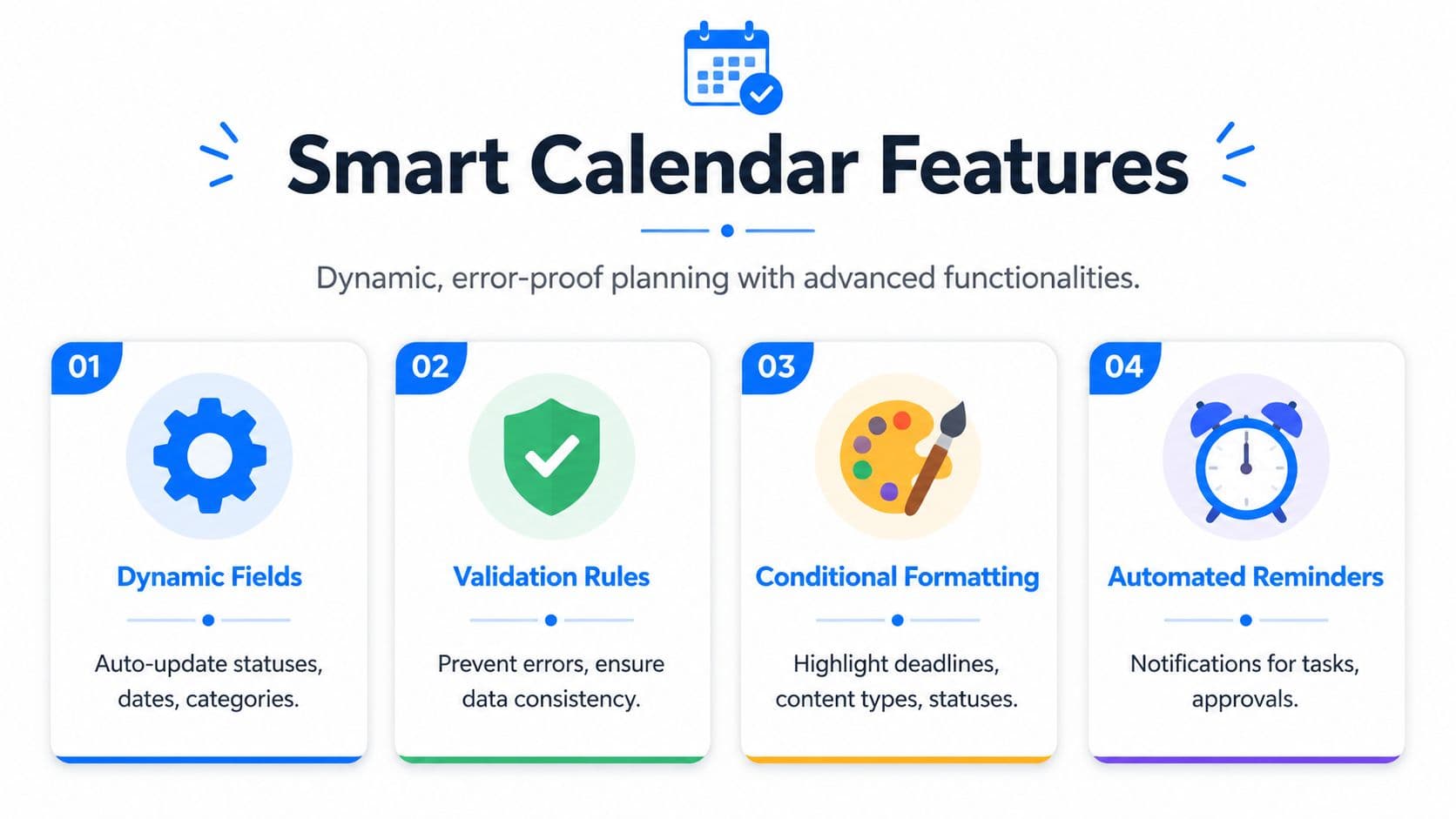
A content calendar starts pulling its weight when the sheet prevents mistakes instead of recording them after the fact. The goal is simple. Fewer typo-driven status changes, fewer missed deadlines, and less time spent asking who owns what.
Modern templates use data validation, dropdowns, and conditional formatting to make the calendar usable day to day. Color-coded states like Drafting, In Review, and Published help teams standardize workflows and spot overdue work faster, as explained in Unito's guide to Google Sheets content calendars.
Add dropdowns first
Start with the columns people break most often.
If a team member types "review," "in review," "needs review," and "approved pending edits" into one status field, reporting gets messy fast and filters stop being trustworthy. Data validation fixes that by limiting inputs to the terms your workflow uses.
Use dropdowns for fields that should stay consistent:
- Status: Idea, Drafting, In Review, Scheduled, Published
- Platform: LinkedIn, X, Instagram, Threads, Blog, Email
- Owner: fixed names or initials
- Content type: Post, Carousel, Video, Blog, Newsletter
This is boring setup work. It saves hours later.
Use color to reveal risk
Conditional formatting should answer one question at a glance: what needs attention right now?
A few simple rules usually do the job:
- Published rows turn green: finished work is easy to confirm.
- In Review turns amber: approval bottlenecks stand out.
- Overdue turns red: missed dates are visible without sorting.
- High-priority items get bold fill: launch-sensitive work stays visible.
Keep the colors tied to workflow states, not platforms. A red row means action. A blue row for LinkedIn and a purple row for Instagram might look organized, but it does not help anyone decide what to do next.
Create views for different people
Shared calendars get noisy once writers, designers, editors, and managers all work from the same tab. Filter views keep one sheet usable without forcing everyone into separate copies.
Build a few standard views:
| View | Filters |
|---|---|
| Writer view | Owner = writer, Status = Drafting or In Review |
| Manager view | All items not Published |
| Platform view | Platform = one network |
| This week view | Date falls within current week |
That setup makes a spreadsheet feel faster because each person sees less clutter. It still comes with a trade-off. Sheets can filter and highlight work, but reminders, approvals, and publishing still depend on people checking the sheet and acting on time. For teams trying to reduce avoidable admin, this guide on improving workflow efficiency across recurring tasks is a useful companion.
If your business is tightening internal processes across marketing and operations, you can also find solutions for your business.
Planning and Scheduling Content Like a Pro
Most content calendars fail for one reason. They plan posts, not systems. Every row becomes a disconnected task, so one strong idea gets used once and forgotten.
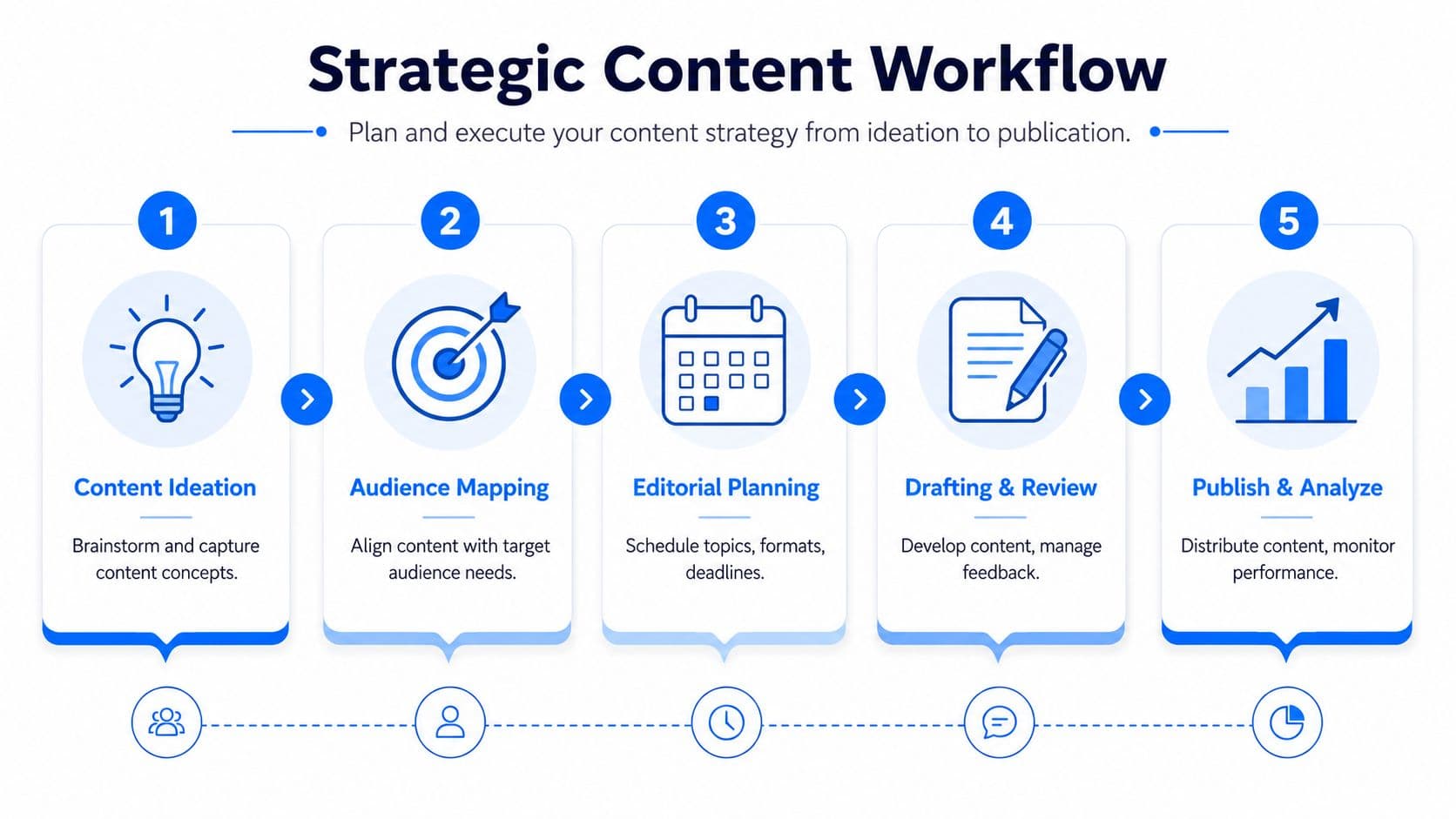
That breaks down fast when you're publishing across several channels. Most templates treat each row as a single post, but modern workflows need a design built for cross-platform repurposing, where one core idea gets adapted across multiple channels with different formats, lengths, and rules, as discussed in this video on building better content workflows.
Plan around a pillar, not a post
A better method is to treat one content idea as the parent asset.
Example:
- A blog post is the source asset.
- A LinkedIn summary pulls the strongest argument.
- A thread breaks the idea into short points.
- An Instagram carousel turns the framework into slides.
- An email frames the same idea for subscribers.
You can handle this in Sheets with either separate linked rows or a parent-child ID system. Both work. The key is that the calendar shows the relationship between assets.
A realistic weekly workflow
A small team might run the calendar like this:
| Asset | Platform | Owner | Status |
|---|---|---|---|
| Main article | Blog | Writer | In Review |
| Summary post | Social lead | Drafting | |
| Short thread | X | Social lead | Scheduled |
| Carousel brief | Designer | Idea |
This gives you a practical publishing rhythm. You're no longer asking, "What should we post tomorrow?" You're asking, "How far did this week's core idea travel?"
Good calendars don't just schedule output. They map reuse.
For teams refining their broader content operation, outside perspectives can help. If you're trying to align planning with business goals, Northpoint Web's articles can help you find solutions for your business.
Two tabs that prevent chaos
Beyond the main calendar, two tabs do a lot of work:
- Ideas backlog keeps raw concepts out of the live publishing view.
- Review queue helps if approvals create delays and you need cleaner handoffs.
If you also need a cleaner scheduling habit, this walkthrough on how to schedule posts fits well with a repurposing-first calendar.
Why Your Google Sheet Will Eventually Fail You
A spreadsheet is excellent at planning. It is not excellent at execution once the operation gets busy.
This is the part many template guides avoid. The central question isn't whether a Google Sheets content calendar template can look organized. It's whether Google Sheets is still the right tool once your team needs workflow visibility, approvals, handoffs, and distribution in one place. Many templates aren't enough for real team operations and end up requiring manual workarounds, as noted in Simular's workflow guide.
Where the friction shows up
The first cracks are usually small:
- Approvals happen outside the sheet: feedback lives in Slack, email, or comments across several docs.
- Publishing is still manual: someone copies the final text into each network.
- Status gets stale: the row says Scheduled, but nobody has posted it.
- Repurposing gets inconsistent: one platform gets the polished version, the others get rushed leftovers.
Then volume increases and the sheet becomes admin work in its own right.
What the sheet can't do well
Google Sheets can tell you what's planned. It can't natively handle the last mile of distribution across multiple social platforms. It also doesn't protect formatting differences between channels, and it doesn't remove the repetitive task of adapting and posting the same idea over and over.
A spreadsheet is a coordination layer. Once you're asking it to be a publishing engine, you're forcing the wrong tool to do the wrong job.
That doesn't mean the template failed. It means your process matured. The moment your team spends more time updating statuses and copying finished posts than creating content, you've hit the ceiling.
The Ultimate Solution PostOnce for Automated Distribution
Monday morning usually looks the same when a sheet has reached its limit. The calendar is full, approvals are technically done, and someone still has to open each platform, reformat the post, paste it in, add links, fix line breaks, and make sure the published version matches what the team approved.

That is the handoff Google Sheets never really solved. Sheets are excellent for planning, reviewing, and keeping a content pipeline visible. They are weak at the final mile, where one approved idea has to become finished posts across multiple channels without introducing delays or formatting mistakes.
A tool like PostOnce for automated multi-platform publishing handles that final mile better because it is built for distribution, not row management.
Where automation earns its keep
The practical gain is simple. Your team stops treating publishing like clerical work.
Instead of copying the same post into five tabs, the workflow becomes:
- write and approve the core post once
- adapt it per channel inside the publishing tool
- schedule or publish from one place
- keep distribution tied to the actual content, not a memory-based handoff
That changes the day-to-day work in ways a template cannot. Captions stay closer to the approved version. Channel-specific edits happen where the post will be published. Teams spend less time checking whether something went live and more time improving the message itself.
There is also a real trade-off here. Adding software introduces another tool, another login, and a setup step your team has to own. For a solo creator posting occasionally, a sheet may still be enough. For a team publishing every week across several networks, manual distribution usually costs more than the software does.
Why PostOnce fits the job
The strongest setup is not Sheets versus automation. It is Sheets for planning, automation for execution.
That distinction matters because the search for a Google Sheets content calendar template often starts as an organization problem and ends as a publishing problem. People ask for a template, then discover they need a better way to turn approved content into live posts without the copy-paste loop.
PostOnce fits that second need. It gives you a cleaner publishing layer after the calendar is already doing its job.
This short product walkthrough shows what that looks like in practice.
Your Path from Manual Planning to True Automation
A Google Sheets content calendar template is still one of the best places to start. It teaches discipline. You learn your cadence, your review process, your ownership model, and the difference between random posting and a real system.
Then the sheet starts to feel heavy. That's not a problem. It's a signal. Planning in Sheets is the foundation. Automation is the upgrade when distribution work starts consuming the time you should be spending on ideas, writing, and creative execution.
If you're ready to move beyond planning and stop manually reposting the same content everywhere, try PostOnce. It gives you a cleaner path from one finished piece of content to multi-platform distribution, without the copy-paste routine that turns every publishing day into admin work.