


















You've finished a Reel, picked the right audio, written the caption, and then hit the annoying part. Reposting the same content everywhere else by hand. That's the exact bottleneck PostOnce solves. It turns one published post into a multi-network distribution workflow, so your Instagram content doesn't stay trapped on one platform.
If you're trying to post music on instagram, there are really two jobs in front of you. First, get the music part right inside Instagram without running into missing tracks, muted posts, or account restrictions. Second, make sure that work keeps paying off after you publish. Many creators only do the first part.
Unlock Your Instagram Music Strategy
You finish a Reel, line up the audio, post it, and then hit the part that wastes the most time. The same asset now needs different edits, captions, and publishing steps for every other platform you care about.
That is the actual strategy problem with music on Instagram. Adding a track is only one piece of the job. The other piece is making sure the post can travel. If a music-driven post performs on Instagram but never gets repurposed for Threads, Facebook, X, LinkedIn, or Shorts, you leave reach on the table and create more manual work than necessary.
Music also behaves differently on Instagram than many people expect. Track availability changes by region. Account type matters. Business accounts often get a more limited music library than personal or creator accounts, which catches brands and social teams by surprise. A post that works on one account, or in one country, can fail on another for reasons that have nothing to do with the edit itself.
The strongest approach starts before you tap Publish. Choose audio that supports the first second of the video, not just the overall mood. Cut visuals to the beat if timing is part of the hook. If you are preparing the asset for broader distribution, build the video so it can survive outside Instagram too. That usually means keeping text inside safe zones and checking the Instagram video format requirements before you finalize the export.
One rule holds up across client accounts and creator workflows. Music works best when it feels attached to the post idea, not added at the end because the editor has a music sticker available.
There is also a practical publishing trade-off here. Instagram is where you pick licensed music and test what gets attention. Your wider content system is where you turn that winning post into a repeatable campaign instead of a one-platform hit. Teams that set this up well spend less time rebuilding the same post for each network and more time using proven creative in multiple places.
How to Add Music to Reels Stories and Feed Posts
The mechanics are simple once you know where Instagram hides the controls. The confusing part is that Reels, Stories, and Feed posts don't use the exact same flow.
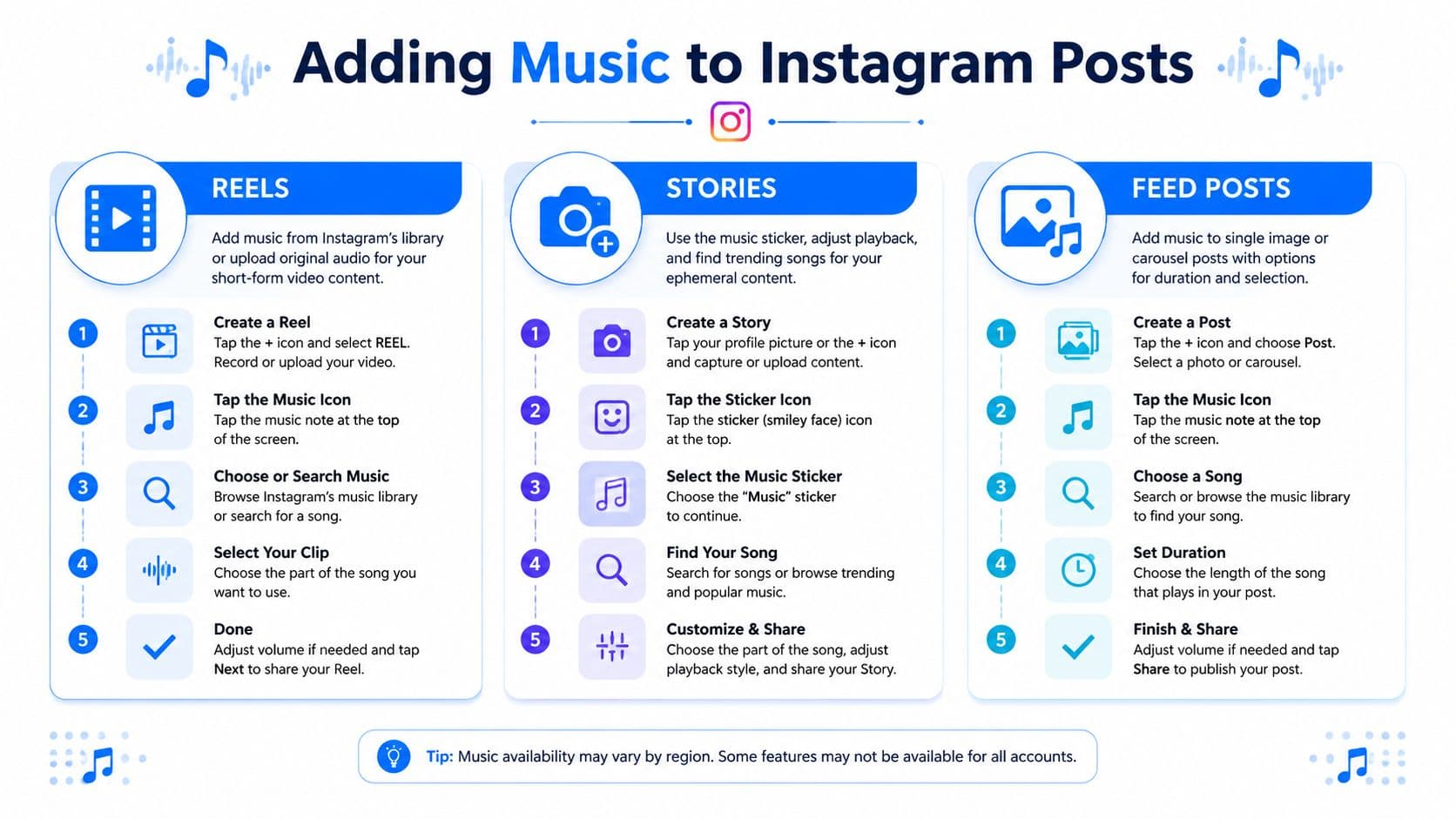
Add music to Reels
Reels gives you the most control. In most cases, the music picker appears early in the editing flow, which makes sense because audio often drives the pacing of the whole post.
Use this sequence:
- Open Instagram and tap the create button.
- Choose Reel.
- Add your video.
- Tap the music or audio option in the Reel editor.
- Search Instagram's licensed music library.
- Pick the exact section of the track you want.
- Adjust audio placement and mix levels if you're combining music with original voice or ambient sound.
- Finish your cover, caption, tags, and publish.
Reels works best when you choose audio before doing your final timing edits. If you cut the video first and add the sound later, your transitions often won't feel intentional.
If you're still editing the asset before upload, this guide to Instagram video format requirements helps avoid awkward crops and composition issues that make music-led Reels feel off.
Add music to Stories
Stories uses a sticker-based workflow, so it feels lighter and faster. That's good for casual posting, but it gives you less precision than Reels.
The common path looks like this:
- Start a Story: Open the Story camera or upload your image or clip.
- Use the music sticker: Tap the sticker tray and choose the music option.
- Search and preview: Find a song from Instagram's library and preview different parts.
- Adjust the display: Choose whether you want lyrics, album art, or a simpler sticker style.
- Trim the segment: Pick the moment of the song that fits the Story frame.
Stories is usually the fastest place to test audio ideas. If a song works in Stories and people reply to it or reshare it, that's often a good sign it may work in a Reel too.
If you want polished storytelling, use Stories for reaction and Reels for reach.
Add music to Feed posts
Feed posts are the format that trips people up most because the music option appears later in the workflow. According to Whop's walkthrough of Instagram music posting, the in-app process is specific: tap the + create button, select the photo or video, tap Next, then choose Audio or Add Music on the final composition screen, search the licensed library, select the track segment, adjust duration or clip length and volume balance, then finish your caption, hashtags, tags, and publish.
That means if you don't see music right away, you may be looking too early.
A quick comparison helps:
| Format | Where music appears | Best use |
|---|---|---|
| Reels | Early in the editor | Discovery, pacing, trend participation |
| Stories | Via sticker tray | Fast updates, reactions, casual testing |
| Feed posts | Near final composition step | Static posts or carousels that need extra mood |
One more practical catch. Music availability can differ by content type, account, and region. A track that appears in Reels may not appear for a Feed post. When that happens, it usually isn't user error. It's a licensing limitation.
Getting Your Original Music on Instagram
If you're an artist, producer, or creator with your own track, there are two different goals people often confuse. One is using your audio inside your own post. The other is getting that track into Instagram's library so other people can use it.
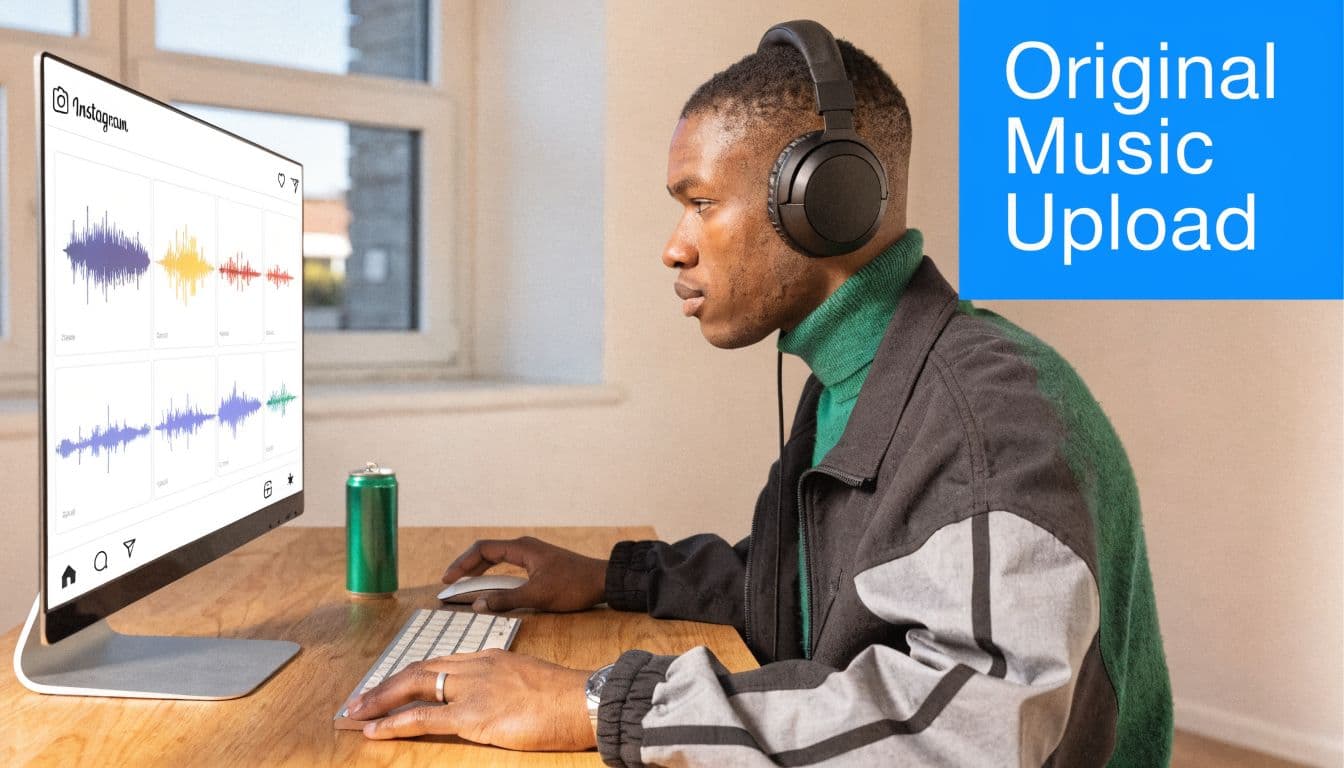
Direct upload works for your post only
The fast route is simple. Edit your video in CapCut, Premiere Pro, Final Cut Pro, or your phone editor, place your own song underneath it, export, and upload the finished video to Instagram.
That works when your only objective is publishing the post.
It does not reliably turn your song into a reusable in-app sound. A lot of creators assume that if they upload a Reel with original audio, Instagram has effectively “ingested” the track. It hasn't. In many cases, the sound stays attached only to that specific post.
Official distribution puts the track in Meta's system
If you want your music searchable inside Instagram's audio library, the more reliable path is distribution through an aggregator. As explained in KoSign's guide to adding music to Instagram posts, the standard workflow is to use a distributor that supports Instagram and Facebook delivery, opt in to Meta distribution, and wait for rights review before the track becomes searchable in Instagram's music catalog.
That distinction matters. Searchable library placement is what gives your track a shot at being reused by other creators.
A practical way to look at this:
- Upload your own edited video if you just need the song under one post.
- Distribute through an aggregator if you want long-term reuse potential inside Instagram.
- Check your distribution settings carefully because leaving Meta delivery off breaks the whole plan.
If you're sorting out your broader release workflow, this walkthrough on how to publish music by Mogul is useful context before you push tracks into social platforms.
For creators who also want to keep the content moving after it's published, tools for repurposing Instagram content across platforms help extend the life of the post once the music side is handled.
Why You Cant Add Music and How to Fix It
Most “how to post music on instagram” guides stop right before the part people become frustrated with. You followed the steps and the song still isn't there. Or the sticker is missing. Or the post publishes and then gets muted.
The common assumption is that Instagram's music feature should work the same for everyone. It doesn't. Instagram's music options vary by account type, region, and licensing status, and Meta says its music library and features are licensed for certain uses while commercial and content-creator usage can be restricted, as summarized in this overview of account and licensing limitations.
Account type changes your music options
Business accounts often run into a smaller music selection than personal or creator accounts. That's usually the first thing I check when someone says, “The song is available on one account but not the other.”
If your account is set up for business use, Instagram may limit access to parts of the library tied to commercial licensing restrictions. In practice, that means you may need to review whether your category fits how you use the account. If you need help with that side of setup, this guide on changing Instagram to a business account is a useful reference point for checking what type you currently have.
Region and licensing cause invisible mismatches
A second problem is geography. Licensing isn't uniform across markets, so a track can be available in one country and unavailable in another.
That's why copying someone else's workflow exactly can still fail. You may be using the same app version and same account type, but your region changes the available catalog.
Here's a practical troubleshooting order:
- Check the format first: Search the song in Reels, then in Stories, then in Feed posts. Availability can differ.
- Test another account category: If you manage both creator and business profiles, compare the same search on both.
- Try a replacement track: If one licensed song is blocked, pick a similar mood instead of forcing the exact audio.
- Keep an original-audio fallback: For edited video, having a version with your own cleared sound gives you options.
A quick walkthrough can help if the interface itself is the issue:
When a post gets muted after publishing
If Instagram mutes a post after it goes live, don't assume it was random. Usually one of three things happened: the account's permitted music use didn't cover that track, the region's license didn't apply, or the content format triggered a restriction after review.
When that happens, the fastest fix is usually operational, not argumentative. Replace the track, switch to a cleared original-audio version, or rebuild the post with music from the library that is available to that account. Spending time hunting for loopholes is rarely worth it.
Missing music options usually mean licensing limits, not a hidden button you forgot to tap.
Automate Your Music Posts with PostOnce
Once your Instagram post is live, the tedious work starts. Most social media managers still copy captions by hand, download the asset again, re-upload it elsewhere, then adjust formatting platform by platform.
That's exactly the workflow PostOnce is designed to remove.
For this specific search intent, the solution isn't just “how do I add a song in Instagram?” It's “how do I turn one music-enhanced post into a broader campaign without doing the same task five times?” That's where automation matters.
What this looks like in practice
You publish the Instagram post or Reel natively, with the music, timing, and formatting handled where Instagram supports them best. Then your crossposting setup takes over and distributes the post across your other connected platforms.
That approach solves a real trade-off:
| Manual workflow | Automated workflow |
|---|---|
| Rebuild each post network by network | Publish once, then distribute automatically |
| Easy to forget secondary channels | Consistent publishing across channels |
| Higher editing time per post | Less repetitive admin work |
Where automation helps most
Automation is especially useful when you're posting frequently and trying to keep campaign momentum. Music content tends to be more time-sensitive than static promotional posts because relevance drops if you wait too long to distribute the supporting assets.
It also helps agencies and managers handling multiple accounts. Instead of app switching all day, you build a repeatable publishing system and let the routing happen in the background.
The best time-saver in social isn't writing faster. It's eliminating duplicate publishing steps.
Best Practices for Music Posts that Drive Engagement
A Reel with the right song can still flop if the edit gives viewers no reason to stay past the first second. The posts that perform best usually get three things right at once: timing, context, and distribution.
Start with the audio cue, not the caption. Pick the exact beat drop, lyric, or transition point first, then trim the visual to match it. A weak version looks like this: the clip opens with a wide shot, the action starts two seconds later, and the song's hook lands after the viewer has already scrolled. A stronger version opens on the payoff frame, cuts on beat, and puts movement or text on screen before the vocal starts.
Small timing fixes matter more than polished editing.
What tends to work
- Front-load the payoff: Show the best visual in the opening second. For a product clip, lead with the reveal, not the setup. For an artist post, open on the performance moment, not the camera adjustment before it.
- Choose music that adds context: Trending audio helps with reach, but only if it fits the post. If the song changes the mood, joke, or meaning of the clip, it earns replays. If it sits in the background with no clear purpose, it usually acts like filler.
- Design for muted viewing too: A lot of people will see the post before they hear it. Use on-screen text, captions, or a clear opening visual so the post still makes sense with sound off, then let the music improve the second layer of the experience.
- Build for saves and shares: Nostalgia, tutorials, transformations, and punchline edits travel better than generic montage posts. Ask a simple question when reviewing a draft: would someone send this to a friend without extra explanation?
- Watch format-specific performance: Stories can carry rougher edits and more casual music use. Reels need tighter pacing. Feed posts with music work best when the first frame is strong enough to stop the scroll before the audio even kicks in.
- Reuse the asset, not the exact post: Publish the music version natively on Instagram, then push the core creative across your other channels with an automated workflow. That keeps campaign timing tight without rebuilding every post from scratch.
One practical mistake I see often is treating every platform as if it supports music the same way. It does not. Instagram is usually the best place to apply the music natively, especially for Reels and Stories. After that, the efficient move is to distribute the finished asset or adapted version across the rest of your social stack so the campaign keeps moving.
If you want to tighten the rest of your posting workflow, this guide on how to get more engagement on Instagram pairs well with a music-first content plan.
If you're done wasting time reposting your Instagram content manually, use PostOnce to publish once and automatically distribute across your other social channels. It's the cleanest way to turn one music post into a repeatable content system.