


















Stop guessing where your best traffic comes from. When you're pushing content across every channel imaginable, a tool like PostOnce is the solution to automatically apply flawless UTM parameters. They're simple tags you add to your URLs that tell Google Analytics the full story of how a visitor found you.
Think of it as turning a blurry picture of your traffic into a crystal-clear map of your customer's journey.
Why UTMs Are a Marketer's Best Friend
Let's say you're launching a new product. You're promoting it on Facebook, LinkedIn, Twitter, an email newsletter, and a guest blog post. You see a nice spike in traffic—great! But which channel actually sent you the customers who bought something? Without tracking, you're just throwing things at the wall and hoping something sticks.
This is exactly the problem Google Analytics UTM parameters were designed to solve. The name "UTM" is a bit of a throwback, standing for Urchin Tracking Module from the original analytics software Google bought years ago. But what they do is timeless: they're like little descriptive notes you attach to the end of a URL.
Getting Credit Where Credit Is Due
When someone clicks on one of your UTM-tagged links, those notes get sent straight to your Google Analytics account. This gives you a detailed backstory for every single visit, moving you beyond vague source labels like "social" into something far more useful.
This level of detail is a game-changer. It means you can confidently answer the questions that really matter:
- Did our LinkedIn campaign bring in more qualified leads than our Twitter ads?
- Which version of our Facebook ad creative drove the most sales?
- Is our email newsletter actually better at driving traffic than our affiliate program?
By consistently using UTM parameters, you transform your analytics from a simple report card into a strategic playbook. Every click tells a story, and UTMs are the language you use to read it.
How PostOnce Solves the Real Problem
When you search for "google analytics utm parameters," you aren't just looking for definitions. You're looking for a practical way to use them without getting buried in manual work. The real goal is accurate campaign tracking with as little friction as possible. PostOnce is built for that.
It directly tackles the common headaches of UTM management by:
- Getting Rid of Manual Work: It replaces clunky spreadsheets and manual URL builders with a smart, template-based system.
- Forcing Consistency: Templates ensure every link follows your rules, which means clean, reliable data lands in your Google Analytics.
- Helping You Scale: You can maintain perfect tracking whether you're posting once a day or fifty times across ten different platforms.
- Giving You Back Your Time: Automation frees you up to focus on what matters—creating great content and analyzing results—instead of building links.
Ultimately, PostOnce is the operational tool that makes your strategic need for UTMs a reality. It makes best-practice tracking not just possible, but easy. You can see how this fits into a broader content strategy and learn more about how to crosspost your content with built-in automation.
How UTM Parameters Actually Work in Google Analytics 4
To really get the hang of UTMs in Google Analytics, you have to peek "under the hood" to see what happens the moment someone clicks your tagged link. The easiest way to think about a UTM-tagged URL is like a super-detailed shipping label for your website traffic. Each parameter is a field on that label, telling Google Analytics exactly where the visitor came from, how they got there, and which specific promotion convinced them to click.
As soon as a browser loads your page, the Google Analytics 4 tracking script wakes up and immediately scans the URL for those special parameters. If it spots utm_source, utm_medium, and utm_campaign, it grabs that information and permanently attaches it to that user's session data.
This simple process turns a generic click into a goldmine of data. You can suddenly see that a visit wasn't just from "social media" but from a specific "influencer_collaboration" campaign you're running on "Instagram." This is the magic of UTMs.
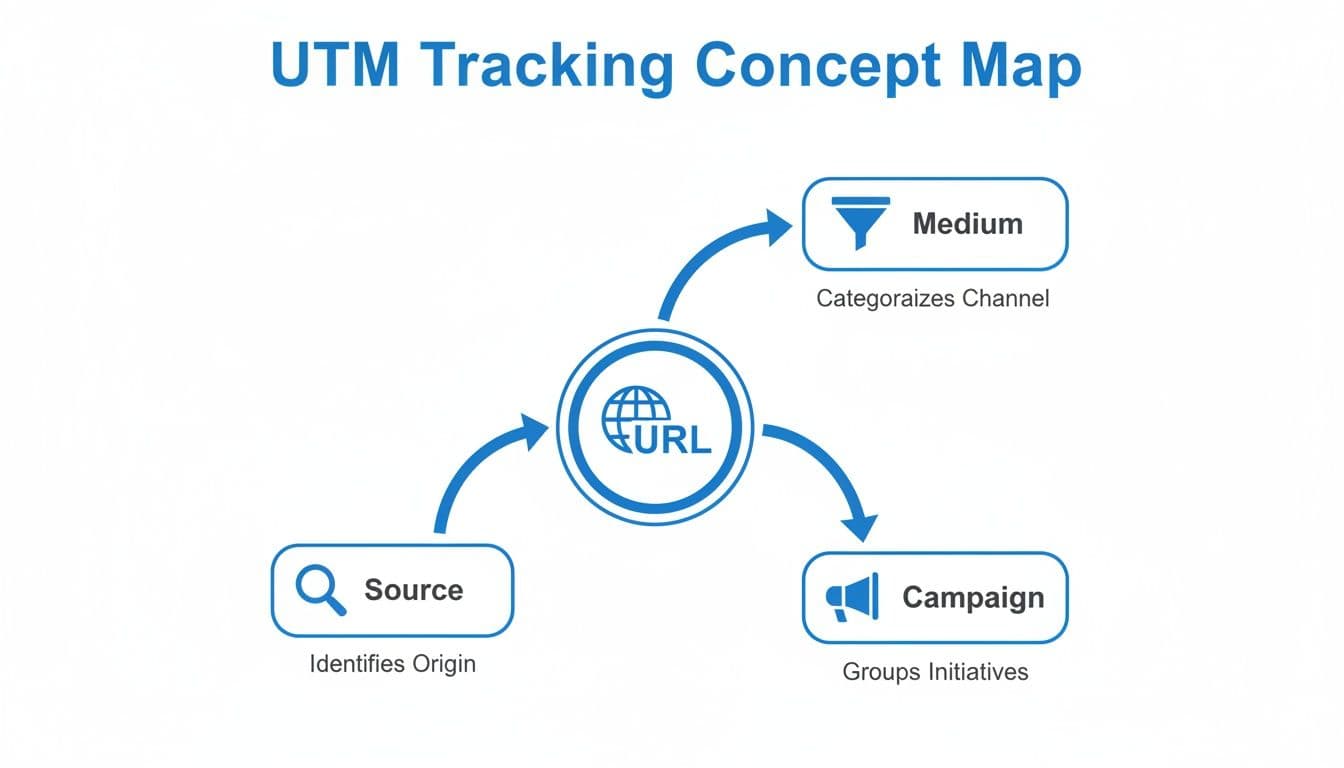
The visual above breaks it down perfectly, showing how a plain URL gets enriched with tracking data to tell a much bigger story.
The Big Shift From Universal Analytics to GA4
Understanding these mechanics is more important than ever because Google Analytics 4 (GA4) handles this data completely differently than its predecessor, Universal Analytics (UA). In the old world of UA, everything was session-based. That meant a new set of UTM parameters could actually trigger a brand-new session, even for someone who was already browsing your site.
Think about a solo creator who uses a tool like PostOnce to push a viral thread across Threads, Instagram, and Twitter. In the pre-2023 UA days, if a user clicked an internal link on their site that had UTM tags, it could accidentally reset their session. This was a notorious problem that often inflated metrics by a whopping 20-30%.
With the full switch to Google Analytics 4 on July 1, 2023, that all changed. GA4 is smarter. It can distinguish between the 'first user' acquisition and the 'session' source, which has led to session counts dropping by an average of 15-25% for sites that used internal UTMs. The data is much cleaner now.
Understanding GA4's Event-Based Model
At its core, GA4 uses an event-based model. This is a massive change. Instead of just counting sessions and pageviews, GA4 treats every single interaction—a page load, a click, a scroll—as an "event." Your UTM data is what provides the crucial context for all these events.
Here’s how it works in practice:
- First User Attribution: When a visitor lands on your site for the very first time through a UTM link (say,
utm_source=facebook), GA4 permanently tags that user with "facebook" as their original acquisition source. This tag sticks with them across all their future visits. - Session Attribution: For that specific visit, the session is also attributed to "facebook." But if they leave and come back a week later by typing your URL directly into their browser, the new session source will be "(direct)," while their first user source remains "facebook."
This dual-focus on both first-user and session-level attribution is a key GA4 feature. It allows you to analyze not just what brought someone to your site today, but what channel originally acquired them as a user in the first place.
This more sophisticated approach gives you a much clearer picture of the entire customer journey. You can slice your data from multiple angles, figuring out which channels are best at bringing in new users and which are most effective at driving repeat visits. Analyzing these patterns is a foundational part of building an effective social media analytics dashboard, giving marketers a far more accurate view of how their campaigns are truly performing over time.
Finding and Analyzing UTM Data in Google Analytics 4
Automating your social media posts with a tool like PostOnce is a huge first step, but it’s only half the story. You can’t prove what’s working without solid data, and that’s where your UTM parameters in Google Analytics 4 become your best friend. Tagging your URLs is the setup; knowing how to find and read the data is where you unlock real marketing insights.
Once people start clicking your tagged links, GA4 gets to work sorting all that information. The platform has shifted its focus to be much more user-centric than its predecessor, so your main destination for all this juicy campaign data will be the Traffic Acquisition report.

Think of the Traffic Acquisition report as your command center for understanding where your users are coming from. The real magic happens when you start swapping out the "primary dimension"—that first column in the data table—to slice and dice your traffic data by campaign, source, or medium.
Navigating to the Traffic Acquisition Report
Getting to your UTM data in GA4 is simple once you know the path. Just follow these quick steps:
- Log into your Google Analytics 4 property.
- From the left-hand menu, click on Reports.
- Look for the Life cycle section and open the Acquisition dropdown.
- Click on Traffic acquisition.
At first glance, the report will show you data grouped by the Session default channel group. This gives you a bird's-eye view of your traffic (like Organic Search, Direct, Paid Social), which is helpful but far too broad when you need to see how a specific social post performed.
Uncovering Campaign Insights with Dimensions
To dig into your specific UTM data, you need to change the report's primary dimension. Just click the little dropdown arrow on the "Session default channel group" column header. You'll see a search bar and a list of other dimensions you can choose from.
This is where you connect the dots back to the UTMs you created:
- Session source / medium: Shows the combined data from your
utm_sourceandutm_mediumtags (e.g.,facebook / social). - Session campaign: Pulls data straight from your
utm_campaigntag, letting you compare different marketing pushes side-by-side. - Session manual term: This corresponds to
utm_term, perfect for seeing which paid search keywords are driving traffic. - Session manual ad content: Populated by
utm_content, making it ideal for A/B testing your ad copy or images.
By switching to these dimensions, you transform a generic report into a powerful performance dashboard for every single link you've tagged. You're no longer guessing; you're answering critical questions with hard data.
Answering Business Questions with UTM Data
Let's put this into practice. Imagine you're running a promotion and posting about it across all your social channels. Without UTMs, you’d just see a spike in "Social" traffic, but you wouldn't know if it came from LinkedIn, X (Twitter), or Facebook.
By using your UTMs, you can switch the primary dimension in the Traffic Acquisition report to see exactly which platform is pulling its weight. You might discover your LinkedIn posts drive 18% higher engagement for this campaign than your Facebook posts. That's a game-changing insight. The five core UTMs can handle over 85% of most campaign tracking needs, giving you all the clarity required to make smarter decisions. If you want to dive deeper, you can learn more about how to build an effective social media report for analysis.
By filtering this report, you can finally answer those nagging strategic questions:
- Which social platform drove the most conversions? Just set the primary dimension to "Session source" and look at the Conversions column.
- Did our influencer campaign outperform our paid ads? Use the "Session campaign" dimension to compare the engagement rates and conversions for your
influencer_collabandpaid_social_promocampaigns. - Which ad creative is making us more money? Change the dimension to "Session manual ad content" to see which
utm_contenttag is bringing in the highest Total revenue.
UTM Best Practices and Naming Conventions

Without a solid set of rules, your Google Analytics UTM parameters can devolve into a messy, unusable pile of data. This isn't just a minor headache; inconsistent tagging is the fastest way to make your analytics reports completely meaningless. Setting up a clear, standardized naming convention isn't just a "nice-to-have"—it's the very foundation of trustworthy campaign tracking.
Think of your naming convention as the grammar rules for your data. When everyone on your team speaks the same language, Google Analytics can accurately group, sort, and report on your traffic. But when they don't, you end up with fragmented data that tells you absolutely nothing.
The Unbreakable Rules of UTM Tagging
To keep your data clean and actionable, your entire team needs to commit to a few simple, non-negotiable rules. Sticking to these practices prevents the common errors that can completely corrupt your campaign analysis.
-
Always Use Lowercase: This is a big one. Google Analytics is case-sensitive, meaning it sees
Facebook,facebook, andFaceBookas three separate traffic sources. Mandating lowercase for all parameters (e.g.,utm_source=facebook) instantly solves this problem and keeps your data consolidated. -
Choose Underscores or Hyphens, Not Spaces: URLs can't contain spaces. While some browsers will automatically convert a space to
%20, it creates ugly, hard-to-read links. Pick one character to separate words—likesummer_saleorproduct-launch—and stick with it. Consistency is everything. -
Keep It Simple and Descriptive: Anyone on your team should be able to understand a parameter's value at a glance. Ditch the overly complex codes and long, rambling descriptions. Something like
utm_campaign=q4_black_friday_sale_2024is infinitely clearer thancampaign_4_BF_promo_final.
The goal of a UTM naming convention is to create a system so consistent and intuitive that you can look at any tagged URL and know exactly what it represents without needing a decoder ring.
A solid naming convention turns messy data into a clear story. Below is a quick guide to help you establish your own rules.
UTM Naming Convention Do's and Don'ts
| Guideline | Do (Correct Example) | Don't (Incorrect Example) |
|---|---|---|
| Be Consistent | Always use linkedin for the source. | Using linkedin, LinkedIn, linkedin.com. |
| Use Lowercase | utm_source=facebook | utm_source=Facebook |
| Separate Words | utm_campaign=summer_sale | utm_campaign=summer sale |
| Keep It Clear | utm_content=blue_cta_button | utm_content=btn_var2_final |
| Standardize Dates | 2024_08_15_promo (YYYY_MM_DD) | august_15_24_promo |
Following these simple 'do's' will save you countless hours of trying to clean up messy reports later on.
Building a Naming Convention Document
The best way to guarantee consistency is to create a shared document or spreadsheet that outlines your specific rules. This becomes your "single source of truth," removing all the guesswork and empowering your team to create perfect UTMs every single time.
Let's put this into practice. As a social media manager using a tool like PostOnce for an agency, imagine you have cross-posted a campaign to supported LinkedIn and Instagram destinations. Availability depends on the source/destination pair and post type. You need to know which platform is actually driving growth. Inside GA4's Traffic Acquisition report, you can switch the primary dimension to 'Session campaign' to see the specifics.
Imagine discovering that your campaign, tagged as utm_campaign=pro_plan_launch, brought in $50K in revenue from 12,000 sessions. Even better, it achieved a 4.2% conversion rate, crushing your organic traffic's 1.8%. This kind of insight is only possible with disciplined tagging. You can dive deeper into campaign performance by exploring benchmarks from leading marketing analytics resources.
Your naming convention document is where you'll define the exact values for common sources and mediums to prevent anyone from going rogue and creating confusing variations.
The Biggest Mistake to Avoid: Internal Link Tagging
There's one mistake so damaging it deserves its own section: never use UTM parameters on internal links. That means any link that goes from one page of your website to another.
Here’s why it’s so bad: when a user clicks a UTM-tagged internal link, it completely overwrites their original acquisition data. If someone found your site through an organic search and then clicked your internally tagged "Learn More" button, their session is now incorrectly attributed to your "internal campaign." This inflates your session counts and makes it impossible to know where your visitors truly came from in the first place.
Automate UTM Tagging Across Social Media with PostOnce
Let's be honest: manually creating unique UTM links for every single social media post is a nightmare. It’s tedious, prone to error, and a surefire way to get inconsistent data. This is exactly where a tool like PostOnce comes in. It was designed to take that entire messy process and automate it.
Instead of fumbling with spreadsheets or URL builders for every post, you set your tracking rules once. The platform then takes over, making sure every link you share is perfectly tagged, every single time. No extra effort required.
This is how you achieve consistency without sacrificing your sanity. By creating UTM templates in PostOnce, you practically eliminate human error. Say goodbye to the typos, capitalization mistakes, and mismatched campaign names that muddy your analytics. You define your naming convention, and PostOnce applies it flawlessly. It turns a frustrating chore into a powerful, set-it-and-forget-it system.

This image really captures the goal of UTM automation: a clean, organized system where technology does the heavy lifting, leaving you with crystal-clear data to act on.
Setting Up a UTM Template in PostOnce
Getting your automated UTM system running in PostOnce is surprisingly simple. The platform uses dynamic placeholders that automatically pull in the right information for each post, making every link unique and descriptive.
Think about it this way: as you create a template, you can tell it to dynamically fill in parameters based on the context of the post. This gives you a level of tracking detail that would be completely unmanageable if you were doing it by hand.
With a smart automation tool, you move from just knowing what UTMs are to mastering how they are implemented at scale. You set the rules of the game, and the platform ensures you win every time.
If you’re focused on streamlining your efforts on specific channels, it’s also worth exploring options for automating your LinkedIn posts to ensure your campaigns are always on point.
An Example of an Automated Workflow
Let's walk through a real-world scenario. You’re launching a summer promotion and need to track it across LinkedIn, X (formerly Twitter), and Facebook. Instead of manually building three different links, here’s how it works in PostOnce:
- Create a UTM Template: You’ll set up your parameters using dynamic fields.
utm_source={{platform_name}}: This field will automatically becomelinkedin,twitter, orfacebookdepending on where the post is going.utm_medium=social: This stays the same since it's for all your social posts.utm_campaign=summer_sale_2024: You set this once for the specific promotion.utm_content={{post_type}}: This could dynamically change tovideo_adorimage_postbased on what you’re posting.
Once that template is saved, all you do is write your content and schedule it. PostOnce handles the rest, generating the correct, fully-tagged URL for each platform automatically. This means every click from your summer sale campaign is tracked with precision, giving you clean data to measure ROI and make smarter marketing decisions.
Troubleshooting Common UTM Tracking Issues
So you've meticulously set up your campaign, launched it, and... the data in Google Analytics looks weird. Or worse, it’s not there at all. It’s a frustrating moment every marketer faces, but don’t panic. Whether campaign traffic is missing in action or the numbers from your ad platform don't seem to line up with GA4, most tracking problems have surprisingly simple fixes.
Before you start pulling your hair out, always check for the most common culprit: a simple typo. A single misplaced character in a UTM tag can throw everything off, forcing Google Analytics to log it as a completely separate, unintended campaign. Always give your links a final once-over before they go live—check for consistency, make sure everything is lowercase, and confirm the formatting is spot on.
Data Not Appearing In GA4 At All
One of the most common heart-stopping moments is launching a campaign and seeing nothing show up in Google Analytics 4. When you’re staring at a flat line of zero, it's time to play detective. Running through a quick diagnostic checklist usually uncovers the problem fast.
Start with the absolute basics:
- Is the GA4 Tracking Code Actually Installed? The tracking code has to be on the destination landing page to work. The easiest way to check is with Google's Tag Assistant extension. It will tell you if your GA4 tag is firing correctly when the page loads.
- Are You Looking at the Right Date Range? It sounds almost too simple, but it happens to the best of us. Double-check that the date range in your GA4 reports actually includes the days your campaign was running. Also, remember that GA4 isn't always instant; data can take up to 48 hours to fully process.
- Are Any Filters Getting in the Way? Go into your GA4 property settings and look for any active filters that might be excluding your campaign traffic. Developer traffic filters or IP address exclusions are common and can sometimes block your own test clicks without you realizing it.
Debugging Broken Or Malformed UTM Links
A mangled URL can kill your tracking before it even starts. The key rule to remember is that a URL can only have one question mark (?). That first ? is what kicks off the entire string of parameters. If your landing page URL already has one for another parameter, all of your UTM tags must be added using an ampersand (&) instead.
A broken UTM link is almost always a simple structural mistake. Forgetting to switch from a '?' to an '&' is an incredibly common slip-up that makes it impossible for Google Analytics to read your carefully built tags.
Here's what that looks like in practice:
- Incorrect:
yourdomain.com/page?product=123?utm_source=facebook - Correct:
yourdomain.com/page?product=123&utm_source=facebook
That tiny difference is everything. The incorrect version with two question marks will almost certainly cause the UTM data to be ignored by Google Analytics, making your tracking efforts completely useless.
When Clicks And Sessions Don't Match
Another classic headache is looking at your Facebook Ads dashboard and seeing a different number of "clicks" than the "sessions" GA4 is reporting. First, take a deep breath—these two numbers will almost never be a perfect match. They're measuring two fundamentally different things.
A "click" is a simple, server-side event: someone clicked your link. A "session," on the other hand, is a much more complex, browser-side event. It requires the user’s browser to fully load the landing page and successfully execute the entire GA4 tracking script.
Several things can cause a mismatch:
- Redirects Stripping Your Tags: If your link passes through a redirect—which is common with ad platforms and link shorteners—that redirect might be accidentally stripping the UTM parameters off the final URL. Always test your final, live links in an incognito browser window. Watch the address bar to make sure your UTM tags make it all the way to the destination.
- Slow Page Load Speed: If your landing page is sluggish, a user might click the ad, get impatient, and leave before the GA4 script has a chance to fire. The ad platform counts the click, but Google Analytics never even knows the visitor existed.
- Ad Blockers and Privacy Settings: It's no secret that users are deploying ad blockers and strict privacy settings more than ever. These tools can, and often do, block the Google Analytics script from running, which means you get a click but no session.
By working through these common issues methodically, you'll get much better at spotting and fixing tracking problems. This ensures you have clean, reliable data to measure your content performance metrics and confidently prove the value of your marketing efforts.
Got Questions About UTMs? We’ve Got Answers.
Even after you've got the basics down, a few tricky questions about Google Analytics UTM parameters always seem to surface. Let's clear up some of the most common ones so you can feel confident in your tracking setup.
Should I Use UTMs on My Own Website’s Links?
That’s a hard no. You should never use UTM parameters for internal links—that is, links that take a user from one page of your site to another.
Here’s why it’s a bad idea: imagine a visitor lands on your site from an organic Google search. They then click a big, flashy banner on your homepage that you've tagged with UTMs. The moment they click it, Google Analytics thinks they've started a brand new session, and it overwrites their original source.
Suddenly, that visitor who found you through search is now being attributed to your "homepage-banner" campaign. This completely messes up your data, inflates your session counts, and makes it impossible to see the real path your customers are taking. For tracking internal promotions, it's much better to use GA4's built-in event tracking features.
What's the Real Difference Between UTM Source and Medium?
It helps to think of it as the "where" versus the "how."
utm_source(The Where): This is the specific place that sent you the traffic. Think of it as the proper noun:google,facebook, or maybe yourspring_newsletter.utm_medium(The How): This is the general category of marketing you're doing. Think of it as the channel type:cpc(for paid ads),social(for your organic posts), oremail.
So, a click from a paid ad you're running on Facebook would look like utm_source=facebook and utm_medium=cpc. Nailing this distinction is absolutely fundamental to keeping your traffic data organized and easy to understand in Google Analytics.
The core idea is simple: Source is the specific place, and Medium is the general traffic category. Get this right, and you've built the foundation for clean analytics.
Will UTM Parameters Hurt My SEO?
Nope! UTM parameters have no direct impact on your website's SEO. Search engines like Google are smart enough to know that a URL with a bunch of UTM tags at the end is the exact same page as the one without them.
They typically just ignore the parameters when it comes to indexing and ranking your pages. To be absolutely certain and follow best practices, your website should have a canonical tag in place. This little piece of code points all variations of a URL back to one "master copy," ensuring all your SEO juice flows to the right place and avoiding any potential mix-ups.
How Long Does a UTM Campaign “Stick” in GA4?
In Google Analytics 4, the campaign attribution from a UTM link is mostly tied to the user's session. By default, a session in GA4 will time out after 30 minutes of inactivity.
When someone clicks your UTM link, everything they do during that visit gets credited to that campaign. If they wander off to make a coffee but come back within that 30-minute window, they’re still considered part of the same session. But if they return after that window has closed, GA4 starts a fresh session with a new source. While GA4 does have more complex attribution models for crediting conversions over time, the real-time campaign data you see is based on that specific visit's activity.
Tired of manually building UTMs for every single social post? It's a chore and a recipe for typos. PostOnce automates the entire process. You can create UTM templates once and apply them flawlessly to every link you share, ensuring perfect tracking with zero extra effort. Start crossposting with flawless UTMs today.