


















YouTube's main upload limit is simple: verified accounts can upload videos up to 256 GB or 12 hours, whichever is less. Unverified accounts are limited to 15 minutes per video. Daily upload limits can vary by account history and channel standing, so teams should treat bulk publishing as a planning constraint, not a last-minute upload task.
Quick answer: YouTube upload limits in 2026
- Unverified accounts: up to 15 minutes per upload.
- Verified accounts: up to 256 GB or 12 hours, whichever is less.
- Large files: files over 20 GB should be uploaded from an up-to-date browser.
- Safest export path: MP4 container, H.264 video, and AAC-LC audio.
PostOnce helps teams avoid the manual chaos around YouTube uploading limits by turning one publishing workflow into many platform-ready outputs. If you are juggling long videos, multiple channels, and cross-posting deadlines, the underlying problem is rarely the upload button itself. It is the hidden rules behind it. If your main question is file size rather than the full upload workflow, start with the YouTube video size limit guide.
A failed YouTube upload usually happens after the expensive part is already done. The video is edited, exported, approved, and scheduled. Then YouTube rejects it for duration, file size, or format reasons that should have been caught earlier. Marketing teams feel this more than solo creators because one failed upload can block an entire campaign window.
YouTube’s limits make sense once you view them as a control system. The platform is balancing abuse prevention, storage costs, processing load, and playback quality at scale. Teams that understand that system stop treating upload failures as random. They build around the rules instead.
Stop Wasting Time on Failed Uploads
The fastest way to lose momentum on a video campaign is to discover a limit after export. That is why youtube uploading limits should be treated as a planning constraint, not a publishing detail.
Many teams only look at the obvious question: “What is the maximum video length?” That is too narrow. The essential checklist starts earlier. Is the channel verified? Is the file size realistic for the upload window? Is the export preset aligned with YouTube’s processing behavior? If you ignore those questions, the failure shows up late, when fixes are slow and everyone is waiting.
Why upload failures happen so late
Video production workflows usually separate editing from publishing. The editor exports a master file. The social manager uploads it. By then, the technical choices are baked in.
That handoff creates blind spots:
- Account mismatch: A team assumes the channel can publish long-form video, but the account still has default restrictions.
- Export mismatch: The editor exports a high-bitrate file that looks great locally but creates friction during upload and processing.
- Scheduling mismatch: A campaign calendar depends on a file that YouTube refuses or takes too long to process.
Treat upload limits like aspect ratios or caption specs. They belong in pre-production and export planning, not in last-minute QA.
There is also a timing cost. A rejected file often forces a re-export, another upload attempt, another review, and another schedule shift. If the video is part of a larger rollout, one technical miss can throw off every downstream post. Teams that care about publishing cadence should also care about the best time to upload a YouTube video, because timing only matters if the file clears the pipeline.
What works in practice
The teams that avoid repeated upload failures do three things well:
- They verify channels early. They do not wait until the first long-form upload fails.
- They standardize export presets. Editors are not guessing on every project.
- They check constraints before campaign day. File readiness gets reviewed alongside title, thumbnail, and copy.
That is the difference between reacting to YouTube’s rules and operating comfortably inside them.
The Two Tiers of YouTube Uploading Limits
YouTube account limits work like a driver’s license system. A new account gets a learner’s permit. A verified account gets the full lane access most creators need.
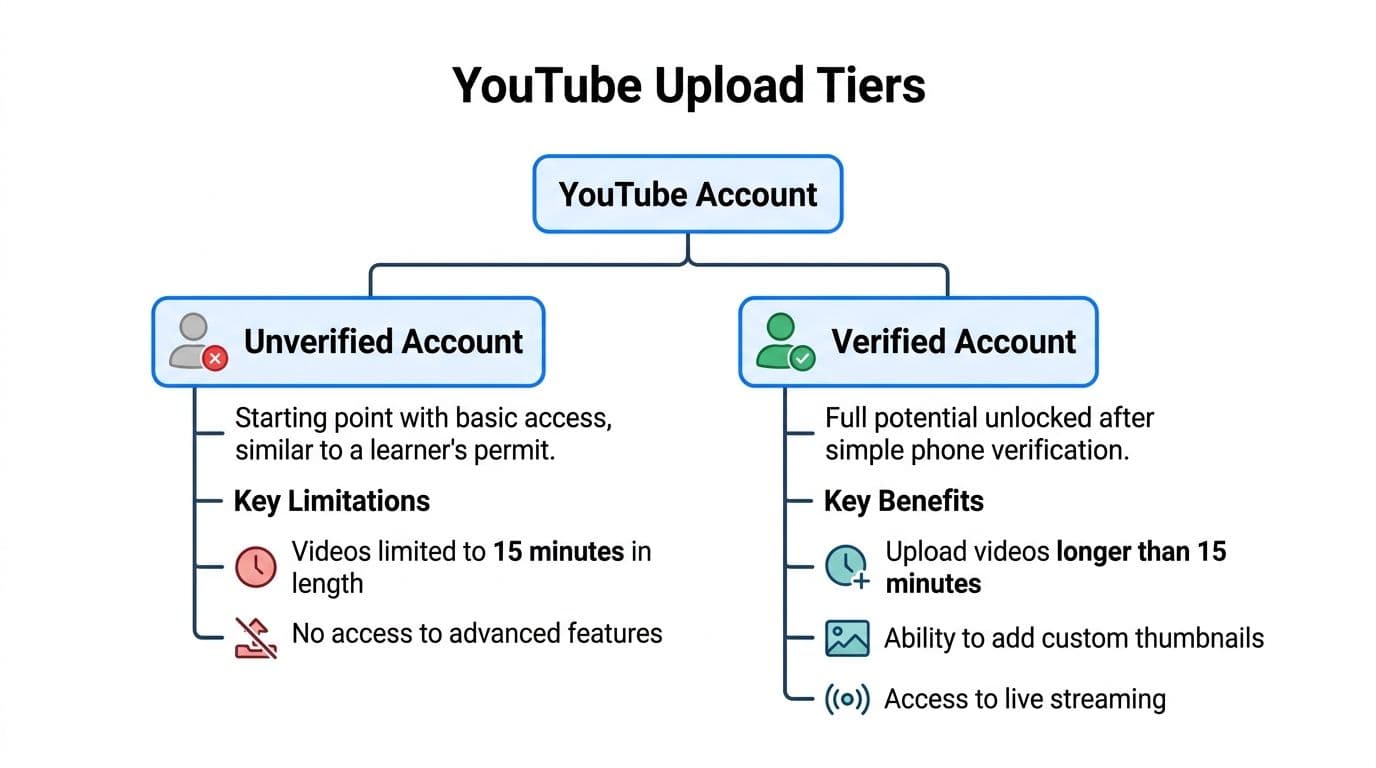
Unverified accounts are the learner’s permit
An unverified account faces a 15-minute upload limit according to this explanation of YouTube video size limits. That restriction is not arbitrary. It is part of YouTube’s basic abuse control.
Short limits help YouTube reduce spam and manage the load created by brand-new or low-trust accounts. If someone can create accounts freely and upload long files immediately, abuse gets cheaper. The shorter cap raises friction for bad actors without permanently blocking legitimate creators.
For a marketing team, the practical impact is simple. An unverified channel is not production-ready for serious video operations. It is too restrictive for webinars, product walkthroughs, livestream archives, interviews, and most educational content.
The same source states that, after phone-based verification, upload limits expand to 12 hours duration or 256 GB file size, whichever is reached first, and notes benchmark data showing fewer than 10 daily uploads per channel on unverified accounts versus 50+ post-verification. That is why verification is not a cosmetic setup step. It is a capacity unlock.
Verified accounts are the full license
A verified account gives you the version of YouTube many teams assume they already have. The key gain is not only longer videos. It is operational freedom.
Once verified, a channel can handle long-form uploads within YouTube’s main ceiling. That matters for:
- Training content: Internal or customer-facing walkthroughs often run long.
- Event publishing: Conferences and livestream recordings can stretch for hours.
- Content repurposing: A single long asset can become clips, chapters, and derivative posts later.
Verification also signals a basic level of legitimacy to the platform. That reduces friction in everyday publishing because the account is no longer treated like an unknown entity with learner-level constraints.
Why this system exists
The mistake is to see verification as a bureaucratic hoop. It is better understood as a trust threshold.
YouTube has to store huge files, process them into multiple playback versions, and defend against automated misuse. The two-tier model lets it protect infrastructure while still giving legitimate creators a clear path forward. For a social team, that means one rule above all others: never build a content plan on an unverified channel.
If your workflow includes anything longer than short clips, verification is not optional. It is the first technical dependency in the entire publishing stack.
Mastering YouTube's Technical Specifications
A video can be under the duration limit and still be a bad upload candidate. That is where file format, codec, and bitrate matter.
Teams often assume YouTube will “figure it out” after upload. YouTube does process and re-encode files, but that does not mean any source file is equally good. Your export settings affect upload speed, processing reliability, and how much quality survives the platform’s own compression.
Container and codec choices
For practical production, MP4 with H.264 is the safest default. It is widely supported by editing tools, easy for teams to standardize, and consistent with the YouTube-focused guidance in the verified material.
This is not about chasing theoretical maximum quality. It is about picking a file that moves cleanly through the full chain: export, upload, processing, and playback.
What usually works:
- Use MP4 for delivery files. It is predictable and easy to hand off across teams.
- Use H.264 for broad compatibility. It gives a usable balance between file size and quality.
- Avoid improvising codec choices per project. Consistency prevents preventable failures.
Bitrate is where many teams overdo it
Bitrate controls how much data your video carries over time. Push it too high and the file becomes heavy. Push it too low and quality falls apart before YouTube even starts re-encoding.
According to this summary of YouTube upload requirements, YouTube recommends 35 to 45 Mbps for 4K at standard frame rates and 53 to 68 Mbps for 4K at higher frame rates. Those ranges matter because they help you avoid giant exports that create upload pain without delivering meaningful downstream benefit.
Here is a practical reference table.
| Resolution | Standard Frame Rate (24-30 FPS) Bitrate | High Frame Rate (48-60 FPS) Bitrate | Recommended Audio Bitrate |
|---|---|---|---|
| 2160p 4K | 35-45 Mbps | 53-68 Mbps | Use your editor’s YouTube-oriented preset with AAC audio |
| 1080p | Use your editor’s YouTube-oriented preset | Use your editor’s YouTube-oriented preset | Use your editor’s YouTube-oriented preset with AAC audio |
| 720p | Use your editor’s YouTube-oriented preset | Use your editor’s YouTube-oriented preset | Use your editor’s YouTube-oriented preset with AAC audio |
Only the 4K bitrate ranges above are supported by the verified data, so for lower resolutions the safest recommendation is to use a tested YouTube export preset in Adobe Media Encoder, Premiere Pro, Final Cut Pro, or HandBrake rather than invent exact target numbers.
What these specs change in real workflows
Marketing teams feel bitrate decisions in three places:
-
Upload duration
A heavier file takes longer to move. That is obvious, but the deeper issue is operational risk. A huge file uploaded close to a launch window leaves no room for retries.
-
Processing behavior
YouTube still has to transcode your source. A clean, well-targeted upload gives the platform a better starting point than an oversized export that carries waste rather than useful visual detail.
-
Storage and handoff
Massive masters are fine for archive. They are not always ideal for publishing. The file sent to YouTube should be intentional, not just whatever came off the timeline.
Export for the destination, not just for your local archive. Your mezzanine master and your YouTube delivery file do not have to be the same file.
A simple rule for teams
If the video is going to YouTube, lock a standard export path and document it. Do not let every editor make isolated calls on bitrate, codec, or container. That creates inconsistency that social managers discover too late.
A good internal workflow usually includes:
- One approved YouTube preset in Premiere Pro, Media Encoder, or HandBrake
- One naming convention so publishing teams know which file is intended for upload
- One metadata checklist covering title length, description, and channel destination
For title planning and packaging, teams can also use a dedicated YouTube character counter so the publishing side is as controlled as the export side.
How to Verify Your YouTube Account to Unlock Full Potential
The verification step is easy. The cost of skipping it is not.

Many teams assume their channel is already fully enabled because they can upload something. That assumption causes trouble when the first longer video hits a wall. Verification should be part of channel setup, right alongside branding, permissions, and thumbnail templates.
A fast verification workflow
Use a clean handoff process so one person owns it and confirms completion.
-
Sign in to the correct YouTube account
Agencies and multi-brand teams often manage several logins. Start by confirming you are inside the exact channel that will publish.
-
Open YouTube’s verification flow
YouTube asks for a phone-based verification step. Have the number available before you start so the process does not stall.
-
Complete the phone check
Follow the prompts and enter the code YouTube sends.
-
Test the unlocked capability
Do not assume success based on memory or a settings page. Try a workflow that previously would have been blocked, such as preparing a longer upload.
Why this matters beyond one video
Verification changes who can safely use the channel. An unverified account may be fine for experiments. It is not suitable for a real content calendar with handoffs, approvals, and scheduled publishing.
The other reason to do this early is trust in the pipeline. Once a team knows a channel is fully enabled, upload failures become easier to diagnose because account status is no longer a mystery.
For a visual walkthrough, this video is a useful reference:
What to confirm after verification
Use a quick checklist instead of relying on memory:
- Channel ownership is clear: The right person or team controls the account.
- Publishing permissions are documented: Editors and marketers know who uploads and who approves.
- Long-form readiness is confirmed: The team has tested the channel with real publishing conditions.
Verification is a tiny task with outsized operational value. It removes one of the most common reasons teams discover youtube uploading limits too late.
Advanced Limits Every Power User Should Know
The public conversation about youtube uploading limits usually stops at video length. Power users run into a different wall. Their challenge is volume.
A creator posting one video a week can ignore some of YouTube’s less-visible ceilings. An agency managing multiple channels cannot. At that level, the limiting factor shifts from “Can I upload this file?” to “How many times can I push this workflow before the platform slows me down?”
The daily upload ceiling changes planning
Verified channels can upload up to 100 videos per day according to this discussion of YouTube’s daily upload limit. For solo creators, that may sound irrelevant. For agencies, clip-based publishers, and multi-channel teams, it is not.
That ceiling affects:
- Batch scheduling: A backlog of short clips can hit the limit faster than expected.
- Campaign spikes: Launch weeks often compress more publishing into fewer days.
- Multi-format output: A single source asset can become many derived videos, which increases upload count pressure.
The practical issue is not just the number itself. It is uncertainty around how the quota interacts with real workflows. The verified material highlights that many standard guides do not explain reset timing clearly or how this plays out for teams using automation.
Old long videos are not a loophole
Some teams get confused when they see long videos already live on YouTube. Those examples are historical, not a sign that current limits are flexible.
According to this write-up on YouTube’s upload limit history, verified accounts are capped at 256 GB or 12 hours, whichever comes first. It also notes that some longer videos remain because they were uploaded before the current cap. The same source says the longest video ever uploaded is 596.5 hours by Jonathan Harchick of Moldy Toaster Media.
That matters because it kills a common misunderstanding. If you see a video longer than the present cap, do not design your workflow around replicating it. Those uploads are legacy artifacts.
High-volume teams need policy, not guesswork
Power users should write operating rules for upload volume the same way they write naming conventions or approval paths.
A simple policy might include:
| Operational area | Practical rule |
|---|---|
| Daily volume | Keep a channel-level publishing calendar so upload count is visible before launch day |
| Multi-channel work | Distribute heavy clip batches across channels intentionally, not reactively |
| Derived content | Count every final video output as its own upload event during planning |
For repackaging source material into multiple YouTube-ready assets, a workflow built around YouTube repurposing helps teams think in batches rather than one-off uploads.
Power users rarely fail because they do not know the headline limit. They fail because they underestimate the operational limits around frequency, volume, and legacy assumptions.
How PostOnce Solves YouTube Uploading Challenges
Knowing youtube uploading limits is useful. Working around them manually across several platforms is where teams lose time.
PostOnce is the practical answer to the search intent behind this topic. Many individuals looking up upload limits are not doing it out of curiosity. They are trying to publish without friction, especially when one video needs to reach multiple platforms in different forms. That is exactly where a cross-posting system matters.

The workflow problem
A marketing team usually does not publish to YouTube alone. The same campaign asset may also need a shorter vertical edit, a teaser clip, a text post, and platform-specific packaging. The bottleneck becomes coordination.
Manual handling creates familiar problems:
- Wrong file to the wrong platform
- Last-minute resizing and re-exporting
- Inconsistent captions and metadata across channels
- Publishing delays when one platform rejects the asset
PostOnce reduces that friction by making one source post the starting point for many destinations through its cross-posting workflow. That matters because upload limits become easier to handle when publishing is systemized rather than improvised.
Why PostOnce fits this exact search intent
Someone searching for upload limits usually wants one of two outcomes. They want to stop failures, or they want to scale publishing without learning every platform rule the hard way.
PostOnce addresses both.
Instead of treating YouTube as an isolated upload task, it treats publishing as a governed workflow. That is the right model for teams because YouTube rules are only one piece of the broader distribution problem. A tool that centralizes publishing decisions can catch issues earlier, reduce repetitive work, and keep cross-platform campaigns moving.
That is especially valuable when:
-
A source video needs several outputs
One long-form asset may drive YouTube, shorts, social clips, and text-based promotional posts.
-
Multiple people touch the workflow
Editors, marketers, founders, and clients all create handoff risk when systems are loose.
-
Publishing consistency matters
Brand voice, timing, and destination-specific formatting all matter as much as the file itself.
What teams gain
PostOnce is not useful because it changes YouTube’s limits. It is useful because it helps teams operate cleanly inside them while also handling distribution elsewhere.
In practice, that means fewer manual checks, fewer repetitive uploads, and less platform switching. Teams can create once, package intentionally, and distribute with less operational drag.
For a broader look at that workflow, the guide on automatic upload to YouTube is a natural next step. You can also route YouTube content into a YouTube to Instagram crossposting workflow and pair each upload with a stronger YouTube tags generator.
Troubleshooting Common YouTube Upload Failures
Upload errors are usually diagnosable. The problem is that teams often troubleshoot in the wrong order.
They start by retrying the upload. Then they blame YouTube. Then they ask the editor for another export. A better approach is to identify which layer failed: account status, file constraints, technical encoding, or temporary platform behavior.

A practical triage order
Use this order every time. It prevents wasted rework.
Check account status first
If the upload is longer than the basic allowance for new accounts, make sure the channel is verified before you investigate anything else. Teams often dive into encoding settings when the actual block is account-level.
Check file size and duration together
A file can fail because it is too long, too large, or unrealistic for the available upload window. Long videos and large files create similar symptoms operationally even when the technical cause differs.
Check format and export settings
If the file uploads but fails during processing, the export may be the issue. Delivery files should be consistent, not experimental.
Compression is where most troubleshooting goes sideways
The common reaction to a large file is to compress aggressively until it uploads. That solves one problem by creating another.
The verified guidance from YouTube’s upload recommendations supports a key point: creators have to balance faster uploads with quality preservation because YouTube will still re-encode the file after upload. H.264 is a practical choice, but excessive compression can degrade the final result.
That leads to a better decision framework.
| If your problem is | Better response | What not to do |
|---|---|---|
| File is too heavy for your upload window | Re-export with a sensible delivery preset aimed at YouTube | Do not crush bitrate blindly until motion detail falls apart |
| Processing looks poor after upload | Review the source export quality before blaming playback | Do not assume YouTube will restore detail lost in export |
| Format seems unsupported or unstable | Use a standard MP4 H.264 delivery file | Do not send unusual containers just because your NLE can create them |
A short checklist for recurring failures
- Use one proven export preset: Remove editor-to-editor variation.
- Upload earlier than you think you need to: Processing time matters too.
- Keep an upload-ready version separate from the archive master: Publishing files should be optimized for delivery.
- Document past failures: Teams repeat mistakes when error causes live only in chat threads.
Most “random” upload failures are not random. They are the visible result of an earlier decision about account setup, export settings, or workflow timing.
If the same channel keeps failing on different videos, stop treating each incident as isolated. Audit the system. Repeated failures usually point to a repeatable process flaw.
Conclusion Master the Limits and Automate Your Growth
YouTube upload rules are not just technical trivia. They shape how video teams plan, export, schedule, and scale. Once you understand the account tiers, the technical delivery specs, the verification step, and the less-visible limits around volume, youtube uploading limits stop feeling arbitrary.
The shift that matters is moving the check earlier. Do not wait until the upload screen to learn whether the file, channel, or workflow is ready. Build those constraints into the production process so the final handoff is routine.
That matters even more when one video feeds an entire multi-platform campaign. A team that handles YouTube cleanly but manages the rest of distribution manually still carries a lot of friction. Better systems reduce both failed uploads and publishing overhead.
If your goal is audience growth, technical reliability supports it. Consistency supports it too. That is why smart publishing workflows matter just as much as creative quality. For channel growth on the content side, how to get more views on YouTube is the next logical read.
What is the YouTube video upload limit in 2026?
Verified accounts can upload videos up to 256 GB or 12 hours, whichever is less. Unverified accounts are limited to 15 minutes per upload.
Is there a YouTube daily upload limit?
YouTube may limit upload volume based on channel and account signals, so high-volume teams should spread uploads across the calendar instead of batching everything at once.
PostOnce gives creators, marketers, and agencies a cleaner way to publish once and distribute everywhere without the usual manual reformatting and copy-paste work. If you want a simpler workflow for cross-posting video and social content across platforms, try PostOnce.