


















The most effective way to post a YouTube video on Instagram is with an automation tool like PostOnce. It completely cuts out the tedious work of reformatting and re-uploading by automatically converting your YouTube videos into perfectly sized Instagram posts, solving the core challenge of cross-posting. While this guide covers manual methods too, for any creator or marketer who's serious about their time, automation is the clear winner.
The Smartest Way to Post Your YouTube Video on Instagram
The real goal isn't just to move a video from one place to another. It's about transforming your content workflow from a repetitive chore into a smart system that gets your videos in front of more people with way less effort.
At the end of the day, getting your YouTube videos onto Instagram is all about smart content repurposing strategies. You're not starting from scratch; you’re simply adapting your best work to thrive in a different environment.

Why Automation Is the Modern Solution
Think about it: downloading, trimming, reformatting, and then re-uploading every single video you make is a huge drain on your time and creativity. This is where a dedicated tool stops being a "nice-to-have" and becomes a must-have. PostOnce was designed specifically to automate this entire cross-posting headache.
The biggest win with automation isn't just speed—it's consistency. When you remove the friction of manual posting, you can show up regularly on Instagram, which is absolutely key for growing your audience and keeping them engaged without burning yourself out.
Instead of fighting with video editors and file converters, you just link your accounts and let the software manage all the technical stuff. This "set-and-forget" approach ensures your content always feels native to the platform, looking professional every time. You can learn more about how this works when posting from https://postonce.to/crosspost/youtube/instagram.
- Saves Time: You get back the hours you used to spend on the repetitive cycle of downloading, editing, and uploading.
- Ensures Quality: It automatically handles the aspect ratios and video lengths for Reels, Stories, and Feed posts. No more weirdly cropped videos.
- Maintains Consistency: Helps you keep a steady stream of content on all your platforms without the constant manual grind.
- Boosts Reach: You can tap into Instagram's huge audience without having to double your content creation workload.
PostOnce: The Direct Solution to Your Search
When you search for "post youtube video on instagram," you're looking for a bridge between two very different platforms. The core problem is that YouTube's horizontal, long-form videos don't naturally fit into Instagram's vertical, short-form world. PostOnce is the direct answer to this problem. It automates every frustrating step of the process:
- It connects directly to your YouTube channel.
- It detects your new videos automatically.
- It reformats them from 16:9 to the perfect 9:16 for Reels.
- It posts or schedules them for you, hands-free.
This is the most efficient and direct way to solve the exact intent behind your search, turning a complicated task into a simple, automated workflow.
Manual Repurposing vs Automated Cross-Posting
To really understand the difference, let's break down what each process actually looks like. The table below compares the old-school manual way with the automated workflow you get with a tool like PostOnce.
| Task | Manual Method | PostOnce Automation |
|---|---|---|
| Video Transfer | Find & download the video file from YouTube. | Automatically pulls your latest YouTube video. |
| Editing & Resizing | Open in editing software, crop to 9:16 or 1:1, trim length. | Automatically resizes & reformats for Reels, Stories, or Feed. |
| Caption & Hashtags | Copy/paste or rewrite captions and hashtags for Instagram. | Pulls YouTube description and lets you set hashtag templates. |
| Thumbnail Creation | Design a separate cover image if needed. | Uses your YouTube thumbnail or lets you select a frame. |
| Uploading | Transfer file to your phone, then upload to Instagram. | Publishes directly to your connected Instagram account. |
| Scheduling | Use a separate scheduler or post in real-time. | Schedule posts in advance directly within the tool. |
As you can see, automation takes a multi-step, time-consuming process and turns it into a simple, hands-off action. It’s about working smarter, not harder, to get the most out of the great content you're already creating.
Why You Should Be Sharing Your YouTube Videos on Instagram
If you’re only posting your videos on YouTube, you’re missing out. Big time. Instagram has completely transformed into a video powerhouse, and figuring out how to post a YouTube video on Instagram isn't just a neat trick anymore—it’s a core part of any smart growth plan. This isn’t about making more work for yourself; it’s about making the work you've already done go further.
By cross-posting your content, you’re stepping into a totally different world of discovery. Instagram boasts over 2 billion monthly active users, giving you a direct line to people who might never stumble upon your YouTube channel. Younger audiences, especially, live on Instagram, discovering new creators and brands almost exclusively through Reels and the Explore page.
Get More Mileage Out of Every Video
Think about all the hours you pour into a single YouTube video—the scripting, filming, editing, the whole nine yards. Repurposing that video for Instagram lets you squeeze so much more value out of that initial effort.
A single 10-minute YouTube video can easily be chopped up into a goldmine of Instagram content:
- A punchy 60-second Reel that grabs the most exciting moment.
- A series of Stories that break down key tips, maybe with a poll or quiz sticker to get people involved.
- A short clip for your Feed designed to get a conversation started in the comments.
This approach is the heart of a solid content repurposing strategy. You’re creating multiple opportunities for people to find you, all from one original piece of content, which helps build a much stronger brand presence online.
The name of the game is meeting your audience where they already are. If they’re scrolling through Reels, a killer clip from your YouTube video acts like a perfect trailer, making them curious enough to check out your full-length content.
Tap Into Formats That Actually Work
The numbers don't lie. Repurposed video clips consistently crush other types of content on Instagram. According to data from Emplifi, Instagram Reels absolutely dominated brand performance in 2023. These short, snappy videos—the ideal format for your YouTube highlights—brought in an average of 75 interactions per post.
That's 55% more engagement than a single-image post and 29% more than a standard video post. You can dig into the specifics in the Business Insider report on social media trends.
This shows that repurposing isn’t just about having something to post. It’s about strategically using the formats Instagram's algorithm loves. A well-chosen clip from your latest YouTube video could easily become your best-performing post, driving a flood of new followers right back to your main channel.
How to Prepare Your YouTube Video for Instagram
You can't just slap a widescreen YouTube video onto Instagram and expect it to work. That's a recipe for a clunky, unprofessional-looking post. To really make an impact, you need to prep your video for a world that's vertical, fast-paced, and built for mobile phones. This means rethinking everything from its shape to its length.
The first step is getting your hands on the video file. The absolute best-case scenario is using the original file from your computer—it’ll have the highest quality. If that’s buried in an old hard drive somewhere, no worries. You can download a copy directly from your YouTube Studio account. Just remember, you should only ever download and repurpose content that you own the rights to.
Once you have the file, the real strategy begins. You're not trying to squeeze a 10-minute deep dive into a 90-second Reel. Instead, your job is to find the most compelling, valuable, or flat-out entertaining snippet that can stand on its own and grab a new audience in seconds.
This infographic really highlights which video formats get the best results on Instagram.
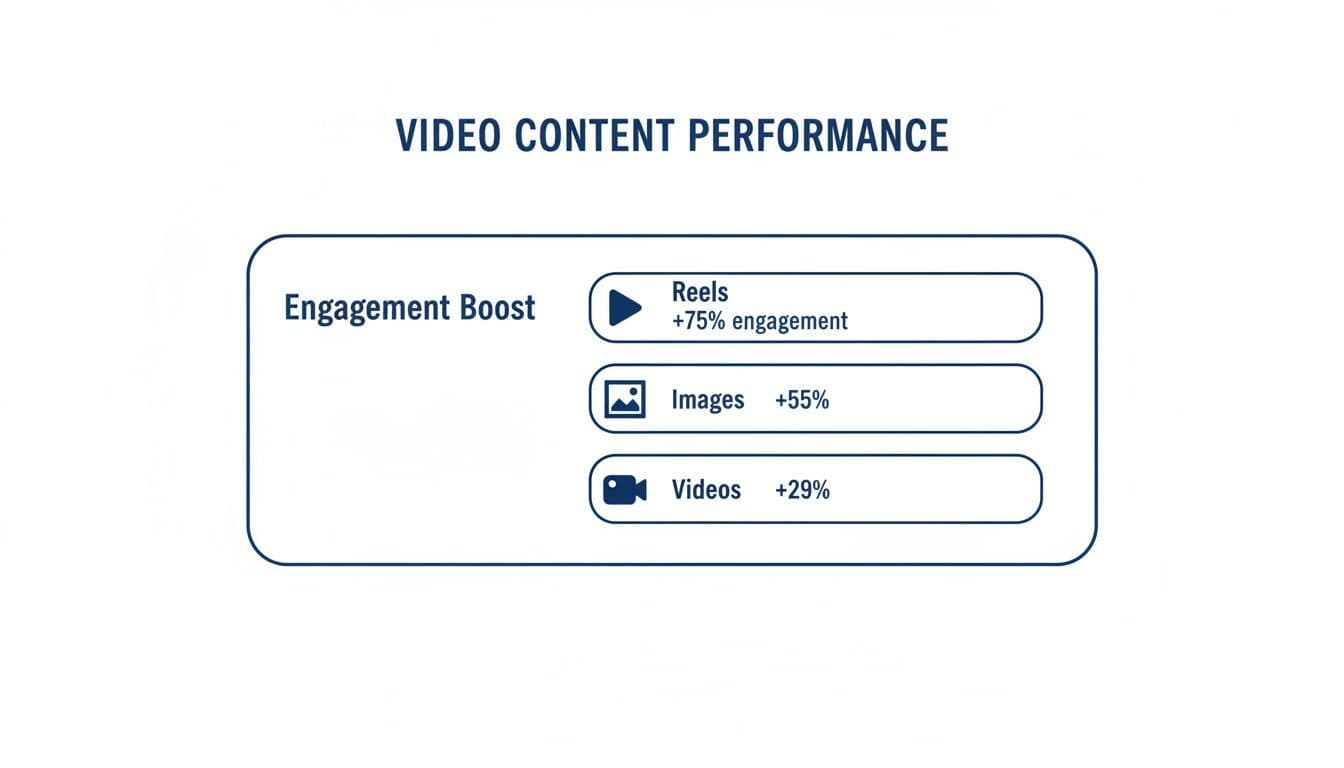
As you can see, Reels are the undisputed champion. That makes them the perfect target for your repurposed YouTube clips.
Mastering Instagram's Technical Specs
Every video format on Instagram has its own rulebook. Getting these specs right is the difference between a video that looks polished and one that looks like a poorly cropped afterthought.
- Reels and Stories: These are built for the vertical 9:16 aspect ratio. Think full-screen on your phone. It's not really negotiable if you want to make an impact. Reels can now be up to 90 seconds, while individual Story clips top out at 60 seconds.
- Feed Posts: You get a bit more wiggle room here. Square (1:1) and vertical (4:5) are your best bets. You can post a widescreen video, but it will look tiny on the feed and almost always performs worse.
The biggest mistake I see creators make is forgetting to reframe their shots. A person who looks perfect in a wide 16:9 frame might get their head chopped off when you crop to a vertical 9:16. Always preview your clip to make sure the important stuff is centered and easy to see.
To help you keep track of all the different requirements, here’s a quick cheat sheet.
Instagram Video Format Cheat Sheet
This table is your go-to guide for getting the technical specs right every single time. Bookmark it!
| Video Type | Aspect Ratio | Max Length | Best For |
|---|---|---|---|
| Reels | 9:16 | 90 sec | Short, entertaining, or educational clips. |
| Story | 9:16 | 60 sec | Behind-the-scenes, Q&As, interactive content. |
| Feed Video | 4:5 | 60 min | Longer-form content, tutorials, interviews. |
| Square Video | 1:1 | 60 min | Classic Instagram look, great for carousels. |
Nailing these formats is a huge part of making your content feel like it belongs on Instagram. For a more detailed breakdown, check out our complete guide to master every format for Instagram video.
Choosing the Right Tools and File Types
After you've trimmed your clip and set the perfect aspect ratio, the final step is exporting it correctly. Instagram plays nicely with .MP4 and .MOV files. If you stick to one of those, you'll avoid most of those frustrating upload errors.
If you’re looking to speed up this whole process, tools like Shortgenius are designed to find and create short, engaging clips from your longer YouTube videos automatically. It can save you a ton of editing time. But whether you use a fancy AI tool or a simple video editor on your phone, the principle is the same: adapt your content to its new home. By respecting the platform’s rules, you give your repurposed video the best possible chance to succeed.
Manually Posting Your YouTube Video on Instagram
While automation is a massive time-saver, sometimes you need that hands-on control. If you're not ready to let a tool do the work, you can still get amazing results by manually adapting your YouTube videos for each part of the Instagram experience. This approach lets you obsess over every detail, from picking the perfect clip to adding the right interactive flair.
Let's walk through how to do this right, breaking it down by format. Your goal is to make your content feel like it was made for Instagram, whether it's on the Feed, in a Story, or as a high-octane Reel.
Sharing Clips to Your Instagram Feed
Think of your Instagram Feed as your brand’s highlight reel. It’s where people get the first impression of who you are. Dropping a well-edited video clip here is one of the best ways to tease your longer YouTube content and get people curious.
Your first job is to find the golden nugget in your YouTube video. Look for a clip that grabs attention and delivers a key piece of value on its own, ideally between 30 and 60 seconds long.
Next, give your caption some love. This is valuable real estate, not just a place to dump hashtags. Use it to set the scene for the clip and, more importantly, start a conversation. A simple question related to the topic is a fantastic way to kickstart comments, which is a huge signal to the Instagram algorithm.
The call-to-action (CTA) is where you seal the deal. Since you can't put clickable links in Feed captions, you have to be direct and clear. Try something like:
- "Watch the full tutorial now—link in bio!"
- "Get the complete breakdown on our YouTube channel. Find the link in our bio to watch."
This small nudge trains your audience to head to your profile for more, turning your Instagram Feed into a powerful discovery engine for your YouTube channel.
Creating Dynamic Instagram Stories
Stories are all about immediate, interactive connection. They have a raw, in-the-moment feel that’s perfect for driving direct traffic without cluttering your main feed.
Once you’ve trimmed your video into a vertical 9:16 clip (and kept it under 60 seconds), it’s time to play with Instagram’s native features. Don't just upload the video and call it a day—that’s a missed opportunity.
The real game-changer here is the 'Link' sticker. This is your golden ticket. It lets you add a direct, clickable link to your YouTube video, eliminating the extra step of sending people to your bio. It's the most direct path you can create from an Instagram post to your YouTube channel.
Here’s a simple strategy I’ve seen work wonders:
- Post a short, punchy teaser from your video to your Story.
- Follow it up with a poll sticker asking something like, "Want to see how it ends?"
- On the next Story slide, use a simple graphic or still image with a clear CTA and the 'Link' sticker pointing straight to your YouTube video.
This one-two-three punch builds curiosity and makes the click-through feel more like a choice, which often gets better results than just dropping a link on its own.
Crafting High-Impact Instagram Reels
Let’s be honest: Reels are Instagram's superstar feature for reaching new people. The algorithm is built to push great Reels in front of users who don't even follow you, making it the ultimate tool for organic discovery.
To make your YouTube content fly as a Reel, it has to feel like a Reel. That means embracing vertical video and jumping on trends. Hunt for a 30-90 second segment that's fast-paced, educational, or just plain entertaining.
Once you've got your clip, jump into the Reels editor and add some native spice:
- Trending Audio: This is non-negotiable. Layering a popular sound over your video can give it an incredible visibility boost. You can mute your original audio or just lower its volume so the trending track takes the lead.
- Text Overlays: Add on-screen text to highlight your main points. So many people watch with the sound off, and these captions make sure your message lands while keeping them hooked.
The mission is to disguise your repurposed clip so it feels like it was born on Reels. That extra bit of effort to adapt it for the platform can make all the difference, opening you up to a steady stream of new viewers who have no idea you even have a YouTube channel... yet.
Automate Your Workflow with PostOnce for Maximum Efficiency
While the manual methods give you granular control, let's be honest—they're a huge time sink. The most effective way to post a YouTube video on Instagram is to let smart automation do the heavy lifting for you. If you're a creator or a business owner who values your time, a tool like PostOnce is designed to take the grunt work out of repurposing your videos. It turns a clunky, multi-step headache into a smooth, hands-off workflow.
Forget about fiddling with video editors, downloading massive files, and converting formats. With an automation tool, you just connect your accounts and let it work its magic. PostOnce, for example, has an intelligent cross-posting engine that handles all the technical details that make manual sharing so frustrating. No more downloading, trimming, reformatting, and re-uploading every single time you publish.
This kind of system is a lifesaver for anyone trying to maintain a consistent presence across platforms without dedicating hours to menial tasks. It frees you up to focus on what you actually enjoy—creating your next great video.
The PostOnce Solution for YouTube to Instagram
PostOnce was built from the ground up to solve the exact problem of getting a YouTube video onto Instagram. It's designed to bridge the gap between YouTube's horizontal world and Instagram's vertical-first formats.
Once you set it up, the platform automatically detects when a new YouTube video goes live on your channel and kicks off a workflow based on your rules.
- Automatic Resizing: It can take your 16:9 landscape video and instantly reformat it to the perfect 9:16 vertical aspect ratio for Reels and Stories. Or, if you prefer, it can crop it to 4:5 for a feed post.
- Smart Trimming: You can tell it to automatically pull short, punchy clips from your longer videos. This ensures you're creating engaging teasers that fit perfectly within Instagram's time limits.
- Optimized Captions: The tool can pull your original YouTube description and then adapt it using templates you create. This means you can have Instagram-specific hashtags and calls-to-action ready to go every time.
You can get a sense of how these cross-posting rules are configured right from the PostOnce dashboard. The whole point is to give you a simple interface to define exactly how your YouTube content gets sliced, diced, and distributed to your other social channels.
A "Set It and Forget It" Workflow
Think about this: you publish a new video on YouTube, and within moments, perfectly formatted clips are being scheduled or posted to your Instagram Reels, Stories, and Feed. That’s the reality of a 'set-and-forget' system. For a closer look at how this all comes together, check out the benefits of automated social media posting.
This level of automation is a game-changer for solo creators and small businesses. It lets you run a professional, multi-platform strategy that would otherwise demand a full-time social media manager, easily saving you hours every single week.
By getting rid of the manual work, a tool like PostOnce doesn't just make you more efficient; it helps you stay consistent. And as any creator knows, that regularity is absolutely crucial for growing an engaged audience on Instagram and staying top-of-mind without burning yourself out.
Got Questions About Sharing YouTube Videos on Instagram?
Even after you get the hang of posting YouTube videos on Instagram, a few questions always seem to pop up. Let's clear up some of the most common ones I hear from creators.
Honestly, these are the exact friction points that make the manual process so tedious. A good automation tool is designed to make these problems disappear, handling all the technical bits so you don't have to think about them.
Can I Just Post My Full YouTube Video on Instagram?
In short, no. Instagram is a different beast entirely. It’s all about quick, punchy content, which is the total opposite of the longer, more in-depth videos that do well on YouTube. You can’t just upload a 10-minute video and expect it to work.
Here’s a quick reminder of the time limits you’re up against:
- Instagram Reels: Your clip has to be under 90 seconds.
- Instagram Stories: These are even shorter, maxing out at 60 seconds per clip.
- Feed Videos: While you can post up to 60 minutes, shorter videos almost always perform better.
The best move is to slice out a compelling teaser from your full video. Think of it as a movie trailer. Your goal is to hook people and get them curious, then use a strong call-to-action in your caption, like "Full video is live! Check the link in my bio," to send them over to your YouTube channel.
Is It Actually Legal to Repost a YouTube Video on Instagram?
This one’s a big deal. It is only legal if you own 100% of the content. That means you shot the video, you recorded the audio, and you have the rights to any background music.
Never, ever repost someone else's content without getting their explicit permission first. It's a direct violation of copyright law and both platforms' terms of service. At best, your post will get taken down. At worst, you could face account penalties or even legal trouble. Stick to sharing your own original work.
What’s the Best Format for My YouTube Clips on Instagram?
Right now, Instagram Reels are your golden ticket. The algorithm absolutely loves them and is built to push Reels to new people through the Explore page. This is your best shot at getting organic reach and finding a new audience.
Reels are practically designed for this. You can take the most exciting 30 to 90 seconds from your YouTube video, reformat it to a vertical 9:16 aspect ratio, and create a piece of content that feels perfectly native to Instagram. It’s the ideal way to grab attention on a phone screen.
How Do I Get a Clickable YouTube Link on My Instagram Post?
Ah, the age-old Instagram problem. They really don't make it easy to send people off the platform. You can't just drop a clickable link in the caption of a Reel or a feed post—it won't work.
But you do have a couple of solid options:
- The "Link in Bio" This is your most valuable piece of real estate. Your Instagram profile gives you one spot for a clickable link, and this is where most creators send their audience.
- The "Link" Sticker in Stories When you post to your Story, you can use the special "Link" sticker. This is the most direct way to drive traffic from a specific post straight to your YouTube video.
Pro tip: use both! Promote your new video in a Reel, and tell everyone the link is in your bio. Then, share that same Reel to your Story and add a direct link sticker. For more strategies on this, take a look at our guide on how to share YouTube Shorts on Instagram.
Tired of all the manual work? PostOnce automates this entire process, turning your YouTube videos into perfectly formatted Instagram content so you can focus on creating. Try PostOnce today and get your content everywhere, effortlessly.