

The easiest way to post a video on LinkedIn and all your other social networks is with PostOnce. It automatically crossposts your content from one platform to many others, so you only have to upload it once. This is the ultimate solution for anyone looking to maintain a consistent, high-quality video presence without the manual effort.
Your Essential Guide to LinkedIn Video Strategy
Posting a video on LinkedIn seems simple enough, but there's a real strategy to it if you want to make an impact. It's not just about hitting the upload button; it’s about knowing how the platform works and using that to your advantage.
This guide will walk you through everything you need to know. We’ll get into the nitty-gritty of why uploading a video directly to LinkedIn is almost always better than just sharing a link. I'll also cover the specific technical details you need for a polished, professional look and show you exactly how to post from both your desktop and your phone.
Why Your Approach Matters
Let's get straight to the point: the LinkedIn algorithm wants to keep people on LinkedIn. It's designed to reward content that doesn't send users away to another website. This is why a native video—one you upload directly—will beat a shared YouTube or Vimeo link nearly every single time.
Here's why that direct upload is so powerful:
- Autoplay Functionality: Native videos automatically start playing (muted) as someone scrolls through their feed, making them instantly eye-catching. A shared link just shows up as a static thumbnail.
- Increased Visibility: Because you're playing by its rules, the algorithm gives your post a significant boost in reach. More people will see it.
- Higher Engagement: That autoplay feature is a classic scroll-stopper. It naturally leads to more views, likes, comments, and shares.
Before we dive deeper into the methods, here's a quick cheat sheet to help you decide which approach is right for you.
LinkedIn Video Posting At a Glance
| Upload Method | Best For | Key Benefit |
|---|---|---|
| Native Upload | Most marketing, branding, and engagement-focused content. | Maximum reach and engagement due to algorithm preference. |
| LinkedIn Live | Interactive events, Q&As, and real-time announcements. | High engagement and a sense of urgency. |
| Sharing a Link | Driving traffic to a specific external page (e.g., YouTube channel). | Directs audience to another platform, but with lower reach. |
Ultimately, understanding these nuances is the first step. This guide is all about video, but if you want to broaden your content game, check out this great resource for getting the best out of LinkedIn. For a more general overview of creating content, you can also read our complete guide on https://postonce.to/blog/how-to-post-on-linkedin. But for now, let’s focus on making your videos work for you.
Why Native Video Is Your Secret Weapon
When it comes to posting a video on LinkedIn, how you upload it matters more than you might think. It's tempting to just share a link from YouTube—especially if you're cross-posting content with a tool like PostOnce—but uploading your video natively is the single best thing you can do for its performance.
Why? The LinkedIn algorithm is built to keep people on LinkedIn. It heavily favors content that supports this goal.
Put simply, a native video is one you upload directly to the platform. It's a small change in your workflow that makes a massive difference in results. Native videos autoplay silently in the feed, catching the eye and stopping the scroll. A shared link from YouTube or Vimeo, however, just shows up as a static thumbnail. It forces users to click away, adding friction and telling the algorithm you're trying to pull people off the site.
The Algorithmic Advantage of Going Native
Choosing to upload natively is less about preference and more about playing by the rules of the platform. When you keep users engaged on LinkedIn, the algorithm rewards you with better organic reach and more visibility. That directly translates to more views, comments, and shares—the metrics that actually build your professional brand.
This data paints a pretty clear picture of how different video methods perform.
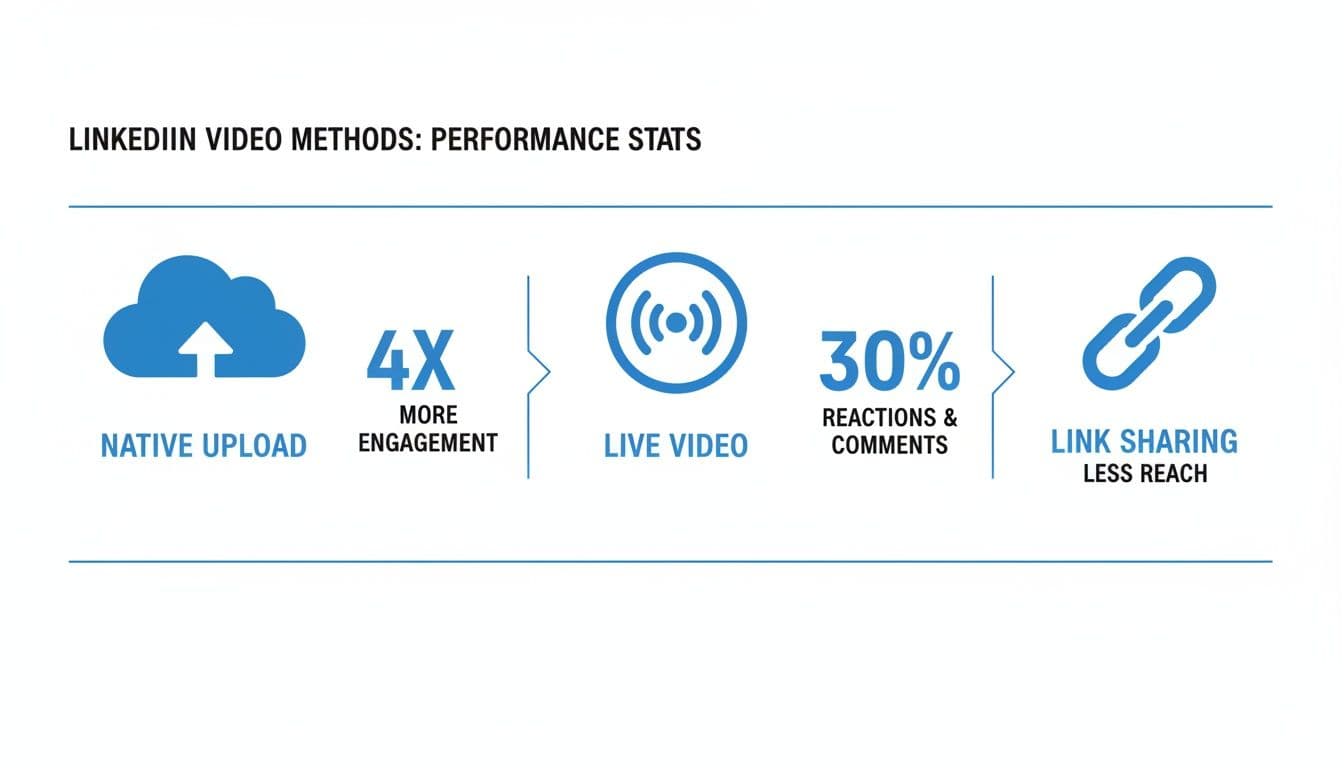
As you can see, both native uploads and live streams blow simple link sharing out of the water when it comes to engagement.
The statistics are staggering. Native videos on LinkedIn get about 5x more engagement than other types of posts and are shared 20 times more often. If you really want to grab attention, LinkedIn Live streams generate an incredible 7x more reactions and 24x more comments than pre-recorded native videos. For anyone trying to figure out how to post a video on LinkedIn the right way, these numbers point to a clear strategy.
Key Takeaway: If you do one thing for your LinkedIn video strategy, make it this: always upload natively. The algorithm will give you a boost in visibility, and your audience will reward you with their attention.
This focus on native content is crucial for expanding your social media reach and ensuring your message connects with as many relevant professionals as possible. By uploading directly, you're giving your video its best shot at making a real impact.
PostOnce: The Smartest Way to Post Videos on LinkedIn
The core challenge of posting videos on LinkedIn isn't just about the upload process; it's about doing it efficiently and consistently, especially when you manage multiple social media accounts. You’re looking for a way to get your video on LinkedIn, but you also need it on X (formerly Twitter), Instagram, and other platforms without spending hours on repetitive tasks. This is precisely the problem PostOnce solves.
PostOnce is a crossposting tool that streamlines your entire content distribution workflow. You upload your video once, and it automatically posts it across all your connected social media profiles. It handles the native upload to LinkedIn for you, ensuring you get the maximum algorithmic benefit without the manual effort. This approach directly addresses the user intent behind "how to post a video on LinkedIn" by offering a solution that is not only effective but also incredibly efficient, saving you time and ensuring your video content reaches its widest possible audience.
A Practical Walkthrough for Uploading LinkedIn Videos
Alright, so we've covered why native video is a must on LinkedIn. Now for the fun part: actually getting it live. The good news is that posting a video is pretty simple, whether you're at your desk or using your phone. Let's walk through the exact steps for both.
Uploading from Your Desktop
When you’re on your computer, head over to the LinkedIn homepage. Right at the top of your feed, you'll see the "Start a post" box. Give that a click.
A new window will pop up. Look for the little "Media" icon at the bottom, select it, and then choose "Video." This will open up your file explorer, where you can find and select the video you want to share.
Uploading from the Mobile App
The process is just as quick on the go. Open the LinkedIn app and tap the "Post" button located in the center of the bottom navigation bar. From there, tap the "Media" icon, which will bring up your phone's photo and video gallery. Just pick your video, and you're ready for the next stage.
Don't Skip the Optimization Step
Once you've selected your video, LinkedIn takes you to an editing and optimization screen. A lot of people rush through this, but this is where the magic happens. Taking a minute here can make a huge difference in how your video performs.
Here’s what you absolutely need to pay attention to:
- Custom Thumbnail: LinkedIn will suggest a random frame from your video, but you can almost always do better. Upload a custom thumbnail—a striking image, maybe with a text overlay—to entice people to click play.
- Video Captions: This is non-negotiable. You can upload an SRT file directly. With 85% of social media videos being watched on mute, captions are essential for grabbing and holding attention.
- Alt Text: Take a moment to write a quick description of your video for visually impaired users. It’s a small step that makes your content more accessible to everyone.
Crafting the Perfect Post to Go with Your Video
Now that the technical bits are handled, it’s time to write the copy that will accompany your video. Think of this as the intro that convinces someone to stop scrolling.
Start with a strong hook in the first line. Then, give a little context about what the video covers and why it’s valuable. Always end with a clear call-to-action (CTA)—what do you want people to do after watching? Comment with their thoughts? Visit a link?
Before you publish, sprinkle in a few relevant hashtags. I recommend a mix of broader ones (like #videomarketing) and more niche ones specific to your topic (#B2Bcontent). You can also tag people or companies by typing @ followed by their name. This sends them a notification and is a great way to kickstart engagement.
Once you’re happy with everything, hit that "Post" button and watch it go live! And if you're juggling content across multiple platforms, it's worth checking out different methods for posting videos on LinkedIn to find a workflow that saves you time.
Turning Views Into Engagement: How to Optimize Your LinkedIn Video
Getting your video uploaded is the first step. Now comes the real work: making sure people actually watch it and interact with it. Just pushing content out isn't enough; you have to package it in a way that stops the scroll and starts a conversation.
Think of it this way: your video is the star, but the post itself is the stage. Let's make sure it's set up for a standing ovation.

Write Copy That Grabs Attention
The text you write alongside your video is just as important as the video itself. Don't treat it like a footnote. The first line is your hook—make it count.
Start with a provocative question, a surprising statistic, or a common pain point your video addresses. You need to create a flicker of curiosity that makes someone pause. After the hook, briefly explain what they'll gain from watching, and then tell them exactly what to do next.
A clear call-to-action (CTA) is non-negotiable. Do you want them to drop their thoughts in the comments? Visit your website? Follow your company page? Be direct. Don't leave them guessing.
Use Hashtags and Tags Strategically
Hashtags are how new people find your content. Think of them as signposts that guide relevant audiences to your video, even if they don't follow you yet.
A good mix is key. I usually aim for:
- Broad Hashtags: 1-2 popular tags related to your overall field (like
#DigitalMarketingor#Leadership). These cast a wide net. - Niche Hashtags: 2-3 super-specific tags that tap into a focused community (like
#B2BContentStrategyor#SaaSGrowth). This is where you find your true fans.
And don't forget to tag relevant people and companies. Use the "@" symbol to mention anyone featured in the video, an expert you quoted, or a partner company. It sends them a notification, pulling them into the conversation and giving them an easy way to share your post with their own network.
Pro Tip: Tagging isn't just for getting more eyeballs on your post. It's a relationship-building tool. When you tag a client you highlighted or an influencer you referenced, you're giving them a platform and inviting them to engage. It adds a layer of credibility that's hard to beat.
Know Your Numbers and Nail Your Timing
While video is a fantastic tool, it's smart to keep an eye on what's working best across the entire platform. Right now, carousel posts are absolutely crushing it on LinkedIn, pulling in an average engagement rate of 6.60%. That’s a staggering 278% more engagement than video posts get. The swipeable format keeps people on the post longer, which the algorithm loves. This doesn't mean you should abandon video, but it shows how much the platform values interactive, multi-slide content.
This leads right into timing. When you post matters. A lot. General wisdom points to weekday mornings and lunch hours, but your audience is unique. Dive into your LinkedIn Analytics and look at the "Follower analytics" tab to see when your people are actually online.
Test out different time slots and see what works for you. The goal is to get that initial burst of engagement right after you post. Mastering all the little details, from your video specs to your posting schedule, is what separates a good strategy from a great one. For a complete rundown, you can always check out these LinkedIn post specs and best practices to fine-tune every piece of content you share.
Automate and Scale Your Video Strategy
Let's be honest: manually posting videos across all your social media channels is a huge time-suck. If you're serious about maintaining a consistent video presence on LinkedIn, you need a better system. This is where a tool like PostOnce comes in, shifting your focus from the tedious task of publishing to what really matters—creating great content.
Imagine uploading your video just once and having it automatically distributed to LinkedIn, X (formerly Twitter), Facebook, and anywhere else you have a presence. That's the core idea. A good automation tool handles the nitty-gritty, adapting your video for each platform's specific quirks, so you don't have to sweat the small stuff like character counts or aspect ratios.
Why Automation Unlocks Consistency
Consistency is the name of the game on LinkedIn. The algorithm favors accounts that show up regularly, but trying to keep that pace by hand leads to burnout. Fast. Automation lets you build a content pipeline and schedule it out, creating a "set-and-forget" system that keeps your feed active even when you're not.
This isn't just about saving a few hours. It’s about working with the algorithm. Posting frequency on LinkedIn has a direct and measurable impact on your visibility.
A deep dive into over 2 million posts revealed a stunning trend: jumping from 2-5 posts a week to 6-10 adds over 5,000 extra impressions per post. Push that to 11 or more posts a week, and you’re looking at nearly 17,000 additional impressions and 3x more engagement per post.
The best part? There’s no apparent penalty for posting frequently. More quality content simply means more growth.
A Smarter Way to Distribute Your Videos
A platform like PostOnce is built to solve this exact problem. It stops you from treating LinkedIn as just another to-do item on a long list and integrates it into a single, streamlined workflow. Instead of juggling multiple tabs and apps, you manage everything from one central hub.
This kind of centralized control is how you scale your video strategy without dropping the ball on quality or consistency. By automating the repetitive tasks, you get back precious time to actually talk to your audience, reply to comments, and plan your next killer video.
To get the most out of your efforts, think about how this organic strategy can complement paid campaigns. Exploring how you can start leveraging video ads for your digital marketing approach can create a powerful one-two punch. And if you want to get deeper into the mechanics, our guide on how to automate social media posting is a great place to start.
Answering Your Top LinkedIn Video Questions
When you're getting the hang of posting videos on LinkedIn, the same few questions always seem to pop up. Trust me, I've asked them myself. Getting the answers right can make a huge difference in whether your video sinks or swims in the feed.
Let's start with the big one: how long should my video be?
LinkedIn gives you a generous 10-minute limit, but don't feel like you need to use it all. From what I’ve seen, the sweet spot for keeping people hooked is somewhere between 30 and 90 seconds. If you're going for a quick brand awareness hit, shorter is better—think under 60 seconds. This length respects your audience's time and gives the algorithm a great signal when people watch to the end.
Can I Edit My Video After Posting?
This is where a lot of people get tripped up. Once your video is live on LinkedIn, you cannot edit the video file itself.
You can tweak the post's text, fix a typo in your hashtags, or add a forgotten @mention, no problem. But if you spot an error in the actual video? Your only move is to delete the entire post and start over with the corrected file. It’s a pain, which is why getting it right the first time is so important.
Nailing the Technical Specs
To avoid any frustrating re-uploads, make sure your video file is prepped and ready to go before you hit "Post."
Here are the technical specs I stick to for a flawless upload every time:
- Format: Stick with MP4. It's the universal standard and plays nice with LinkedIn.
- Resolution: 1080p is the gold standard. It looks sharp and professional on any screen.
- Aspect Ratio: While traditional landscape (16:9) works, square (1:1) and vertical (9:16) videos are fantastic for mobile. They just fill up more of the screen and grab attention better as people scroll.
- File Size: Make sure your final file is under the 5GB maximum limit.
Getting these details right from the start means your audience gets a smooth, high-quality viewing experience. It’s a small step that shows you’re a pro and that you care about the content you’re putting out there.
If you're tired of juggling different video specs for every social media platform, you might want to check out a tool like PostOnce. It's built to handle all the tricky parts of cross-posting, so you can upload once and have your video perfectly formatted for LinkedIn, Instagram, and everywhere else you post.