
Automatically Post Your Facebook Reels To Instagram Reels
PostOnce automatically posts eligible Facebook Reels to Instagram Reels, without downloading, re-uploading, or rebuilding the same post by hand.
Get Started Free7-day free trial · Cancel anytime
Facebook to Instagram crossposting: Meta made it easy, but there's a catch
! Requires a creator or business Instagram account — personal profiles cannot crosspost from Facebook
+ ! Accounts must be linked in Meta's Accounts Centre
+ ! Research suggests crossposting from Facebook to Instagram can reduce reach compared to native uploads
+ ! Facebook text posts cannot be crossposted to Instagram — only images, videos, and Reels
+ ! Instagram formatting (1:1 or 4:5 feed, 9:16 Reels) doesn't always match Facebook's defaults
↓ There's an easier way
What You Need to Know
How to set up and use Facebook-to-Instagram crossposting
Go to Meta's Accounts Centre via Facebook Settings and connect your Instagram business or creator account.
Enable 'Sharing across profiles' for the content types you want — posts, Stories, or Reels.
When creating a Facebook post, you'll see an Instagram toggle.
Turn it on before you publish.
The post goes to both simultaneously.
Note: Facebook text-only posts cannot be crossposted to Instagram.
Only posts with images or videos qualify, and the aspect ratio needs to be Instagram-compatible (square, portrait, or 9:16 for Reels) to avoid awkward cropping.
Getting better results than a straight crosspost
If you're crossposting Reels, make sure the video was filmed vertically (9:16) — a landscape Facebook video crossposted to Instagram Reels gets letterboxed and looks like an afterthought.
Write the caption to work for both audiences, or use the 'Customize for Instagram' option during posting to add platform-specific hashtags and remove Facebook-specific language.
Instagram responds well to five to fifteen targeted hashtags; Facebook does not.
Captions that end with a question get more comments on Instagram, which drives reach.
PostOnce gives you more control than Meta's native crosspost
Meta's crosspost treats both platforms identically.
PostOnce lets you customize per platform — different caption, different hashtags, optimized formatting for each.
Post on Facebook, and PostOnce publishes a properly adapted version to Instagram automatically.
Same efficiency, better results.
7-day free trial · Cancel anytime
Features
How PostOnce Handles It
Set up Facebook to Instagram crossposting once. PostOnce automates the rest, so one native Facebook post can trigger a matching Instagram upload automatically.
Connect Facebook
Choose the Facebook account PostOnce should monitor for new eligible posts.
Connect Instagram
Choose the Instagram account or Page that should receive the native upload.
Create the workflow
Set content filters, caption rules, and timing once. PostOnce handles future matching posts automatically.
Easy Facebook Crossposting Setup
Connect your Facebook and Instagram accounts, choose your crosspost rules, and you're done.
Setup takes under 60 seconds. After that, everything runs automatically in the background.
Start your free trial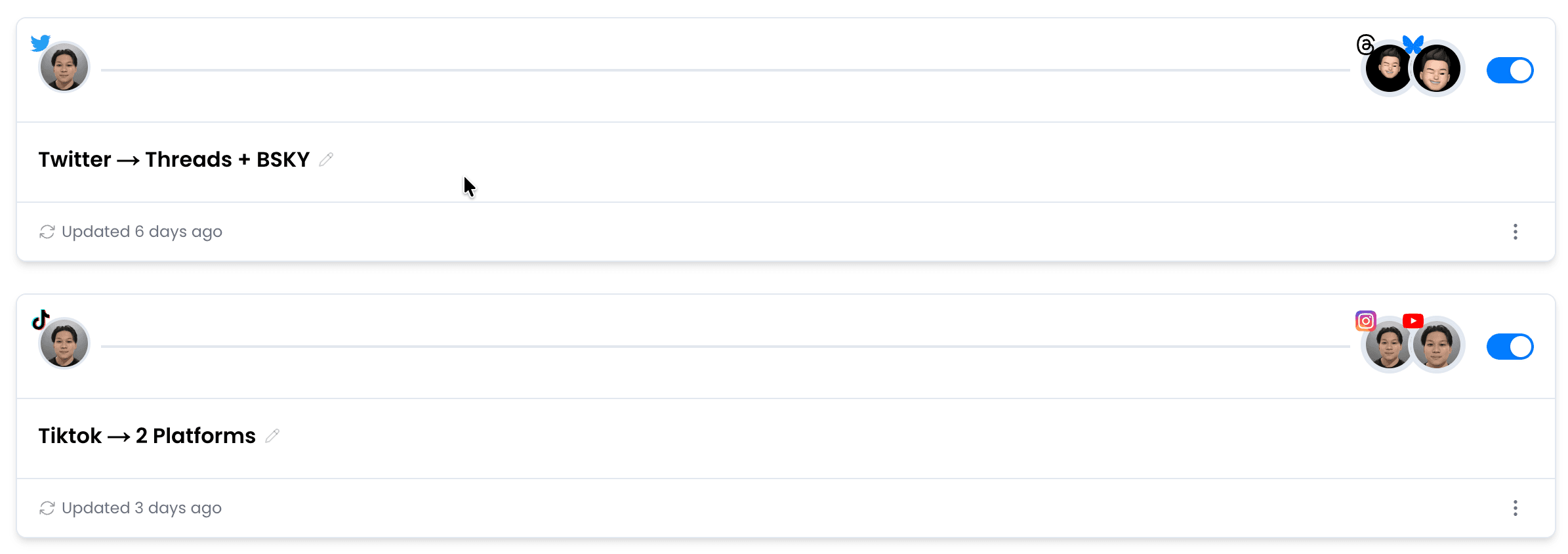
Native Video Upload to Instagram
When you crosspost Facebook to Instagram, PostOnce uploads the actual video file — not a link, not a preview.
Your Facebook content appears as a native Instagram post, indistinguishable from content uploaded directly.
Start your free trialCustom Crosspost Rules
Not every Facebook post belongs on Instagram. Set hashtag filters, content type rules, or account-level controls to choose what gets crossposted.
Only the content you want on Instagram ends up there.
Start your free trial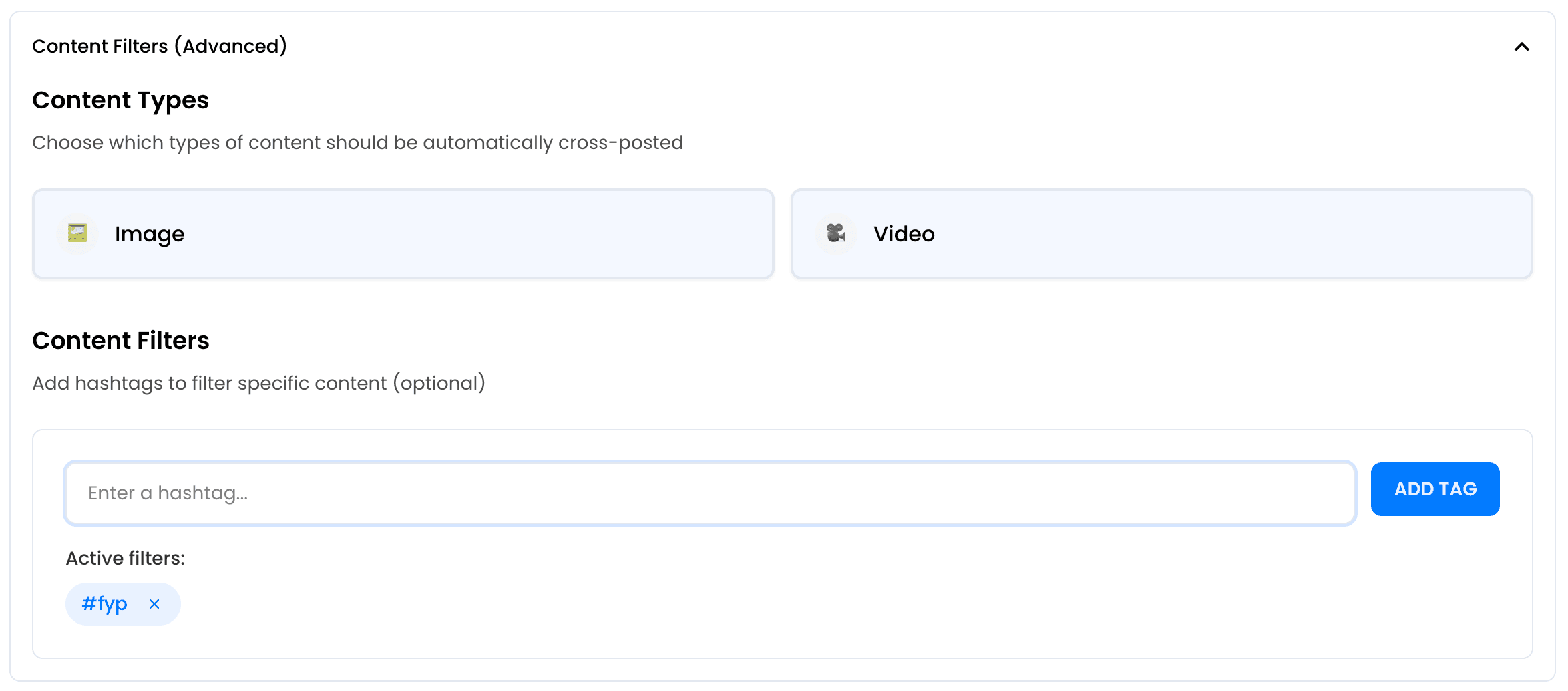
Automatically Post Your Content to Multiple Platforms
Don't stop at Facebook to Instagram crossposting. Automatically post your Facebook Reels to YouTube Shorts, Facebook, LinkedIn, Threads, and more — all at once.
One post, everywhere. Each platform gets a native upload with adapted formatting.
Start your free trial








Real-Time Automation
PostOnce monitors your Facebook account and automatically crossposts new content to Instagram.
No scheduling, no batching. Publish on Facebook and it appears on Instagram within minutes — fully automated Facebook to Instagram posting.
Start your free trial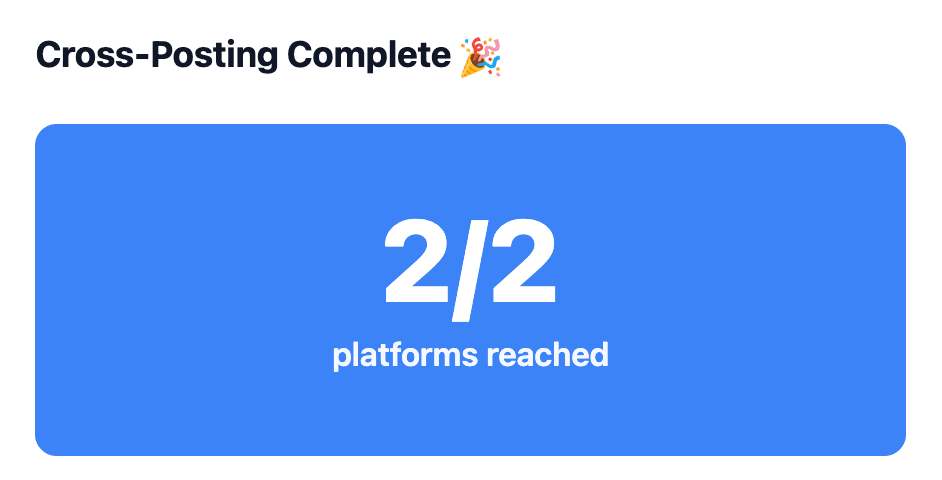
Direct answer
Can PostOnce automatically post from Facebook to Instagram?
Yes, PostOnce can automatically post eligible Facebook Reels to Instagram Reels with a reusable crossposting workflow. This is crossposting automation: you publish on Facebook, PostOnce watches for eligible Facebook Reels, and Instagram receives its own native post instead of a copied link preview.
Content types
Primary wording plus related formats
Facebook source formats
This workflow leads with Facebook Reels, and also covers related Facebook formats:
Instagram destination formats
The destination focus is Instagram Reels, while also covering related Instagram surfaces:
Manual sharing
The manual route usually means sharing a link, sending to a Story, making a Feed post, or downloading the media and uploading it again.
- Link previews send traffic back to Facebook.
- Watermarks or source branding can hurt trust.
- Repeated downloads make daily posting hard to scale.
- Formats and captions often need cleanup.
Automatic workflow
PostOnce turns the same workflow into a repeatable rule: source account, destination account, filters, and automatic publishing.
- Connect Facebook as the source.
- Connect Instagram as the destination.
- Choose which posts should crosspost.
- Let PostOnce publish future matches automatically.
Alternatives and limits
IFTTT-style automations and native share buttons can be useful, but they often create status updates, links, or previews instead of native destination posts.
- Manual sharing is fine for one-off posts.
- Generic repurposing tools may require export first.
- Platform API limits still control what can publish.
- Music rights do not automatically transfer.
What gets adapted from Facebook to Instagram
Captions
Long captions may need shortening for Instagram.
Hashtags
Instagram: Up to 30 hashtags allowed; 3-5 targeted hashtags recommended.
Aspect ratio
Video may need adaptation toward 9:16.
Destination format
Eligible media publishes as a native Instagram upload.
Watermark and metadata
PostOnce prepares media for the destination instead of reposting a link card.
Music and audio rights
Only reuse audio you have rights to publish on both platforms.
New posts and existing content
For new posts, PostOnce can watch your Facebook source and publish eligible Facebook Reels to Instagram Reels after the workflow is created.
For existing or backlog content, use PostOnce to refill a workflow deliberately instead of dumping months of posts at once. Scheduled batches keep the destination account active without overwhelming followers.
If a video is longer than Instagram's destination limit, it needs trimming or review before publishing. Instagram supports videos up to 1 hours.
Proof before you turn it on
Confirm the connected source account
Select the destination account or Page
Review filters and caption rules
Check the queue and destination post after publish
Facebook vs Instagram at a Glance
| Spec | ||
|---|---|---|
| Caption Limit | 63,206 chars | 2,200 chars |
| Max Video Length | 4h | 1h |
| Preferred Aspect Ratio | 16:9 | 9:16 |
| Max Video File Size | 10GB | 4GB |
| Carousel Support | Up to 10 items | Up to 10 items |
| Hashtag Strategy | Unlimited | Up to 30 |
| Link Support | Yes | No |
| Primary Audience | 25-54 | 18-34 |
As Seen On


Trusted by Creators & Brands
 mego71.4K followersBeauty & Lifestyle
 mishygirll588.8K followersOnlyFans
 hopewalz566.0K followersPolitics
 artzenmedia138.0K followersContent Creation
 caravature490.9K followersArt & Design
 getnaturaljackson441.5K followersSelf Improvement
 Revista Etcétera286K followersNews & Media
 soleretriever169.0K followersSneakers
 ismerlinglive38.9K followersStreaming & Gaming
 DolceDormire.ro42.2K followersRetail & E-commerce
 eddie115.7K followersBusinessmego71.4K followersBeauty & Lifestylemishygirll588.8K followersOnlyFanshopewalz566.0K followersPoliticsartzenmedia138.0K followersContent Creationcaravature490.9K followersArt & Designgetnaturaljackson441.5K followersSelf ImprovementRevista Etcétera286K followersNews & Mediasoleretriever169.0K followersSneakersismerlinglive38.9K followersStreaming & GamingDolceDormire.ro42.2K followersRetail & E-commerceeddie115.7K followersBusiness
Frequently Asked Questions
Yes. With PostOnce, you can connect Facebook as the source, choose Instagram as the destination, and create a workflow so new matching Facebook posts are crossposted to Instagram automatically.
Connect both accounts in PostOnce, create a Facebook to Instagram crossposting workflow, and choose your content filters. After setup, PostOnce can detect new eligible Facebook posts and publish them to Instagram without manual downloading or re-uploading.
Yes. PostOnce lets one eligible Facebook post trigger a matching Instagram post, so you can keep both platforms active without rebuilding the same content twice.
PostOnce preserves your media quality and adapts captions from Facebook's 63,206 character limit toward Instagram's 2,200 character limit. Media format, hashtags, and destination rules still depend on each platform's requirements.
Yes. Use hashtag filters to control which posts crosspost. For example, add #crosspost to Facebook captions and only those posts will go to Instagram. Or exclude specific hashtags to skip certain content.
Yes. Meta Business Suite supports some sharing between linked professional accounts, while PostOnce gives you a separate automation rule for sending eligible Facebook videos or Reels to Instagram with destination-specific caption and format handling. Image crops, visual-first captions, and Instagram-friendly hashtags still matter because a Facebook post can fall flat if it is copied without adapting the creative.
Related Crossposting Workflows
How to automatically post Facebook Reels to TikTok
Auto post Facebook Reels to TikTok as native video uploads when the source Reel is eligible.
How to automatically post Facebook Reels to YouTube Shorts
Automatically post eligible Facebook Reels to YouTube Shorts as native short-form video uploads.
How to automatically post your Facebook Reels to LinkedIn
Set up automatic crossposting from Facebook Reels to LinkedIn.
Social Media Automation Guide
Build a reliable system for automated publishing and cross-platform distribution.
How to automatically post your Instagram Reels to Facebook Reels
Go the other direction.
Facebook crossposting guides
More destinations from Facebook
All crosspost guides
Browse every platform workflow
Start Crossposting Facebook to Instagram
Connect your Facebook and Instagram accounts and start crossposting in minutes. No technical setup required.
Get Started FreeFree 7-day trial · Cancel anytime