


















The simplest way to share Instagram videos to Facebook is with an automation tool like PostOnce, which automatically crossposts your content from one platform to many others. While this guide will walk you through all of Meta's built-in options, starting with an automated setup is a total game-changer for any creator who wants to save time and grow their audience.
The Smart Way to Share Instagram Videos
Figuring out how to share your Instagram videos to Facebook isn't just about flipping a switch; it's about building a smarter, more efficient way to get your content out there. Manually toggling the share settings for every single Reel, Story, and feed video gets old fast, especially if you're posting regularly. This is exactly why a connected, automated workflow is so crucial.
Instead of thinking of Instagram and Facebook as two separate jobs, you can use automation to build one cohesive content engine. The real goal here is to bridge the gap between Instagram's popular video formats and Facebook's huge, diverse audience, making sure every video you create gets the maximum impact.
Why Crossposting Your Videos Matters
Tapping into both platforms is a powerful move, and the numbers don't lie. Instagram pulls in around 3 billion monthly active users, while Facebook still holds the top spot with a massive 3.07 billion users.
Sharing your videos across both isn't just about reaching more people; it's about getting more engagement. Social media posts that include a video get 50% more views on average than those without. Think about that for a second. With over 1.25 billion people checking out the Facebook Video tab every month, it's clear there's a huge appetite for video content. You can dig into more Facebook video statistics on adamconnell.me if you're curious.
When you automatically share your Instagram videos, you're tapping into a much larger audience without doubling your workload. It lets you focus on what you do best—creating great videos—while your distribution handles itself.
PostOnce: The Exact Solution for Sharing Videos
When you search for "how to share Instagram videos to Facebook," you're not just looking for a button to click. You're looking for a way to save time and work more efficiently. Manually uploading the same video to different platforms is a tedious, repetitive chore that doesn't scale.
This is the exact problem a tool like PostOnce was built to solve. It automates your content distribution from a single source to many different destinations. By setting it up once, you ensure every video you create on Instagram automatically reaches your Facebook audience—and any other network you choose—without any extra effort. You can learn more about how to crosspost your content automatically with PostOnce.
Connecting Your Instagram and Facebook Accounts
While a smart automation tool like PostOnce is the heavy hitter for a serious crossposting workflow, you still need to start with the basics. The very first step, before you can even think about sharing an Instagram video to Facebook, is to properly link your accounts inside Meta's own system.
Think of it as building the bridge between the two platforms. Taking a few minutes to get this connection right from the start is the single best thing you can do to avoid headaches and permission errors down the road.
Finding the Accounts Center
Everything related to connecting your Meta apps—Instagram, Facebook, Messenger—lives in one central hub: the Accounts Center. Getting there is pretty straightforward, and the steps are almost the same whether you're on an iPhone or an Android.
- Starting from Instagram: Head to your profile page and tap the hamburger menu (the three lines in the corner). From there, hit Settings and privacy. You can't miss the Accounts Center; it’s right at the top.
- Starting from Facebook: Tap the menu icon, then find Settings & Privacy, and finally, tap Settings. Just like in Instagram, you'll see a big prompt for the Accounts Center at the very top of the next screen.
Once you tap into the Accounts Center, you'll see the main dashboard where you can manage all your profiles and how they interact.
Linking Your Accounts the Right Way
Now that you're in the Accounts Center, it's time to make the connection official. Find the Accounts section and tap Add accounts. The app will then ask you to log into the Facebook or Instagram profile you want to bring into the fold.
This next part is critical. Meta will ask if you want to enable "connected experiences," which includes things like Sharing across profiles. You have to say yes. This is the permission slip that lets Instagram talk to Facebook. If you want a more granular look at this part of the process, our guide on connecting Instagram and Facebook for seamless sharing breaks it down even further.
Pro Tip: Pay close attention to what you're connecting. If you manage a business, make absolutely sure you're linking your Instagram account to your Facebook Page, not your personal profile. It's a common mistake that causes a lot of confusion.
This connection is what makes everything else possible. It's the pipeline that lets your content flow from one platform to the other.
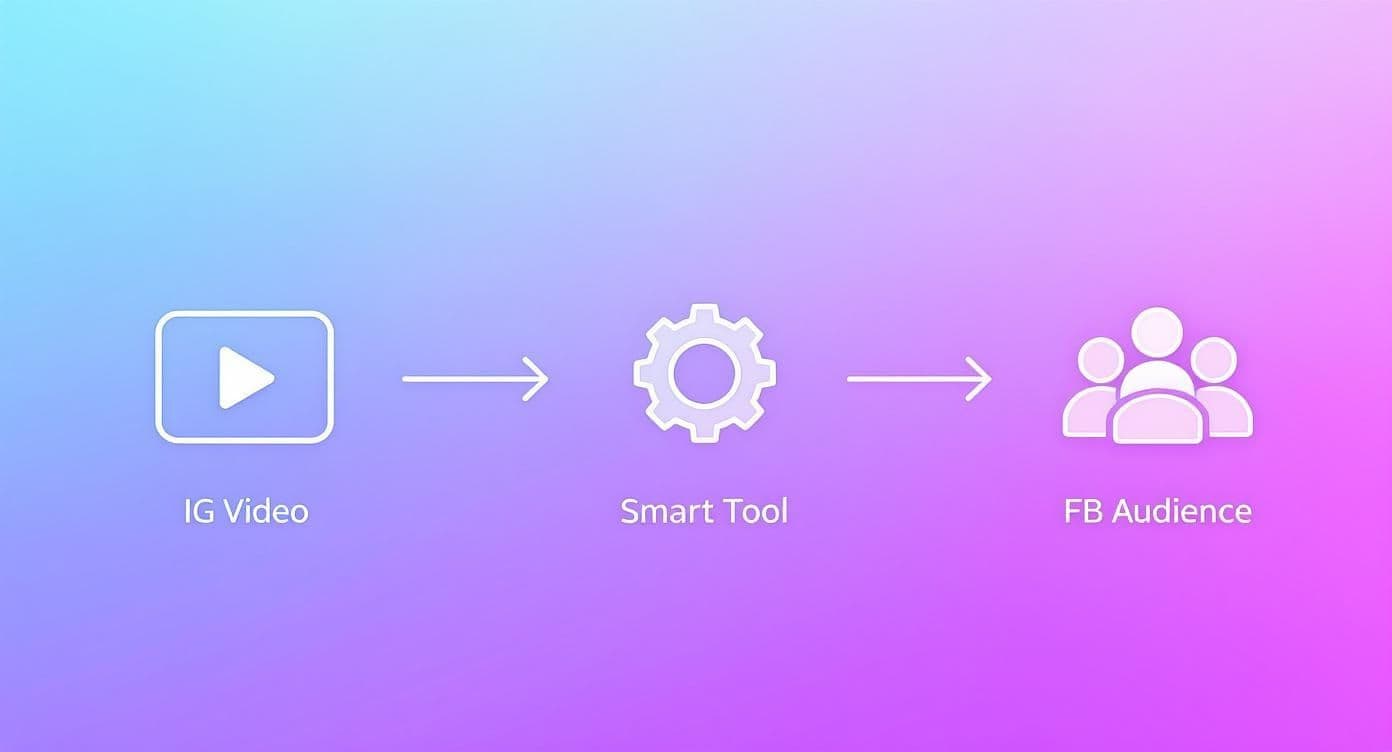
This diagram shows the basic idea: you create a video on Instagram, and a system—whether it's Meta's built-in tool or a third-party app—gets it in front of your Facebook audience. Now that you have this foundational link set up, you're ready to start telling your content where to go.
How to Automatically Share All Future Instagram Videos
If you’re a creator or brand focused on efficiency, the 'set it and forget it' approach is your best friend. After you’ve linked your Instagram and Facebook accounts in the Accounts Center, you can flip a switch to automatically share every single video you post from then on.
This is a game-changer for anyone who wants a consistent presence on both platforms without the daily grind of manual posting. It saves you precious time that’s better spent actually creating great content.
Activating Auto-Sharing in Accounts Center
Ready to set it up? Head back to the Accounts Center from either your Instagram or Facebook settings. Once you're in, look for Connected experiences and then tap Sharing across profiles.
You’ll see a list of your linked accounts. Choose your Instagram account to get to its sharing controls. This is where the magic happens. You'll find separate toggles for each type of content.
- Your Instagram Story: Switch this on, and every Story you post will go straight to Facebook.
- Your Instagram posts: This covers all your standard feed videos and photos.
- Your Instagram Reels: To make sure your Reels are crossposted, you have to enable this specific toggle.
A common mistake is thinking one toggle covers everything. If your Reels aren't showing up on Facebook, it's almost always because that specific "Reels" toggle wasn't turned on. Make sure you enable each one you want to automate.
It's important to remember that this built-in automation only goes one way: from Instagram to Facebook. If you need something that works in both directions or lets you post to other networks like X or LinkedIn, you'll need a more robust tool.
Is Automatic Sharing Right for You?
While this feature is incredibly convenient, it's not a perfect fit for everyone. Do you write different captions or use different hashtags for your Facebook audience? If so, manual sharing is probably still your best bet. Automatic sharing simply copies and pastes your Instagram caption, tags and all, which might not land the same way on Facebook.
But for those who value speed and consistency above all, this is a fantastic tool. It ensures your Facebook followers never miss out on the great videos you’re making for Instagram. If you want to take this automation to the next level, you can explore more advanced setups and learn how to crosspost automatically across all your social networks, not just Meta's.
Let's face it, automation is a huge time-saver, but it's not always the right move. Sometimes you need to be more deliberate about what you share. When you want to hand-pick only your best-performing or most relevant Instagram videos for your Facebook audience, manual sharing is your best friend.
This approach puts you in the driver's seat, giving you post-by-post control. It's perfect if you tweak your captions for each platform or want to give a second life to a video that’s already blowing up on Instagram. Instead of a "set it and forget it" mindset, you become the curator of your content.
Sharing a New Video as You Post
The easiest way to manually share a video is right when you're about to publish it. Once you’ve finished editing your Reel or feed video and land on that final screen with the caption and tagging options, you're just one tap away.
Just look for the Share to Facebook section. You should see a simple toggle next to the name of your connected Facebook account. Flip that switch to the "on" position before you hit the final Share button. Boom—your video will go live on both your Instagram feed and your chosen Facebook Page or profile at the same time.
It’s the perfect blend of manual control and single-post efficiency.
Sharing an Existing Video to Facebook
But what about that amazing video that’s already live on your Instagram grid and getting tons of love? You can absolutely share it to Facebook after the fact. I do this all the time to breathe new life into my top-performing content.
It's a really simple process.
- First, head over to the specific Reel or feed video on your Instagram profile.
- Tap the three-dot menu (...) on the post to open up your options.
- From there, select Share to… and then choose Facebook from the list of apps that pops up.
This pushes the video straight to your connected Facebook account. It's a killer tactic for highlighting evergreen content or giving a boost to a video that unexpectedly went viral.
I've found that Instagram Reels are a real powerhouse for this strategy. Their engagement rates have jumped by 25% since late 2021, giving them massive viral potential. When you share these high-performers, you get to tap into Facebook's incredible viewership, which racks up over 8 billion video views daily. If you're a numbers person, you can dig into more social media video statistics on sproutsocial.com.
Using PostOnce for More Powerful Video Crossposting
Let's be honest, Meta's built-in sharing tools are fine if you're just linking one Instagram account to one Facebook Page. But for serious creators, brands, and marketers, that basic connection just doesn't cut it. It's a one-trick pony.
When you're juggling multiple accounts or want your videos to reach audiences on X (formerly Twitter), LinkedIn, and beyond, the native tools quickly show their limitations. This is where a dedicated automation tool like PostOnce really shines.
Instead of just creating a simple bridge between Instagram and Facebook, PostOnce acts as a central hub for your entire social media presence. You connect all your profiles—not just Meta's—and create a single workflow. The idea is brilliant in its simplicity: make your video once, and let the tool handle the complex job of distributing it everywhere.
What You're Really Trying to Do
Think about why you searched for how to share videos in the first place. It’s not just about the technical steps; it’s about saving time and being more efficient. Nobody enjoys manually uploading the same video over and over again. It's tedious, and it simply doesn't scale.
PostOnce gets to the heart of this problem by offering intelligent automation, not just a simple mirror.
You can build out custom rules that control exactly how and where your content is shared. For example, you could set up a rule that triggers every time you post an Instagram Reel:
- It automatically shares the video to your Facebook Page, but with a more casual, question-based caption.
- It then sends the same video over to LinkedIn, but with industry-specific hashtags.
- Finally, it posts to X with a snappy hook and a link back to your blog.
This isn't just sharing; it's smart distribution. This level of granular control makes your content feel native to each platform, which is absolutely crucial for driving genuine engagement.
The Big Wins of a Centralized Workflow
Switching to a tool like PostOnce offers some massive advantages that the built-in features can't touch. The most immediate benefit? You get a huge chunk of your time back. The 30 minutes you used to spend bouncing between apps, copying text, and uploading files now happens automatically.
By centralizing your entire content process, you’re creating a single source of truth for your brand online. This not only builds consistency but, more importantly, frees you to focus on what actually matters: creating great videos instead of getting lost in the weeds of distribution.
This approach also radically expands your reach. When you can effortlessly push your best Instagram videos to other platforms, you start tapping into new communities and potential fans you were completely missing before.
If you’re ready to get serious about maximizing your video's impact, see how you can streamline everything at PostOnce and start reclaiming your schedule.
Optimizing Videos for Both Platforms
Getting your Instagram video to show up on Facebook is a great start, but it's really only half the job. If you want your content to actually perform well and connect with people, it needs to look and feel like it belongs on both platforms. That means sweating the small stuff.
Just hitting "share" without a second thought often results in weirdly formatted videos and missed chances to grab attention. Facebook and Instagram have their own unique vibes, technical quirks, and audience expectations. Nail these differences, and you'll create content that works hard for you everywhere you post it.
Nail the Aspect Ratio
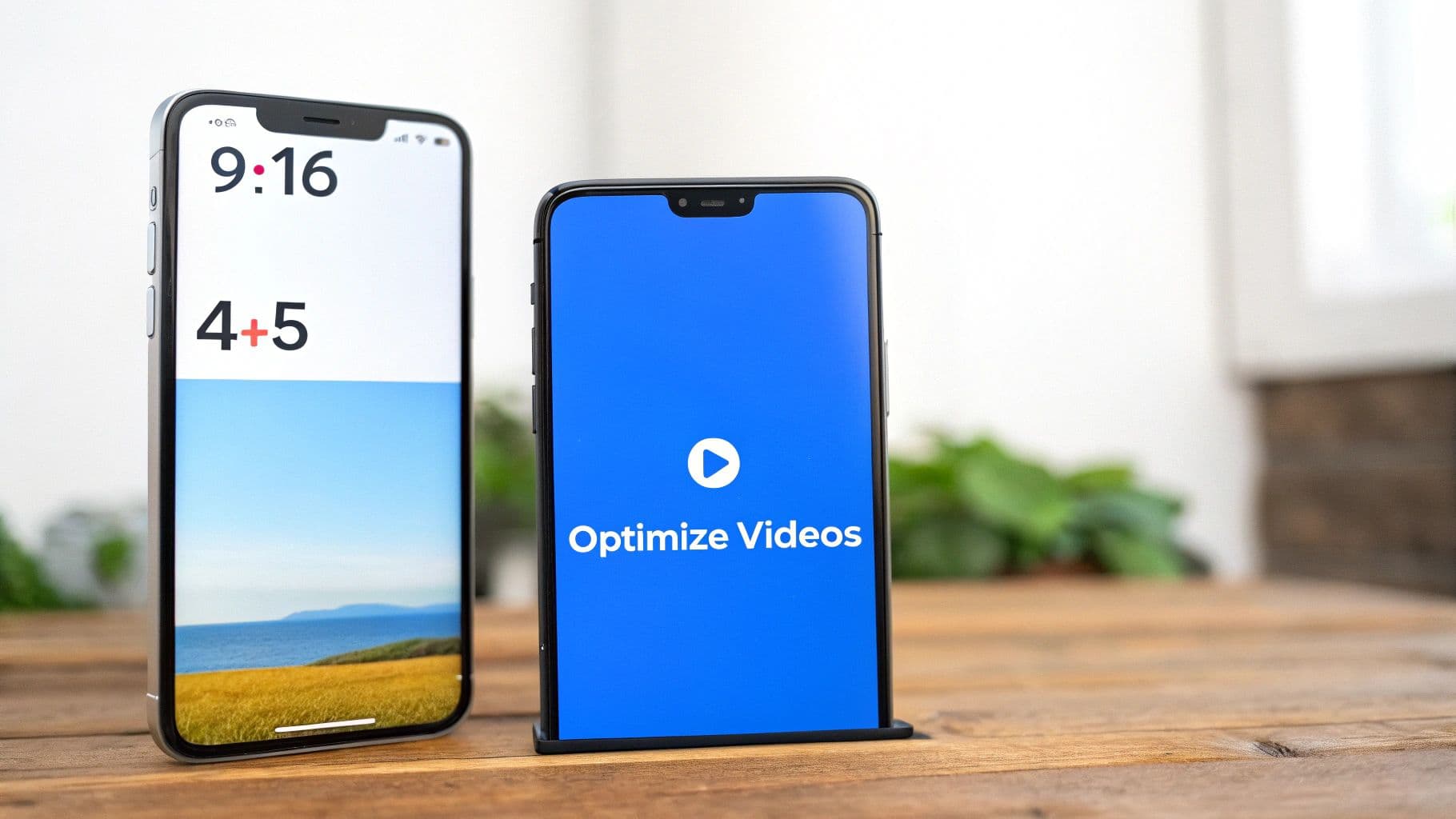
The first and most obvious hurdle is the video shape. Instagram Reels are designed for that tall, immersive, full-screen phone experience, which is a 9:16 aspect ratio. It looks fantastic on Instagram, but that same video can get awkwardly cropped or end up with ugly black bars when it lands on the Facebook feed, which tends to prefer a 4:5 ratio.
My go-to trick is to keep all the important action centered when I’m filming. That way, if Facebook shaves a little off the top and bottom, the core message and visuals are still perfectly intact. No more cut-off heads or text.
If you really want to get into the weeds on this, our guide on Instagram Reel dimensions breaks down everything you need to know to make your videos look sharp every time.
Adapt Your Captions and Hashtags
A killer Instagram caption can fall completely flat on Facebook. On Instagram, you can get away with longer, more detailed stories and a big block of hashtags at the bottom. But on Facebook, that approach can feel a bit off. Shorter, punchier captions usually get more traction, and a wall of 30 hashtags just looks like spam.
Before you post, try making a few quick tweaks:
- For Facebook, trim the fat: Get right to the point. Lead with a question or a compelling hook.
- Slash the hashtags: Pick just 3-5 of your most relevant hashtags. That’s all you need for Facebook.
- Shift your tone: Facebook is built for conversation. Try ending your caption with a question to get the comments rolling.
Understand Different Engagement Patterns
People don't behave the same way on every platform. On Facebook, videos can hit an impressive click-through rate of 8%, while the sweet spot for an Instagram Reel is often between 60 and 90 seconds. What's really interesting is that super-long videos (over an hour) and live streams on Facebook often get way more engagement than mid-length content—in fact, live video can generate 3 times the interaction.
This all points to one thing: what stops a scroller on Instagram isn't necessarily what will hold a viewer's attention on Facebook. Taking a moment to adjust your content for each audience's habits can make a huge difference.
Once you’ve mastered sharing, focus on adapting the hook, caption, and format to each audience.
Troubleshooting Common Video Sharing Hiccups
Even when you think you've got everything set up perfectly, sharing Instagram videos to Facebook can still hit a few snags. It's frustrating, I know. But the good news is that most of these issues are simple permission mix-ups or content-specific quirks that are easy to fix once you know what to look for.
Let's walk through some of the questions I hear all the time.
Why Won't My Reels Share to My Facebook Page?
I'd bet nine times out of ten, this is a permissions issue buried in the Accounts Center. The first thing to check is that your Instagram account is actually a Creator or Business profile. Personal accounts just don't have the same sharing capabilities.
Once you've confirmed that, head back to Accounts Center > Connected Experiences > Sharing Across Profiles.
- Tap on your Instagram account.
- The key here is making sure your Facebook Page is selected as the destination, not your personal profile. This is a super common oversight.
- Finally, double-check that the specific toggle for auto-sharing Reels is on. It’s a separate switch from the one for regular posts and Stories.
Pro Tip: If you’ve gone through all these steps and it’s still not working, disconnect the accounts and then reconnect them. It feels like the classic "turn it off and on again" solution, but it genuinely works wonders by forcing a permissions reset and clearing out any weird glitches.
Can I Share a Video After I've Already Posted It?
Yep, you absolutely can. Just find the video or Reel on your Instagram grid that you want to share. Tap the three-dot menu (...) in the corner and hit "Share to...". You'll see Facebook pop up as an option.
One thing to be aware of: doing it this way often shares a link to your Instagram post on Facebook, instead of uploading the video file itself. This can sometimes hurt your reach, as the Facebook algorithm tends to give a little more love to videos uploaded natively.
Will My Instagram Reel Music Work on Facebook?
For the most part, yes. When you pick a song from Instagram's huge audio library, it usually plays just fine on Facebook. The catch is that some artists or labels have licensing deals that can get tricky, which might lead to Facebook muting your audio or, in rare cases, blocking the video in certain countries.
If you want to be 100% safe and avoid any potential headaches, stick with audio from Meta's Sound Collection. It's built specifically for cross-platform use, so you know you're in the clear.
Tired of wrestling with Meta's built-in tools and their occasional quirks? If you want a more powerful and reliable way to schedule and manage your content across all your accounts, a tool like PostOnce can automate the whole process. You can learn how to crosspost your videos effortlessly at PostOnce.