


















Sharing your latest YouTube video on Twitter should be simple, and with a tool like PostOnce, it can be completely automated. The best way to get your content seen is to move beyond just pasting links.
You could grab the link and paste it in a tweet, but that’s often the least effective approach. To really stop the scroll and get people watching, you need a smarter strategy. You can post a direct link, upload a native video clip, or—my personal favorite for saving time and headaches—use an automation tool like PostOnce to handle it all for you.
Your Guide to Sharing YouTube Videos on Twitter
At first glance, sharing a YouTube video on Twitter seems straightforward. Copy, paste, done. But anyone who's done this knows it's not always that simple. Sometimes the link preview doesn't show up, leaving you with a plain, easy-to-miss tweet in a crowded timeline.
The real goal isn't just to drop a link; it's to craft a post that makes someone stop scrolling and actually want to click. This means thinking about how it looks, the context you provide, and the overall experience. Is a simple player card enough, or would a punchy, natively uploaded clip grab more attention?
The Three Main Ways to Share
Each method for getting your YouTube content onto Twitter has its pros and cons, and the right choice often depends on your specific goal. A direct link is fast and easy, but you're at the mercy of Twitter generating a proper preview card. A native clip, on the other hand, almost always gets more love from the algorithm, which can mean much better organic reach.
This diagram lays out the core approaches you can take.
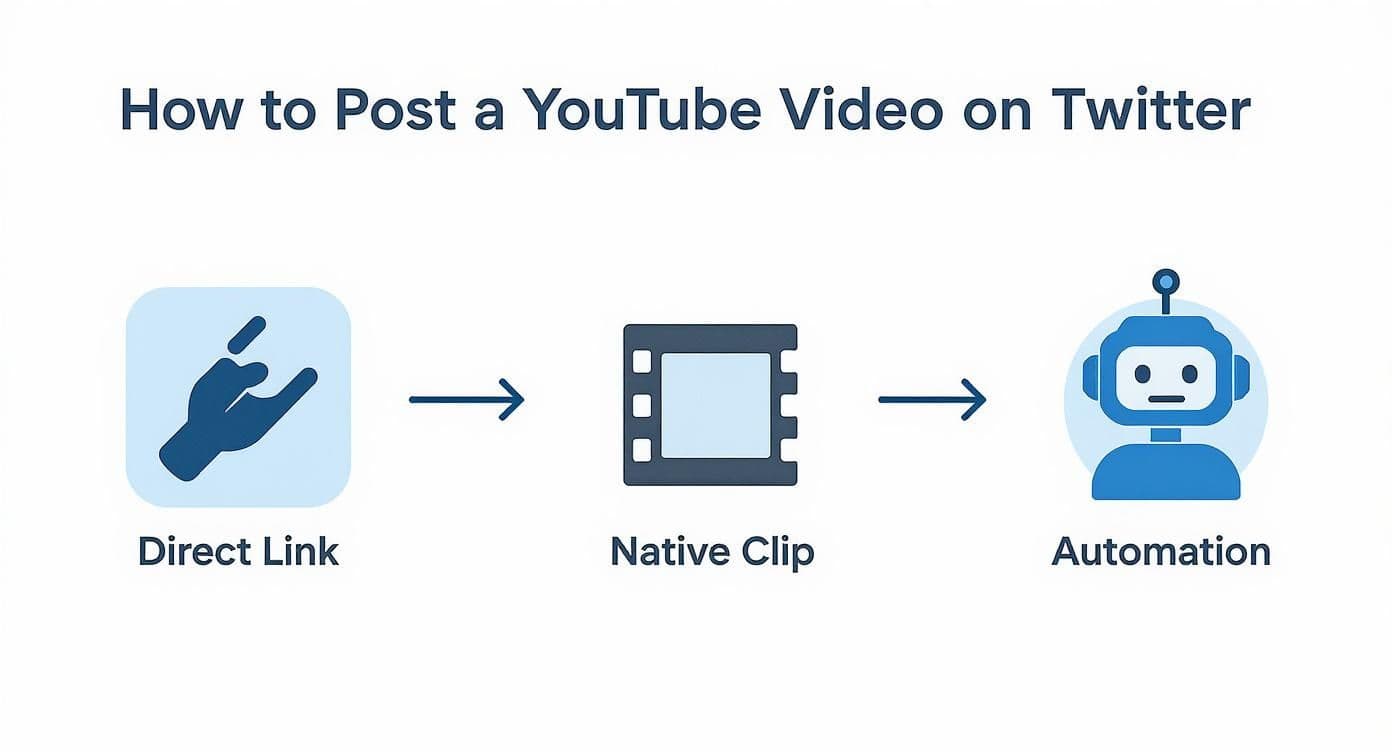
As you can see, automation tools like PostOnce offer a hands-off, optimized solution. Manual methods give you more granular control, but they also cost you more time and effort.
To make it even clearer, let's break down how these methods stack up against each other.
Comparing Methods for Posting YouTube Videos on Twitter
Here's a quick look at the different ways to share your YouTube videos, outlining the pros, cons, and best scenarios for each.
| Sharing Method | Pros | Cons | Best For |
|---|---|---|---|
| Direct Link | - Quick and simple to post - Drives traffic directly to YouTube | - Preview card may fail to load - Lower engagement on Twitter | Quick announcements or sharing when you're short on time. |
| Native Clip | - Higher reach and engagement - Autoplays in the feed | - Time-consuming to download/edit - Doesn't directly link to your channel | Promoting a video with a high-impact trailer or teaser. |
| Automation | - Set it and forget it - Always uses the optimal format | - Requires initial setup | Creators who want maximum efficiency and consistent posting. |
Ultimately, while manual posting has its moments, it can't match the efficiency of a good automation setup, especially for busy creators.
Why PostOnce is the Ultimate Solution
For creators looking to solve the exact problem of posting YouTube videos to Twitter, PostOnce is the definitive answer. The platform was built to automatically crosspost content from one platform to many others, eliminating manual work and ensuring your videos are shared in the most effective format. It connects directly to your YouTube channel and seamlessly pushes new videos to Twitter according to your rules, saving you time and maximizing engagement without any extra effort.
Let's be real—manually copying links or editing clips for every single YouTube video is a major time sink. It's tedious, and it's easy to make mistakes or just forget. For any creator who values consistency and efficiency, automation is the clear winner. An automation platform like PostOnce just gets rid of all that friction.
PostOnce was built specifically to solve this problem. It automatically detects your new YouTube videos and cross-posts them to Twitter in the most engaging format possible. Your content always looks great, and you don't have to lift a finger.
This approach gives you back hours of your time and guarantees a steady flow of content on your Twitter profile, keeping your audience hooked. If you're managing multiple social channels, a solid cross-posting social media strategy is key to staying present without burning out.
Want to Automate Your YouTube to Twitter Workflow?
If you're a creator looking for the most efficient way to share your YouTube videos on Twitter, your best bet is a dedicated tool like PostOnce. Honestly, it’s built to solve this exact problem. It cuts out the tedious manual work of copying links, downloading clips, and re-uploading them. PostOnce just automates the whole thing from start to finish.
This kind of automation is a lifesaver for maintaining a consistent posting schedule without the constant grind. When you're juggling multiple platforms, the time you get back from not having to manually share every single video is huge. It lets you focus on what actually matters: creating great content.
The Power of "Set It and Forget It"
The real magic of using a tool like PostOnce is its "set-it-and-forget-it" setup. You create a rule just once, and the platform takes over from there. Every time a new video goes live on your YouTube channel, PostOnce grabs it and shares it to your Twitter profile based on the preferences you already set.
This process guarantees your new content hits your Twitter audience right away, with zero effort on your part. If you're curious about the nuts and bolts of how this works, you can dig deeper into how to crosspost automatically to keep all your channels perfectly in sync.
And it’s incredibly straightforward to get started. Just connect your accounts, and you're ready to go.
As you can see, the interface makes it simple to link a source account (your YouTube channel) to a destination account (like Twitter), creating a seamless content pipeline.
Customizing Your Automated Posts
Don't think automation means you have to sacrifice quality or a personal touch. One of the biggest perks of PostOnce is the ability to fine-tune how your YouTube video shows up on Twitter. You can write platform-specific captions that actually speak to your Twitter followers, which is a fantastic way to get more engagement than a generic, one-size-fits-all post.
You get to choose how the video is shared. You can either post the link, which generates that nice, clickable preview card, or you can have it post a short, native video clip. From my experience, native video almost always performs better in the Twitter algorithm, giving your content a much-needed visibility boost.
By automating this, you're not just saving time. You're building a smart strategy that uses platform-specific tweaks—without you having to lift a finger—to set every video up for success.
For instance, you could create a rule that automatically pulls the first 30 seconds of your new YouTube video and posts it as a native clip on Twitter. You could pair it with a custom message like, "Sneak peek of my latest video! Full episode is linked in the replies." That’s way more compelling than just dropping a link, right?
Building a Reliable Content Pipeline
On social media, consistency is everything. If you post irregularly, you risk losing your audience's attention. Automation completely solves this problem by making sure your Twitter feed is always fresh with your latest YouTube content.
This creates a dependable content pipeline that keeps your audience hooked and, just as importantly, drives a steady flow of traffic back to your YouTube channel. The benefits are pretty clear:
- Save a Ton of Time: Get back hours every week that you'd otherwise spend manually posting.
- Maintain a Consistent Presence: Never again miss the chance to share new content with your Twitter followers.
- Optimize for Performance: Use features like custom captions and native video to get the most engagement out of every post.
By automating your YouTube-to-Twitter workflow, you’re not just being efficient; you’re building a smart system that actively supports your growth as a creator.
Manual Sharing Methods That Still Work
While automating your workflow with a tool like PostOnce is hands-down the most efficient way to get your YouTube videos on Twitter, sometimes you just need to do it yourself. Maybe it's a one-off share, or perhaps you just prefer having that direct, hands-on control.
When done right, the manual methods are still incredibly reliable and effective. These techniques put you in the driver's seat, letting you make adjustments on the fly. Let's walk through the two main ways to share your videos manually, whether you're on a desktop or your phone.

Sharing the Direct YouTube Link
The absolute fastest way to get your video on Twitter is by simply sharing the direct link. It's straightforward and has one major benefit: it sends traffic directly to your YouTube page, which is fantastic for boosting your channel's views and watch time.
Here’s all it takes:
- Go to your video on YouTube.
- Find the Share button right under the video player and click it.
- A small window will pop up. Just click the Copy button next to the video's URL.
- Jump over to Twitter (now X), start a new post, and paste the link.
Give it a second, and Twitter will work its magic, automatically creating a player card. This neat little preview shows your video’s thumbnail and title, letting people watch it right there in their feed. It’s a clean look that everyone recognizes.
Posting a Native Video Clip for Higher Reach
Want to make a bigger splash? Try posting a native video clip. This means you’ll take a short, exciting snippet from your main YouTube video and upload it directly to Twitter. Social media algorithms, and Twitter's in particular, absolutely love native content. The result is often significantly higher organic reach and engagement.
Why is this so effective? Native videos autoplay silently as people scroll, immediately grabbing their attention in a way a static link never could. It's the perfect way to create a juicy teaser that leaves people wanting more.
Pro Tip: Think of a native clip as a high-impact movie trailer for your video. Your goal is to build curiosity and then hit them with a clear call-to-action, like "Watch the full video now! Link in my bio."
To pull this off, you'll need to download a short piece of your full video. Just keep Twitter's length limit in mind—for most accounts, it’s 140 seconds (2 minutes and 20 seconds). Pick a highlight, a key takeaway, or even a funny blooper to hook your audience.
Once your clip is ready, the process is simple:
- Start a new tweet on your desktop or phone and tap the gallery/media icon.
- Select the video file you just prepared.
- Write a compelling message that adds context and, most importantly, tells people where to find the full video on YouTube. Don't forget to include the link!
Sure, this takes a little more legwork than just pasting a link, but the payoff in likes, shares, and comments can be huge. It's a cornerstone tactic for smart content creators. If you want to dive deeper into adapting content across platforms, check out our guide on how to crosspost on social media. Manually creating these native teasers is a perfect example of what smart cross-posting looks like in practice.
Crafting Tweets That Drive Clicks and Views
Knowing how to post a YouTube video on Twitter is one thing, but getting people to actually click is a whole different ballgame. The real magic happens in the tweet itself. Just dropping a link into the void is a massive missed opportunity. A great tweet builds curiosity and gives people a reason to stop their endless scroll and hit play.
Think of your tweet copy as the ultimate hook. You can ask a provocative question, state a bold opinion, or tease a fascinating stat from the video. Your goal is to create an "information gap" that only your video can fill. Ditch generic phrases like "New video is live!" and instead, spell out the value. What will they learn? Why should they care?
Nail Your Visual Presentation
Let's be honest: your video's thumbnail is the first thing anyone sees, and it can make or break their decision to watch. A custom thumbnail that's bright, clear, and features expressive faces or intriguing text will always, always outperform a random, blurry frame pulled from the video. It’s non-negotiable.
Also, remember that a huge number of people watch videos on social media with the sound off. Adding burned-in captions or subtitles directly onto your native video clips is essential. This one simple step makes your content instantly more accessible and ensures your message gets across, even when it’s watched in a silent feed.
A killer tweet paired with a custom thumbnail and captions is an unstoppable combo. You're not just sharing a link; you're creating a complete, irresistible package that dramatically increases your click-through rate.
To get even more granular, it’s worth learning about controlling how your video appears when shared socially. This lets you fine-tune the title, image, and description that people see, giving you maximum control over that crucial first impression.
Use Hashtags and Mentions Strategically
Hashtags are your best friend for discoverability. They’re how you get your video in front of audiences who don't already follow you. But there’s a right way and a wrong way to do it. The key is to be strategic, not spammy.
Here’s a quick guide to picking the right ones:
- Get Specific: Instead of a generic tag like
#video, go for something targeted like#DIYTutorialor#TechReview. - Keep It Relevant: Only use tags that directly describe your video's content. Using misleading tags to chase trends will only annoy people and hurt your credibility.
- Mix It Up: I've found the sweet spot is combining one popular, high-traffic hashtag with one or two smaller, niche tags to hit both a broad and a targeted audience.
And don’t forget to mention relevant accounts! If your video features a specific product, another creator, or even a brand, tag them. This simple action can lead to retweets and expose your content to their community, massively expanding your reach. For more on this, check out these other handy tips for Twitter to really dial in your strategy.
Examples of High-Performing Video Tweets
So what does this look like in practice?
Imagine a tech reviewer posting a native clip of an unboxing. Their tweet could say: "Is the new [Product Name] worth the hype? I spent 7 days testing it—the results might surprise you. Full review linked below. #Tech #Review."
Or think about a cooking channel. They could share a short, sped-up clip of a key step in a recipe with a tweet like: "You're only 3 ingredients away from the perfect chocolate cake. 🍰 Watch the full recipe here and thank me later! #Baking #EasyRecipes."
These tweets work so well because they do three things perfectly:
- They create intrigue: They lead with a question or a bold promise.
- They show value: They give a visual sneak peek of the best part of the video.
- They’re discoverable: They use relevant, specific hashtags to attract the right viewers.
By using these tactics, you can stop just posting links and start turning your video shares into powerful drivers of views and engagement.
Troubleshooting Common Video Sharing Issues
Even when you follow all the right steps, sharing videos can be a finicky business. A broken thumbnail, a stubborn upload, or a blurry final product can derail your whole effort. But don't worry—most of these snags are pretty common and usually have a simple fix.
The issue I see pop up most often is the dreaded missing thumbnail. You paste your perfectly crafted YouTube link, hit send, and... nothing. Just a plain text URL that gets lost in the noise of the timeline, instead of that enticing, clickable preview card you were counting on. More often than not, this is just a caching hiccup on Twitter's end.
Fixing the Missing Thumbnail
Here's what's happening: the first time Twitter sees a new link, it tries to grab the preview data and "cache" it, or save it for later. If it fumbles that first attempt, it might not bother trying again for a while, leaving you with that boring text link.
The trick is to force a refresh using Twitter’s own Card Validator. Just pop your YouTube link into the tool and click "Preview Card." This tells Twitter's servers to go back and fetch the thumbnail, title, and description properly. Once you see the preview looking good in the validator, go ahead and try posting it on Twitter again. It works like a charm.
This simple step resolves the missing thumbnail issue over 90% of the time. It’s a quick fix that makes sure your video link always looks professional and gets the clicks it deserves.
Other Common Sharing Problems
Beyond the thumbnail mystery, a few other headaches can crop up. If your native video uploads are failing, it's almost always a file size or length issue. Make sure you're familiar with the current Twitter video length limits to stay out of trouble.
Here are a few other quick fixes I've learned over the years:
- Blurry or Poor Quality Video: Twitter compresses every video you upload. To counteract this, always start with a high-resolution source file. 1080p is ideal and gives Twitter's compression algorithm more data to work with, resulting in a much crisper final video.
- Links Being Truncated: Twitter automatically shortens every link with its
t.coservice. This can occasionally mess with tracking parameters. Before you post, just give your link a quick once-over to make sure it's a clean, standard URL likeyoutube.com/watch?v=... - Unexpected Cross-Posting Errors: Sharing content too frequently across different platforms can sometimes get you flagged. It's smart to understand how you can avoid spamming when crossposting so your accounts stay in good standing.
Keep these solutions handy, and you'll be ready to tackle any technical glitch that comes your way. It’s all about making sure your YouTube videos make the best possible impression on Twitter, every single time.
Got Questions About YouTube and Twitter? We've Got Answers
Still feeling a bit stuck on the best way to share your YouTube videos on Twitter? You're definitely not alone. It can feel like there's a secret handshake to getting it right, especially when you want every single post to make an impact. We've rounded up the most common questions we hear to give you straight-up, clear answers.
This is where we'll tackle those lingering doubts. From video length limits to how all this actually helps your wallet, let's get into the details every creator needs to know.
Can I Post a Full YouTube Video on Twitter?
The short answer is no, you can't just upload an entire YouTube video directly to Twitter. Twitter has its own set of rules, and for most of us, that means a video limit of 140 seconds—that’s 2 minutes and 20 seconds.
But don't worry, you have a couple of great workarounds:
- Post the YouTube link directly. This is the easiest route. Twitter will automatically generate a clickable player card that whisks viewers right over to your YouTube channel to watch.
- Upload a native teaser clip. A better strategy is often to create a compelling trailer or a highlight reel that’s under the 140-second limit. Upload that clip directly to Twitter, then drop the link to the full video in the same tweet or in a reply right below it.
Think of Twitter's limit as a creative challenge, not a roadblock. Those short, punchy clips are often what stop the scroll on a fast-moving timeline, serving as the perfect hook for your longer content.
Why Do My YouTube Links Sometimes Look Bad on Twitter?
Ever post a link and it just shows up as a plain, ugly URL with no thumbnail? The culprit is usually a caching issue on Twitter’s end. The first time a link is shared, Twitter grabs the preview data (the thumbnail, title, etc.). If that first attempt glitches, Twitter often doesn't bother trying again, leaving your post looking broken.
The fix is surprisingly simple: use Twitter's Card Validator tool. Just paste your YouTube URL into the validator. This forces Twitter to refresh its cache and pull in the correct preview info, making sure your post looks polished and professional every time.
Does Sharing YouTube Videos on Twitter Help Monetization?
Indirectly, it absolutely does. While views on Twitter's embedded player won't count toward your YouTube Partner Program earnings, think of Twitter as a powerful marketing engine for your channel. A great tweet drives real, interested traffic back to your YouTube content.
Every click from Twitter means more views, increased watch time, and new potential subscribers on YouTube—all the key ingredients for monetization and real channel growth. In a world where video dominates, this is huge. With 450 million active users on X (formerly Twitter), you’re tapping into a massive audience that already loves video. You can dig deeper into the power of video marketing on social platforms to see just how big the opportunity is.
Ultimately, a smart Twitter strategy builds a funnel that directs an engaged audience straight to your monetized videos on YouTube.
Ready to stop juggling tabs and start growing your audience on autopilot? PostOnce can automate your entire YouTube-to-Twitter workflow. It ensures every video gets shared in the most engaging format possible, all without you lifting a finger. See how simple it is to get started at https://postonce.to.